12 Software description
CyFlow
®
Cube 8 | Operating Manual | May 2018 | Revision 032 175
Creating overlay plots
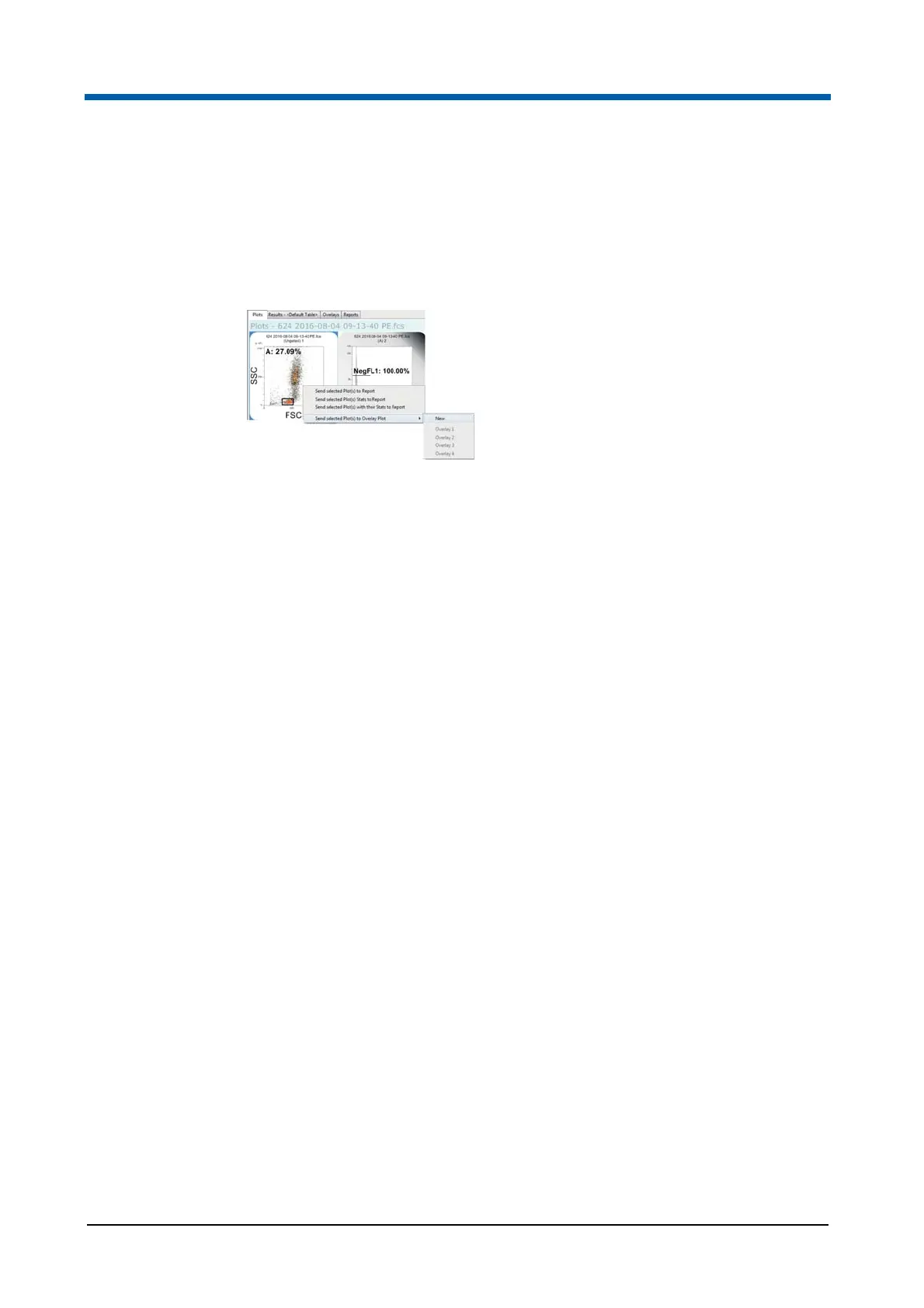
A new overlay plot is created by sending plots from the Plots tab of the
Workspace to the Overlays tab. Select the required plot(s) in the Plots area
of the Workspace. Right-click to open a context menu and select "Send
selected Plot(s) to Overlay Plot". A context submenu is displayed.
From the submenu, select the desired option:
To add the plots to a new overlay plot, select "New". An overlay plot
cannot contain both single and dual parameter plots. If you have selected
both types of plot, a new overlay plot will be created for each type.
To add new plots to an existing overlay plot, select the desired overlay
plot in the context submenu. More than one instance of a plot cannot
exist in an overlay plot, therefore if the currently selected plot(s) already
exist in an overlay plot, that plot is disabled in the context submenu. An
overlay plot cannot contain both single and dual parameter plots. Any
overlay plots to which the currently selected plots cannot be copied are
disabled in the context submenu.
Plots can also be added to a selected overlay plot by using the Insert Plot
button on the Overlay tab of the Ribbon (see chapter Plots group on
page 113).
Plot views
If zoom and scale settings exist in the plot from the Plots area, these will be
persisted in the overlay plots.
If any of the source plots are unavailable after the associated item has been
processed, an exclamation mark will be displayed on the overlay plot in front
of all other successfully calculated data sources within the overlay.
If background calculation is turned off, a warning icon will be displayed in the
bottom right-hand corner of any overlay plot that contains a source plot in an
unknown state. Hovering over it will display a tooltip indicating that
background calculation needs to be turned on.
Overlay plots can be displayed in 3D using the 3D Mode button on the
Overlay Format tab of the Ribbon (see chapter Overlays group on
page 133). In 3D mode, plots are displayed as three-dimensional at a
specified angle and will be equally distributed. The plot can be rotated using
the Angle (deg.) button on the Overlay Format tab of the Ribbon.



 To Next Page