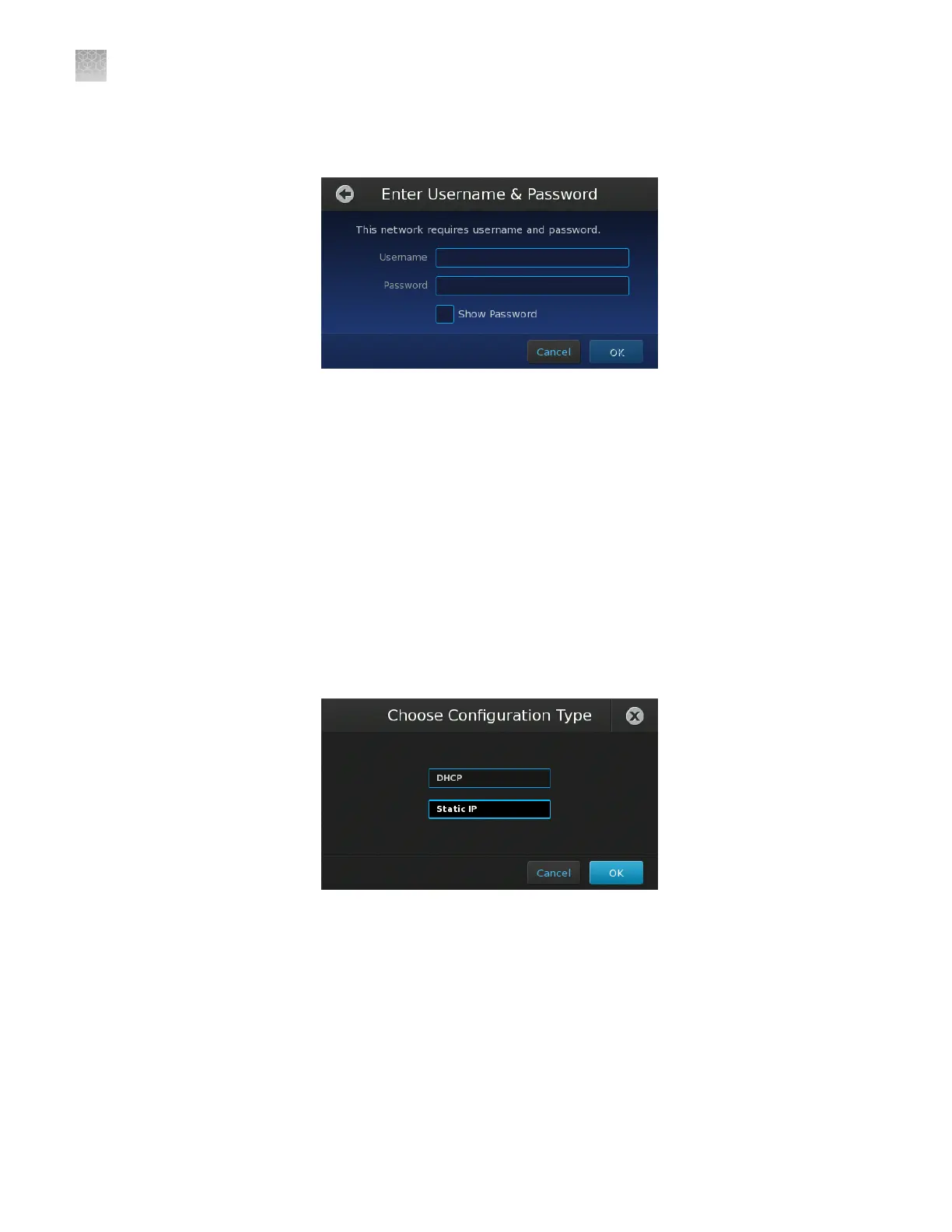
d.
If your selected wireless hotspot is secure, enter the required authentication
information (user name/password), then touch OK.
If connecting your instrument to a network that supports DHCP, network setup is
complete. Otherwise, go to the next step to congure the TCP/IP settings for the
instrument.
6.
Set the internet protocol (TCP/IP) properties for the QuantStudio
™
3D
Instrument:
a.
In the Network Setup screen, touch Edit Settings.
b.
In the Network Setup settings, touch the IP Configuration eld, touch the
setting appropriate for your network (Static IP or DHCP), then touch OK.
•
DHCP – Select to allow your network DHCP server to automatically
assign an IP address to the instrument.
•
Static IP – Select if you have a static IP address to assign to the
instrument.
Appendix D Networking
Connect the instrument to the network
D
100
QuantStudio
™
3D Digital PCR System User Guide










 To Next Page