3.
Choose the appropriate option:
If connecting your instrument to a… Action
Wired network that supports DHCP Network setup is complete.
Note: The QuantStudio
™
3D Instrument
is pre-congured for DHCP operation
and automatically joins the network
when connected.
•
Wireless network
•
Wired network with specic
requirements (such as static IP
operation)
Go to step 4.
4.
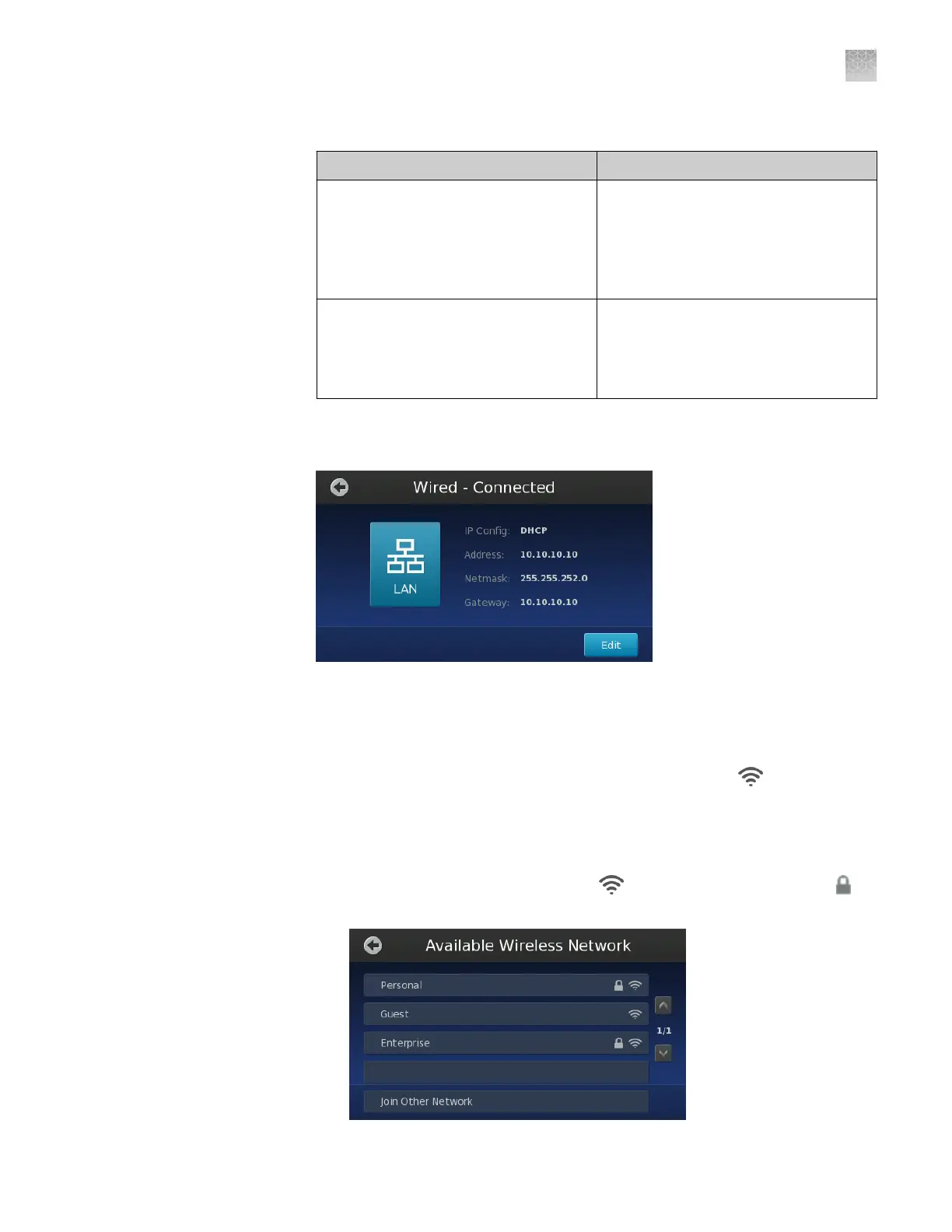
In the Instrument Settings screen, touch Network Setup, then touch Edit in the
network setup screen.
5.
(Wireless connection only) If you are connecting your instrument to a wireless
network:
a.
In the Network Setup screen, touch Change Connection Type.
b.
In the Choose Connection Type screen, touch Wireless
.
c.
In the Available Wireless Network screen, touch the desired wireless
hotspot.
Note: The signal strength of a wireless hotspot is indicated by the number
of bars present in the wireless icon ( ). The presence of a lock icon ( )
indicates that the hotspot is secure (WPA, WEP, or WPA2).
Appendix D Networking
Connect the instrument to the network
D
QuantStudio
™
3D Digital PCR System User Guide
99










 To Next Page