• Depending on the system configuration, the thermal management - page acquisition member autoconfiguration
temperature profile and status icon (single / double air-conditioning).
8.2.2 Settings
To access and navigate the Thermal Settings page:
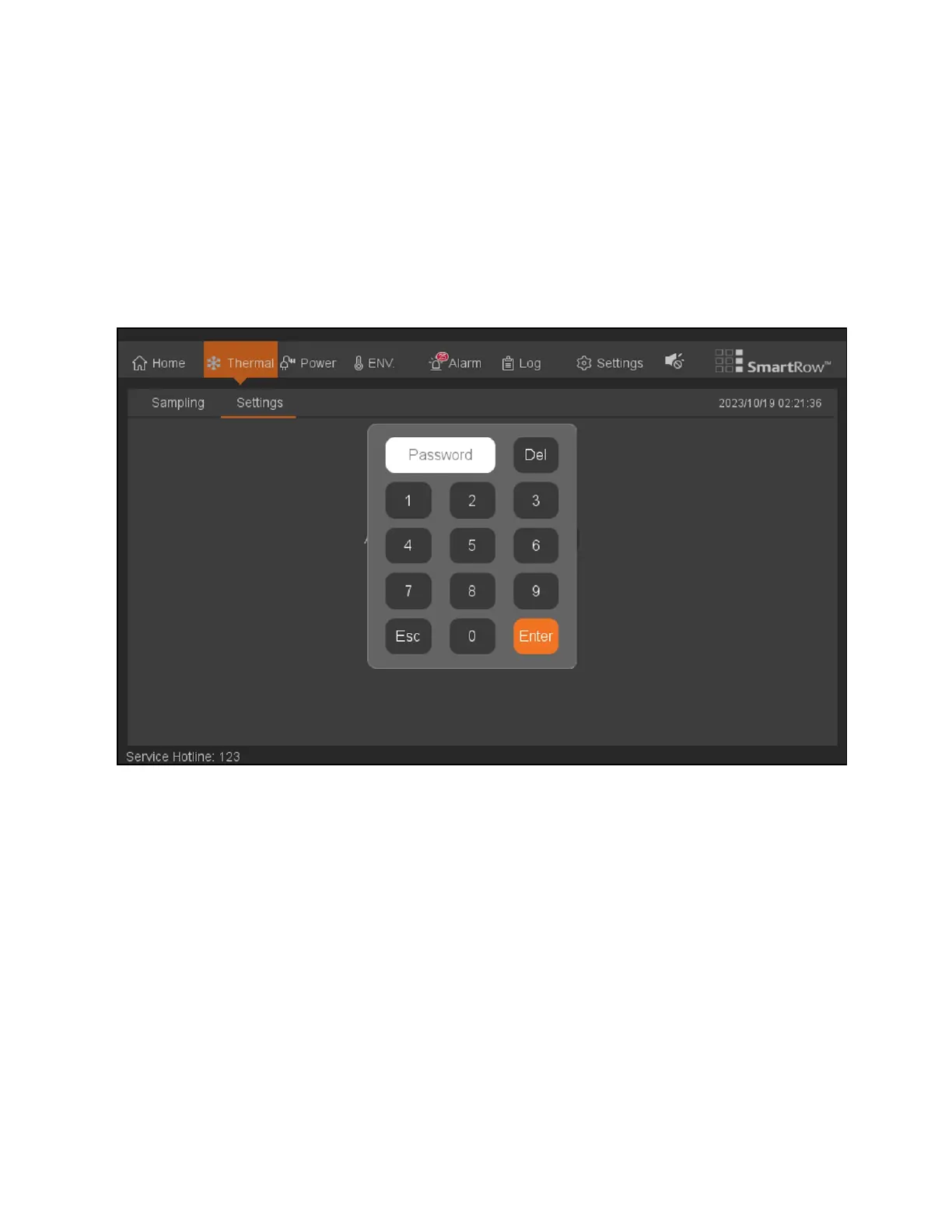
1. From the top navigation bar, click Thermal - Setting. The Setting page appears and displays a keypad to enter a
passcode, as shown in the following figure.
Figure 8.3 Thermal Settings: Passcode Page
2. Enter the single-use password 1234 into the keypad to access the rest of the Setting page, then click Enter.
NOTE: If you only wish to view information, rather than perform configurations, click the Esc key on your keyboard to
exit the password page.
3. Reset the password on the next page.
4. After resetting the password, the next portion of the Setting page appears and displays the air conditioner and
blower switch control temperature setting, as shown in the following figure.
74 Proprietary and Confidential ©2024 Vertiv Group Corp. 8 LCDScreen Overview
Vertiv™ SmartRow™ 2 Infrastructure Solution User Guide



 To Next Page