Port IP Address Subnet Mask Default Gateway
LAN1 192.168.0.254 255.255.255.0 192.168.0.1
LAN2 192.168.1.254 255.255.255.0 192.168.0.1
Table 9.1 Default IP Addresses
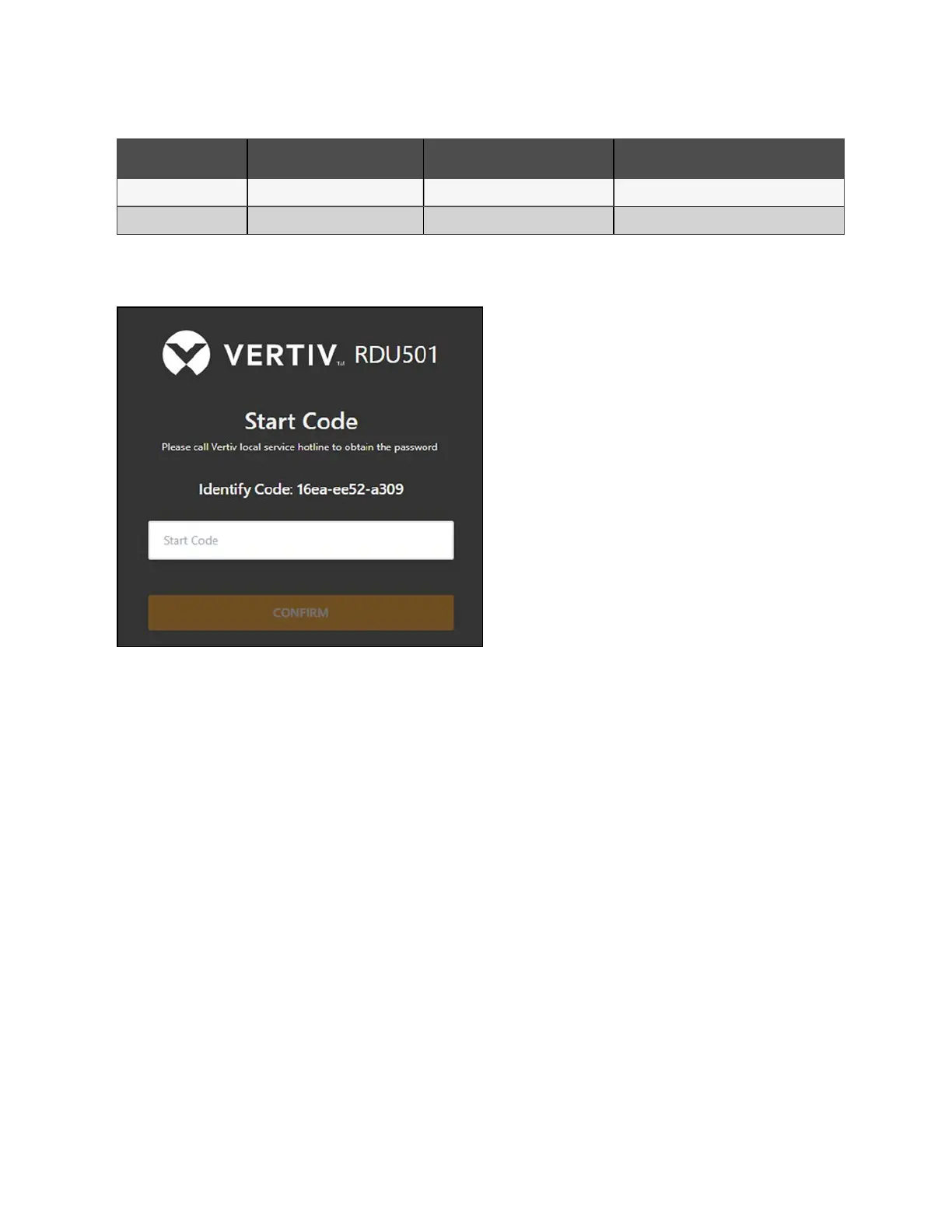
2. The Authorized Startup page appears, as shown below.
Figure 9.1 Authorized Startup Page
NOTE: If the Authorized Startup page does not appear, refer to the appropriate troubleshooting procedure in this
section: Authorization on page113 .
3. Contact Vertiv Customer Service Center and provide them with the Identify Code, serial number and other
necessary customer information to obtain the Start Code.
4. Once provided by a Vertiv customer service member, enter the Start Code and click Confirm.
5. The Home page appears. You must now configure the LCD and monitoring unit before the system is ready for
use.
9.1.2 Login
To log into the Vertiv™ Liebert® RDU501 Intelligent Monitoring Unit web UI:
1. Open a web browser, then enter the monitoring unit's IP address. The Login page appears, as shown below.
NOTE: If the Login page does not appear, refer to the appropriate troubleshooting procedure in this section:
Authorization on page113 .
NOTE: To download the app version of the web UI, click Download APP. Scan the QR code that appears on the screen
and download the app.
92 Proprietary and Confidential ©2024 Vertiv Group Corp.
9 Vertiv™ Liebert® RDU501
Intelligent Monitoring Unit Web User
Interface (UI)
Vertiv™ SmartRow™ 2 Infrastructure Solution User Guide



 To Next Page