Operation
20 800009-01 Rev. J www.wegener.com
Liquid-Crystal
Display (LCD)
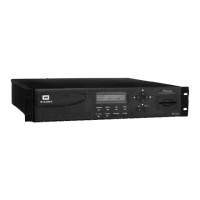
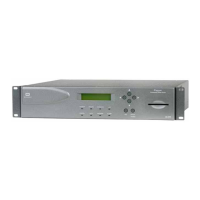
The iPump 6400's LCD indicates unit status and prompts for and reflects user input. The
LCD displays the
iPump 6400's unit label and serial number on the top line following startup.
The home screen also alternately displays the input signal’s frequency, data rate, and FEC
ratio in the lower left corner and continuously displays the current signal-to-noise ratio in the
lower right. Using the adjacent push buttons you can navigate the
iPump 6400's various
screens and edit data fields on the user-input screens.
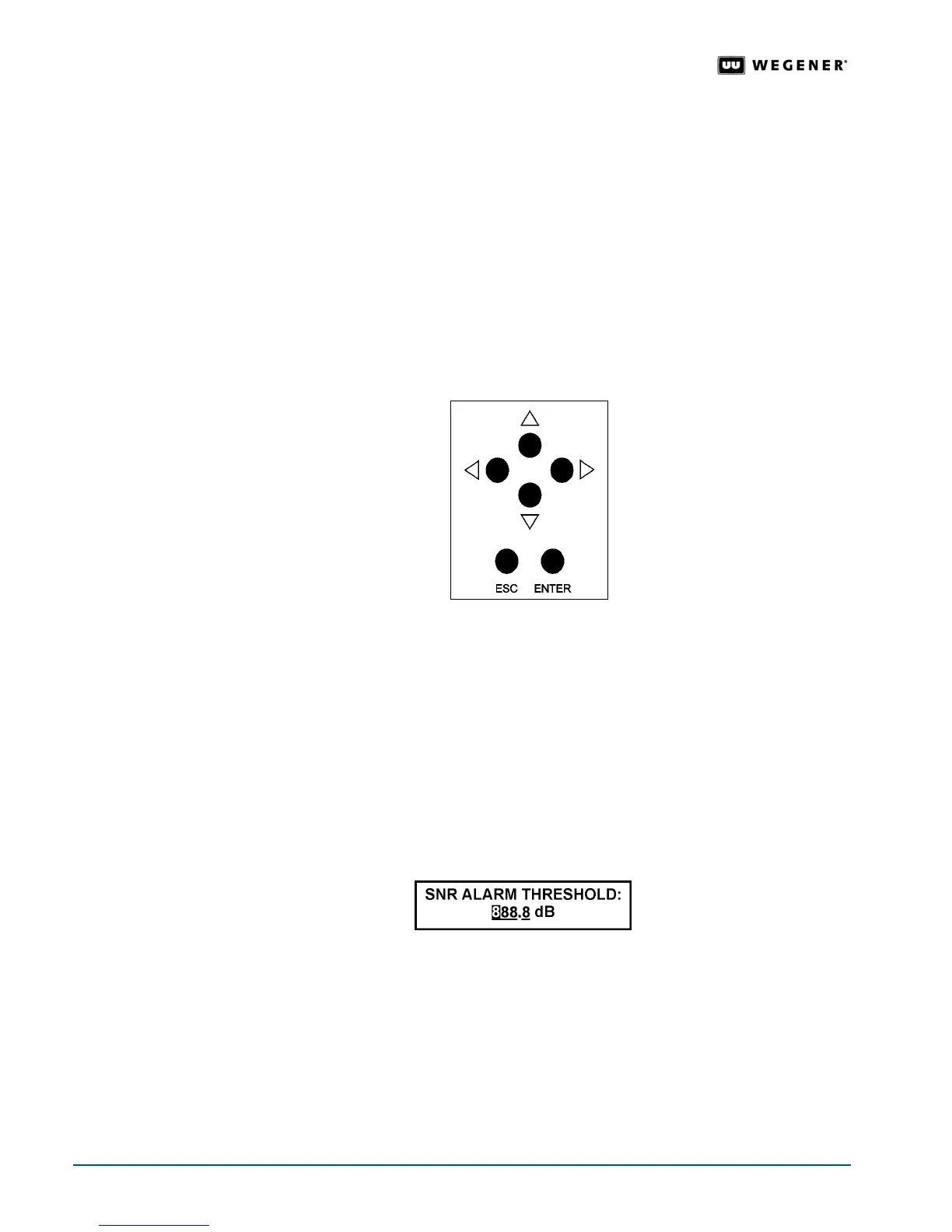
Push Buttons These six push buttons are your means of commanding the iPump 6400 from the front
panel. The four arrow buttons allow navigation through the menu screens and parameter
selection and editing in user-input screens. The
ENTER button serves to select menu
options (downward navigation), to open user-input fields, or to commit user input to the
iPump 6400. Also press ENTER to quickly start the unit after a normal shutdown. The
Escape (ESC) button allows exit from user-input fields without saving the entry or selection.
ESC also provides upward navigation through the menu structure to the home screen.
Figure 3.2: iPump 6400 front panel push buttons
User Input
Screens
User input screens with editable fields accept data entry by the user. The iPump 6400 has
two types of user-input screens:
!"Editable Fields (data and filename)
!"Selectable Fields
Note: Front-panel control is limited by a four-minute timeout period. After four minutes
without input from the front-panel push buttons, the
iPump 6400 LCD automatically
returns to the home screen and any unsaved changes are lost.
Editable Data Fields
Figure 3.3 shows an example of a user-input screen with an editable data field.
Figure 3.3: Editable data field
To make changes to the data in the field:
1. Press
ENTER
to open the field. T
he LCD highlights the
first field.
2. Press the up or down arrow buttons to increment that digit or letter until the LCD displays
the desired value. Press the right arrow button to move to the next digit or location in the
field and change it the same way. Continue until the LCD displays all digits or letters
correctly.
3. Press the
ENTER
button to save your changes. Press
ESC
before pressing
ENTER
to
cancel any changes.


 To Next Page