www.wegener.com 800009-01 Rev. J 23
iPump 6400 User’s Manual
3.3 Startup/Shutdown Procedures
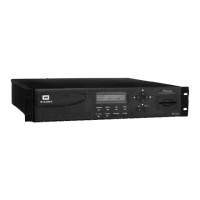
The first time you start the iPump 6400, the startup process and some initial setup may
require a few minutes to complete.
After the initial startup, and a normal shutdown, the
iPump 6400
may be started again simply by pressing the
ENTER
button on the unit’s front
panel.
Initial Startup
1. For initial startup, set the power switch to the
ON
position (
I
) and press and hold the
ENTER
button for two seconds. The
iPump 6400
powers up and begins the
startup
process. Usually within three minutes, the unit completes its initialization. (All outputs are
muted during this time.)
2. The eight, front-panel LEDs flash on and off together once and then three more times in
succession. The LCD shows the current firmware version and the message, "
Booting,
please wait. . . .
". The expanding and contracting ellipsis shows that the
iPump 6400
is
booting the software. (Note that the version number shown is that of the front-panel
firmware only, and does
not
indicate the current version of the application software.)
3. During bootup, a quick check of the file system is made to detect and fix any corrupted files.
The message "
Auto Maintenance . . .
" indicates that this check is in process. The duration
of the file system check depends on the extent of any needed repairs to the file system and
the size of the affected files. When no problems are detected, the "
Auto Maintenance
"
message briefly flashes on the LCD. If the file system is corrupt beyond repair, the
message, "
Filesystem is corrupt . .
." appears. Otherwise, the auto maintenance process
is continuing normally and you should wait for it to complete.
4. Following a normal check of the file system, the message, "
Continuing to boot. . .
" is
displayed. At completion of bootup, the LEDs lights individually as appropriate to show unit
and signal status (see
Table 3.1: iPump 6400 front panel LED indicator descriptions
on
page 22). The display then becomes "live" and typically indicates a loss-of-carrier alarm
condition if the unit’s RF configuration has not been completed. This is normal and simply
means that the Transport In Settings must be adjusted. After the Transport In Setup is
complete, subsequent startups finish by displaying the home screen (showing the unit's
serial number, E
b
/N
0
, and alternately displaying FEC ratio, signal frequency, and data
transport rate). This indicates that your
iPump 6400
is functioning normally and is ready for
use.
Normal
Shutdown
Removing power to shut down the iPump 6400 does not harm the unit. However, performing
a normal shutdown from the front panel is recommended. Normal startup can only be
performed following a normal shutdown.To shut down the
iPump 6400:
1. Return to the
iPump 6400
home screen. (Press
ESC
repeatedly until the model and unit
number or an alarm or warning message displays.)
2. Press the right-arrow button four times to reach the
Unit Shutdown
screen.
3. Press the
ENTER
button to select
Unit Shutdown
.When prompted, press the
ENTER
button again to confirm.
4. In less than 30 seconds, the
iPump 6400
powers down and the LCD and LEDs go out. The
iPump 6400
is now ready for a normal startup. Initiate a normal startup by pressing the
ENTER
button.
Normal
Startup
Following initial startup and after a normal shutdown, start the iPump 6400 by simply
pressing the
ENTER button on the front panel. If the receiver is tracking a carrier signal, the
green
CARRIER LED is lit. If the RF set up (See Transport In Current Channel Setup on
page 27.) has not been performed or the receiver cannot track the carrier, the red
ALARM
LED is lit.


 To Next Page