www.wegener.com 800009-01 Rev. J 35
iPump 6400 User’s Manual
Navigation to
Genlock
Setup Screen
Use the Genlock setup if you have a professional video decoder installed in your iPump
6400
. You have the option to enable or disable synchronization of the video output signal to
an external timing source commonly referred to as Genlock.
In addition to front panel operation, this feature can also be accessed via your web browser,
see
Genlock Setup on page 38.
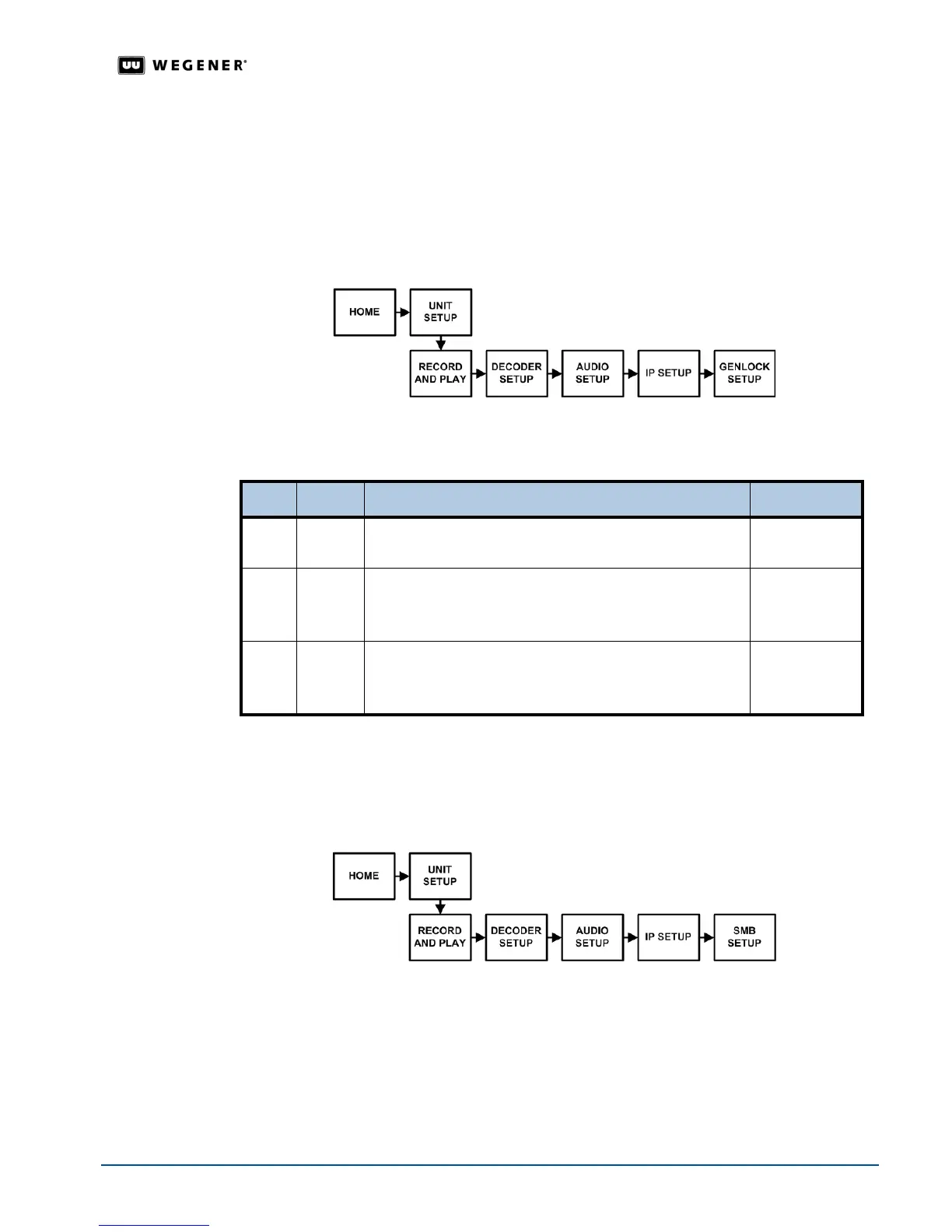
Use the front panel navigation buttons to go to the
Genlock screen as shown in Figure 3.19.
Figure 3.19: LCD menu navigation to Genlock screen
Genlock
Setup
Begin from the Genlock Setup screen. For more information on the settings, see the table
on page 38.
Navigation to
SMB Screen
The Server Message Block Protocol (SMB protocol) provides a method for a user to access
files remotely through Microsoft Windows. Use the SMB screen to designate access for the
iPump 6400 to Microsoft Windows.
Use the front panel navigation buttons to go to the
SMB screen as shown in Figure 3.20.
Figure 3.20: LCD menu navigation to SMB screen
Step Press Displayed/Field Details Screen Type
1.
ENTER GENLOCK SETTINGS
SELECT: <DISABLE> <ENABLE>
Selectable
2. #
HORIZ. TIME DELAY
SELECT:
Adjusts horizontal delay for (genlocked) video timing.
Selectable
3. #
SUBCARRIER PHASE
SELECT:
Adjusts composite (genlocked) video subcarrier phase
Selectable


 To Next Page