www.wegener.com 800009-01 Rev. J 51
iPump 6400 User’s Manual
File Streaming
and Routing
For multicast streaming you can select to stream from existing files or a live classical DVB
program.
1. Click the
Streams
tab on the web browser.
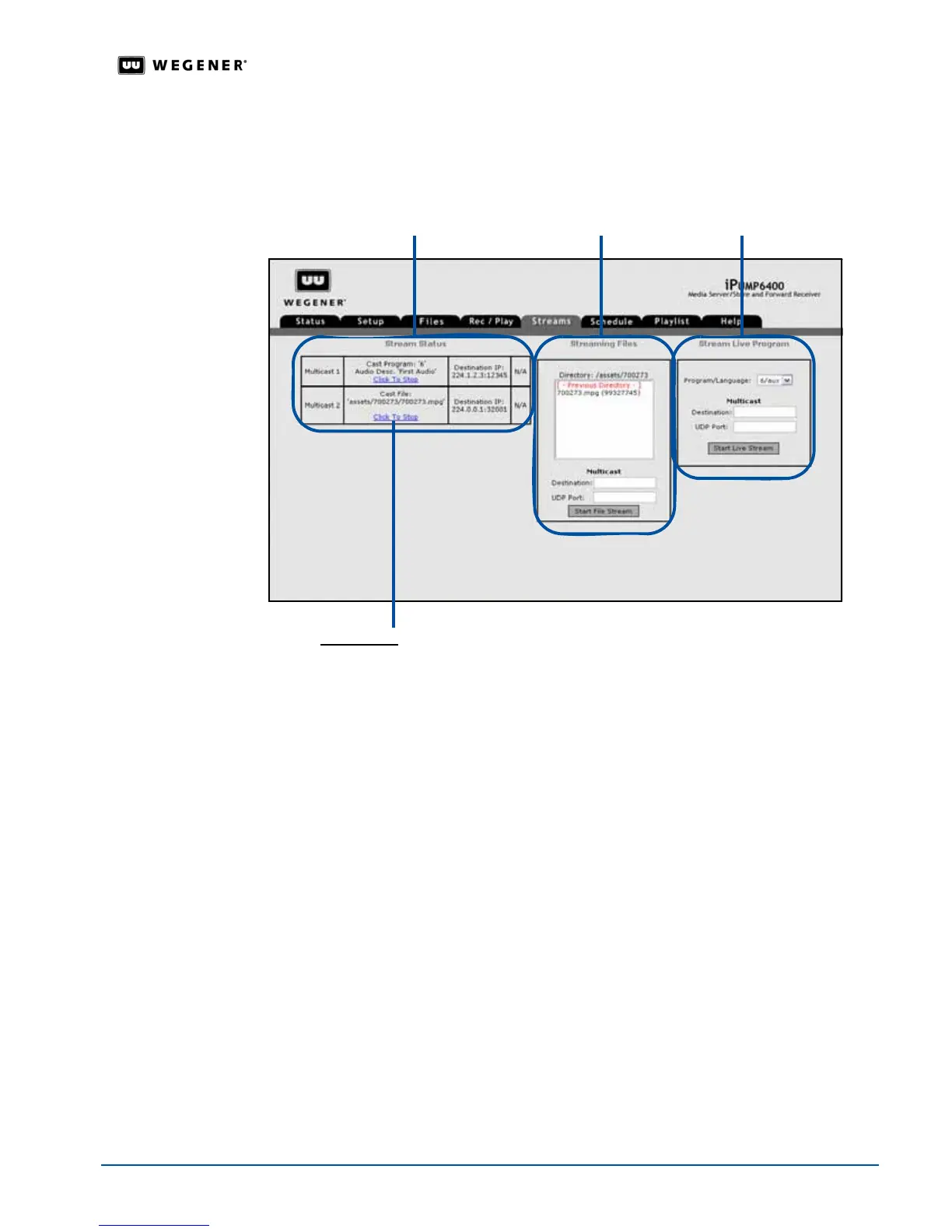
Figure 3.25: iPump 6400 web browser Streams tab
2. If streaming from an existing file, select a file from the
Streaming Files
list. The name of
the current directory is shown just above the list of files. When displayed, you may double
click
[-Previous Directory-]
to view file names in the next higher directory. Or, double click
any selection displayed in red text inside square brackets (such as
[directoryname]
) to
move down to that directory level.
3. If streaming live from a "classical" DVB program, select the program to stream from the
Program/Language
pull-down list under
Stream Live Program
.
4. Click inside the
Multicast
Destination:
box and type the appropriate IP address. Also enter
the UDP Port number in the
UDP Port:
box.
5. When the address information and selected file or stream information are correct, click the
Start File Stream:
or
Start Live Stream:
button respectively to begin streaming.
6. To stop file streaming, click the
Click to Stop
hyperlink in the
Stream/Status
box.
Scheduled
Operation
From the web browser, you can view schedules of Record and Play operations set up by the
Compel network for the iPump 6400 by clicking the Schedule tab
If needed, click
Disable to temporarily suspend scheduled operations. Click Enable to return
to scheduled operations. The
iPump 6400 resumes performing operations according to the
scheduled times. Operations scheduled for times during which the unit is "disabled" are not
performed.
Click To Stop hyperlinks
Stream Status Streaming Files Stream Live Program


 To Next Page