Operation
24 800009-01 Rev. J www.wegener.com
Web Browser
Operations
Startup
For HTML control and status checking from a web browser, first navigate from the home
screen to the
IP Setup screen. iPump 6400 operations performed via a web browser are
described under
3.9 iPump 6400 Operations by Function on page 43.
Once the web browser access is established, you may change your IP address from the
browser. See
Network Setup on page 42.
Static vs. dynamic setup
The
iPump 6400 allows you to configure your IP setup as either static or dynamic. The static
setup allows you to set a fixed IP address, whereas a dynamic setup or DHCP (Dynamic
Host Configuration Protocol) selects a temporary IP address from your network.
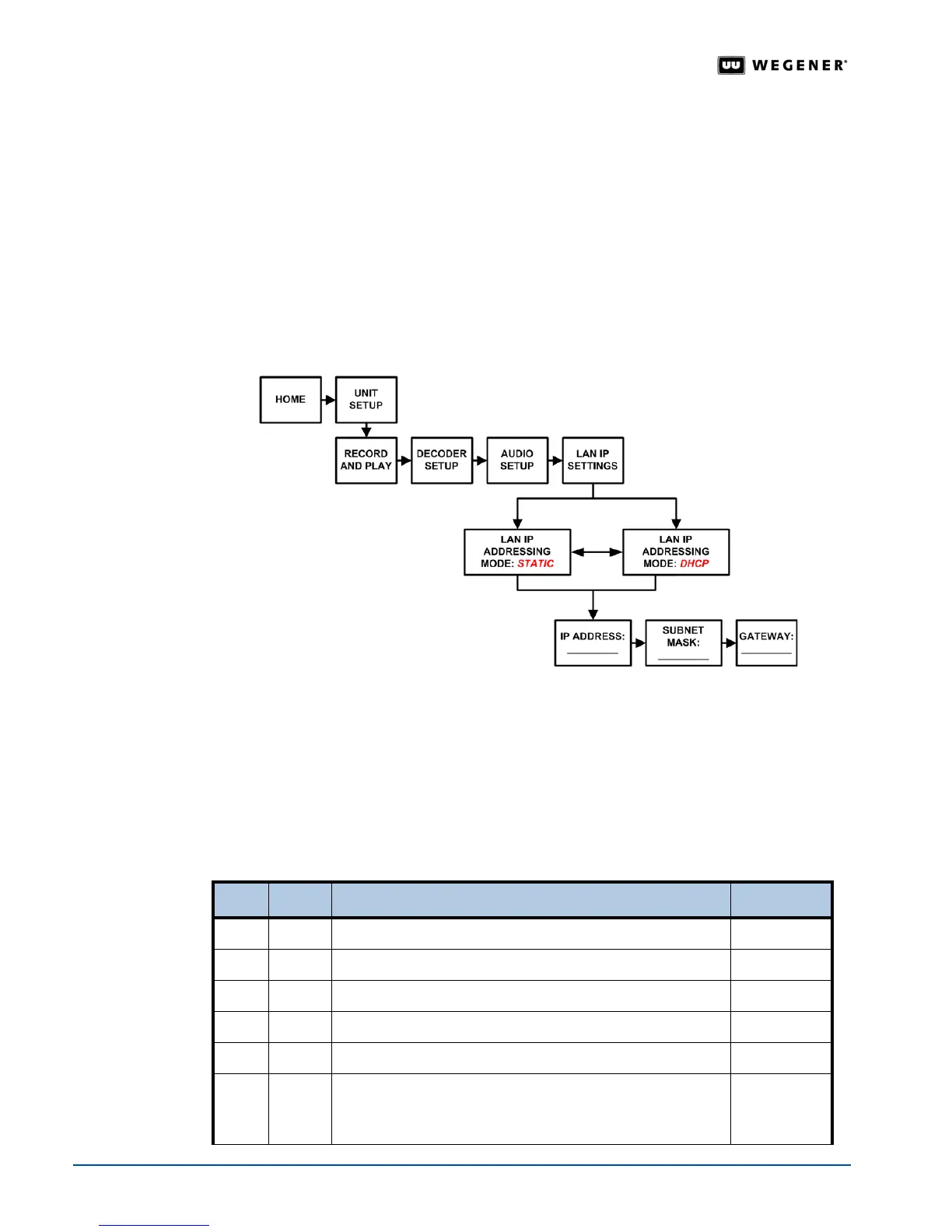
Figure 3.7
and
Table 3.2 detail the iPump 6400 Browser Control Setup.
Figure 3.7: iPump 6400 web browser control setup process
Table 3.2: iPump 6400 web browser control setup procedure
It may be necessary to set the IP address, subnet mask, and gateway to specific values.
Consult your local network administrator to verify the IP address information.
Note: Write down
the
iPump 6400
's IP address displayed on the screen. Then use the steps
listed in
Web Browser Access on page 25
to gain control from your browser.
Begin from the
HOME screen.
Step Press Displayed Screen Type
1. #
UNIT SETUP
Menu
2.
ENTER RECORD AND PLAY
Menu
3. #
DECODER SETUP
Menu
4. #
AUDIO SETUP
Menu
5. #
LAN IP SETTINGS
Menu
6.
ENTER LAN IP ADDRESSING SELECT: xxxxx
Press Enter to select either STATIC or DHCP for setup.
For more information, see
Selectable Fields on page 21.
Selectable


 To Next Page