Product Manual - ZMORPH FAB back to table of content
>>
60
3D printing workow
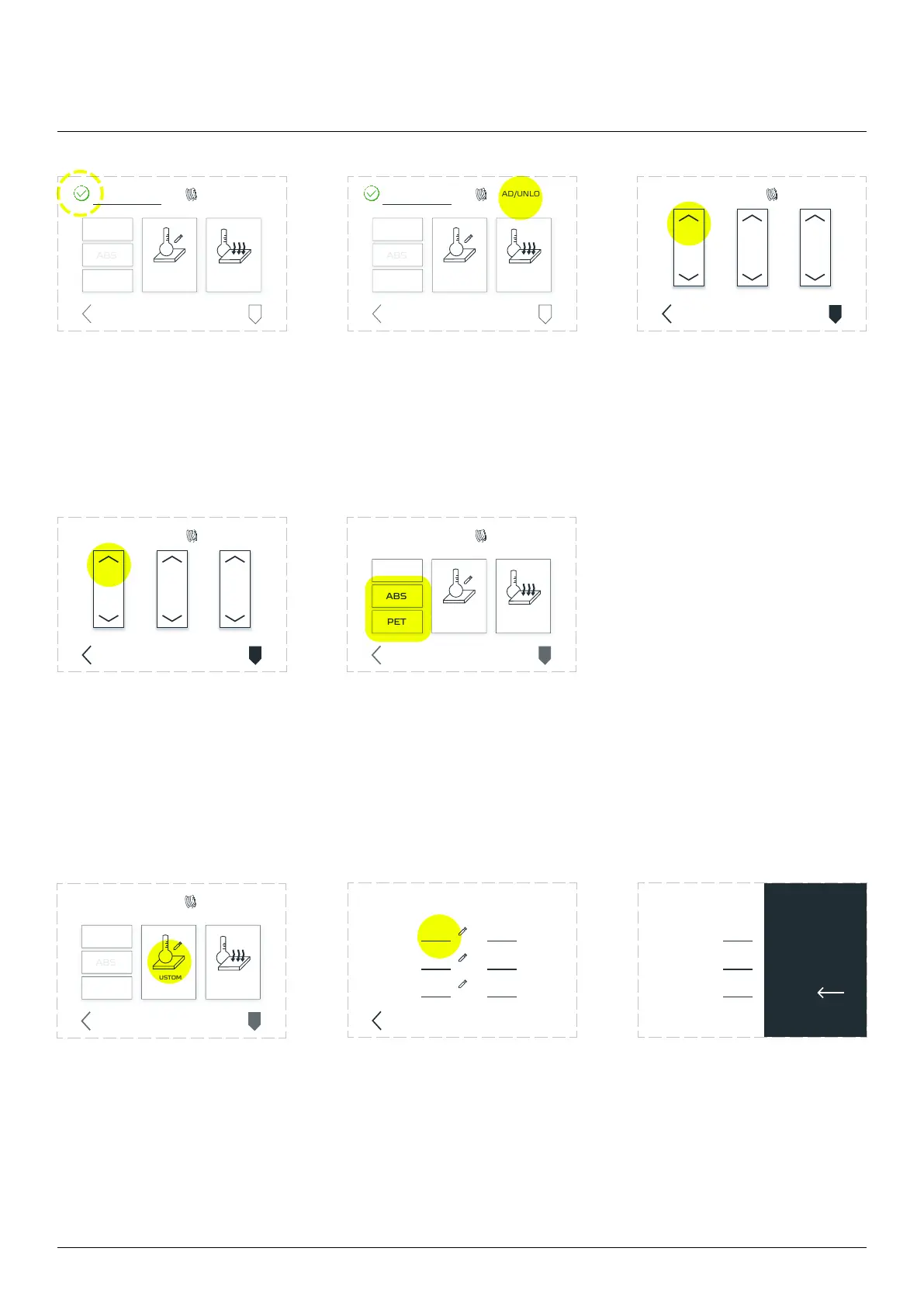
Wait till the extruder reaches
the proper temperature.
The yellow ‘TEMPERATURES’
sign will change colour from
yellow to green.
Tap the LOAD/UNLOAD menu. Tap the upper arrow on the
clogging. Repeat if needed.
Adjust the temperature for
will be used. To do that, tap
the ‘TEMPERATURES’ menu
There are two ways to arrange the temperature for other materials
than PLA. First option is by quick set up button ‘ABS’ or ‘PET’,
which automatically arrange the temperatures for maintaining this
For any other materials
than PLA, ABS and PET
temperatures needed to
be set up manually. Tap
the Custom Temperature
button.
Tap the ‘Left’ gap in the
‘Target’: column.
Tap the needed temperature
on the keyboard, then OK.
BACK
TARGET
LEFT
RIGHT
BED
CURRENT
OK
CANCEL
1 2
4 5 6
7
0
OK
8 9
3
CANCEL
TARGET
LEFT
RIGHT
BED
LEFT RIGHT ALL
LOAD/UNLOADTEMPERATURES
PARK
TOOL
BACK
LEFT RIGHT ALL
LOAD/UNLOADTEMPERATURES
PARK
TOOL
BACK
LOAD/UNLOAD
PARK
TOOL
CUSTOM
TEMPERATURE
COOL
DOWN
TEMPERATURES
BACK
LOAD/UNLOAD
CUSTOM
TEMPERATURE
COOL
DOWN
TEMPERATURES
PARK
TOOL
BACK
LOAD/UNLOAD
CUSTOM
TEMPERATURE
COOL
DOWN
TEMPERATURES
PARK
TOOL
BACK
LOAD/UNLOAD
PARK
TOOL
CUSTOM
TEMPERATURE
COOL
DOWN
TEMPERATURES
BACK
23



 To Next Page