User’s Manual
4
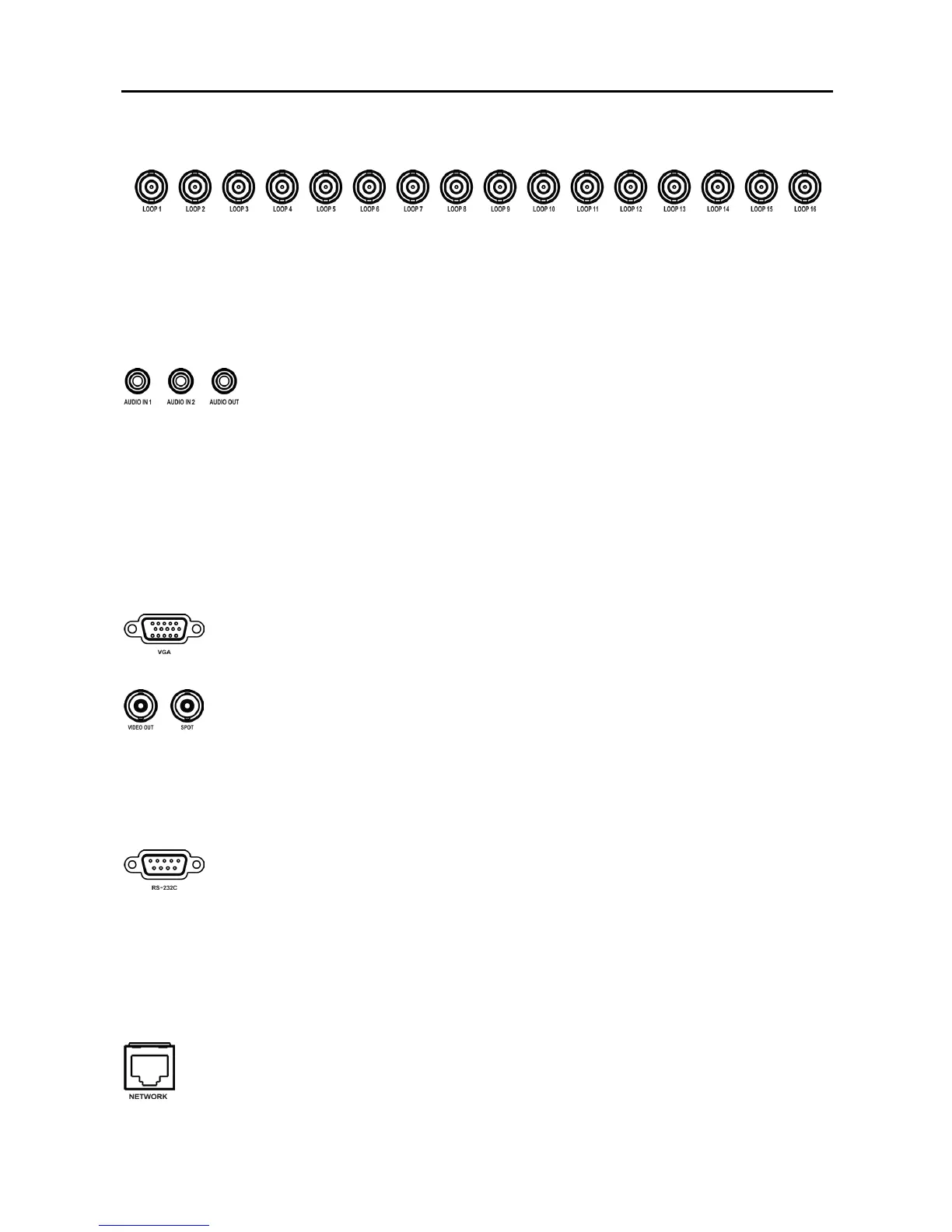
Video Loop Through
If you would like to connect your video source to another device, you can use the Loop BNC connectors.
NOTE: The Loop BNC connectors are auto terminated. Do NOT connect a cable to the Loop BNC
unless it is connected to a terminated device because it will cause poor quality video.
Audio In/Out
NOTE: It is the user’s responsibility to determine if local laws and regulations permit recording
audio.
NOTE: The DVR does not have amplified audio output, so you will need a speaker with an
amplifier. The DVR does not have a pre-amplifier for audio input, so the audio input should be
from an amplified source, not directly from a microphone.
Video Out
NOTE: The VGA and Video Out (BNC) connectors may be connected to individual monitors for
simultaneous operation.
RS232C Port
NOTE: The DVR is not supplied with a modem cable, and many modems are not supplied with
cables. Make certain you have the correct cable when purchasing the modem.
Network Port
Your DVR can record audio from up to two sources. Connect the audio sources to
Audio In 1 and Audio In 2 as needed using RCA jacks. Connect Audio Out to your
amplifier.
A VGA connector is provided so that you can use a standard, multi-sync computer
monitor as your main monitor. Use the cable supplied with your monitor to connect
it to the DVR.
Connect the main monitor to the Video Out connector. Connect the spot monitor to the
SPOT connector as needed.
An RS232 port is provided to connect an external modem for remote monitoring,
configuration and software upgrades, and to connect a remote control keyboard. Use a
modem cable with a DB-9S (female) connector to connect to the DVR. See Chapter 3
─ Configuration for configuring the modem.
The DVR can be networked using the 10/100Mb Ethernet connector. Connect a Cat5
cable with an RJ-45 jack to the DVR connector. The DVR can be networked with a
computer for remote monitoring, searching, configuration and software upgrades. See
Chapter 3 ─ Configuration for configuring the Ethernet connections.



 To Next Page