Digital Video Recorder
35
Highlight the box beside Remote Control Product and select the device from the list.
You can save your Remote Control settings by highlighting Save and pressing the button. Selecting
Cancel exits the screen without saving the changes.
Recording Settings
Your DVR offers a variety of flexible recording modes. You can set it up to record all the time or to only
record events. It can be set up to continue recording once the hard disk drive is full by recording over the
oldest video, or you can set it up to alert you when the hard disk is full and stop recording.
Figure 48 ─ Record menu.
Record Screen
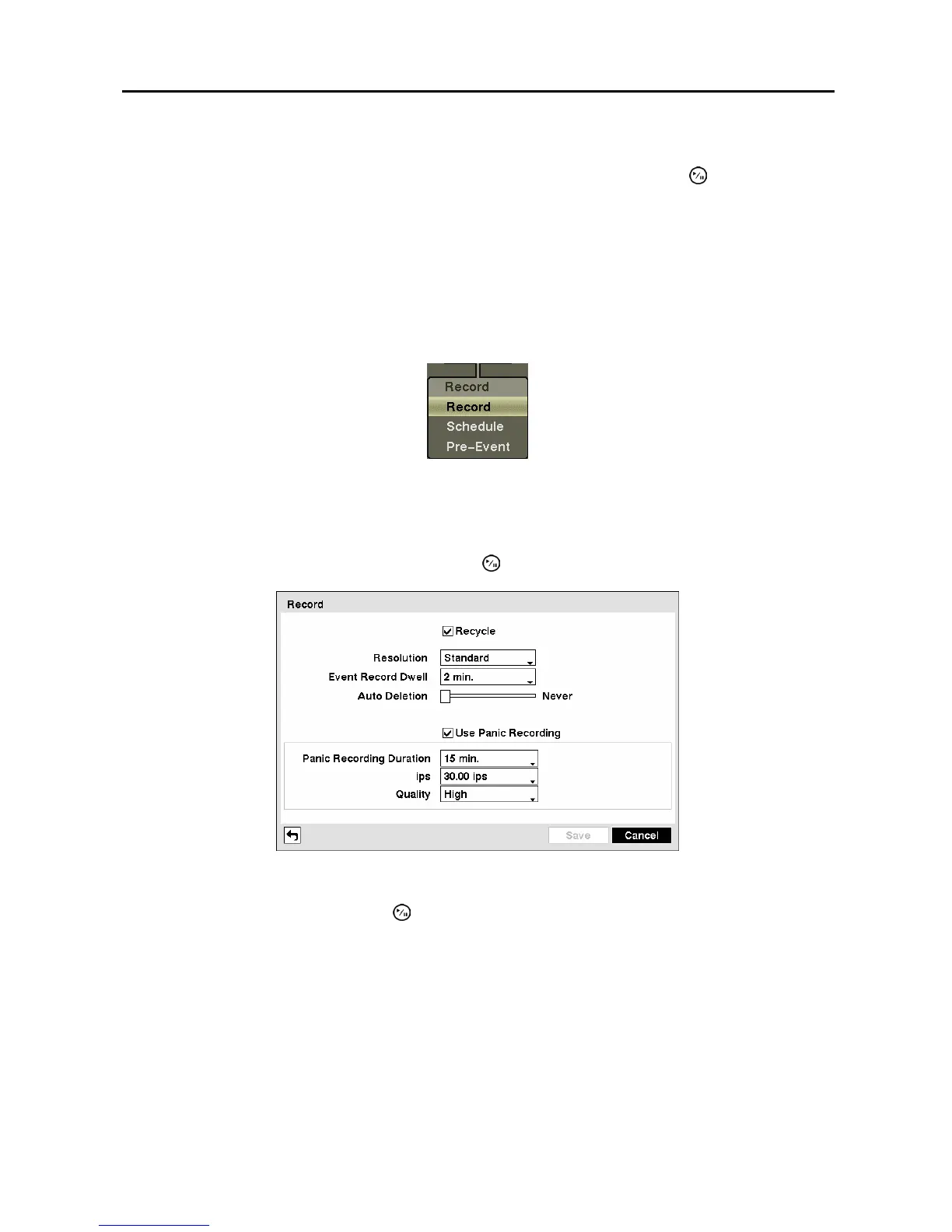
Highlight Record in the Record menu and press the button. The Record setup screen appears.
Figure 49 ─ Record setup screen.
Highlighting Recycle and pressing the button toggles between On and Off. In the Recycle mode, the
DVR records over the oldest video data once all available storage space has been used. When Recycle is
turned off, the DVR stops recording once all available storage space has been used.
Highlight the Resolution box and select from High and Standard. All other variables being equal;
Selecting High resolution will decrease the recording and playback speed by half that of Standard
resolution.
Highlight the Event Record Dwell box and set the length of time you would like to record for the
associated event. You can set the dwell from 5 seconds to 15 minutes. Refer to Event Actions screen in
this chapter for information regarding event recording.



 To Next Page