User’s Manual
48
Highlight the more line(s) box, and press the button. Select the number of additional lines of text that
you want the DVR to record. You can choose from 0 to 10.
Highlight the box beside Line Delimiter, and press the
button. Use the virtual keyboard to enter the
character(s) that the device uses to indicate the end of a line. Special characters can be created using ^
and a capital letter; e.g., ^J for NL (New Line), ^M for CR (Carriage Return). Refer to the device
manufacturer’s documentation for Line Delimiter character(s).
Highlight the box beside Ignore String, and press the
button. Use the virtual keyboard to enter any
strings of text that you want the DVR to ignore. Refer to the device manufacturer’s documentation for
text strings that the device sends during transactions, so you will know which ones you do not want
recorded.
Highlight the Case Sensitive box, and press the
button to toggle between On and Off. Refer to the
device manufacturer’s documentation to determine if the text strings are Case Sensitive. If the device
distinguishes between upper and lower case letters, make certain the Case Sensitive box is turned On.
Highlight the box beside Time Out, and press the
button. Set the length of time to wait for the new
text string. The DVR will consider a transaction complete if no new text strings are entered between the
last text input and the dwell time out. You can adjust the Time Out dwell from 5 seconds to 15 minutes.
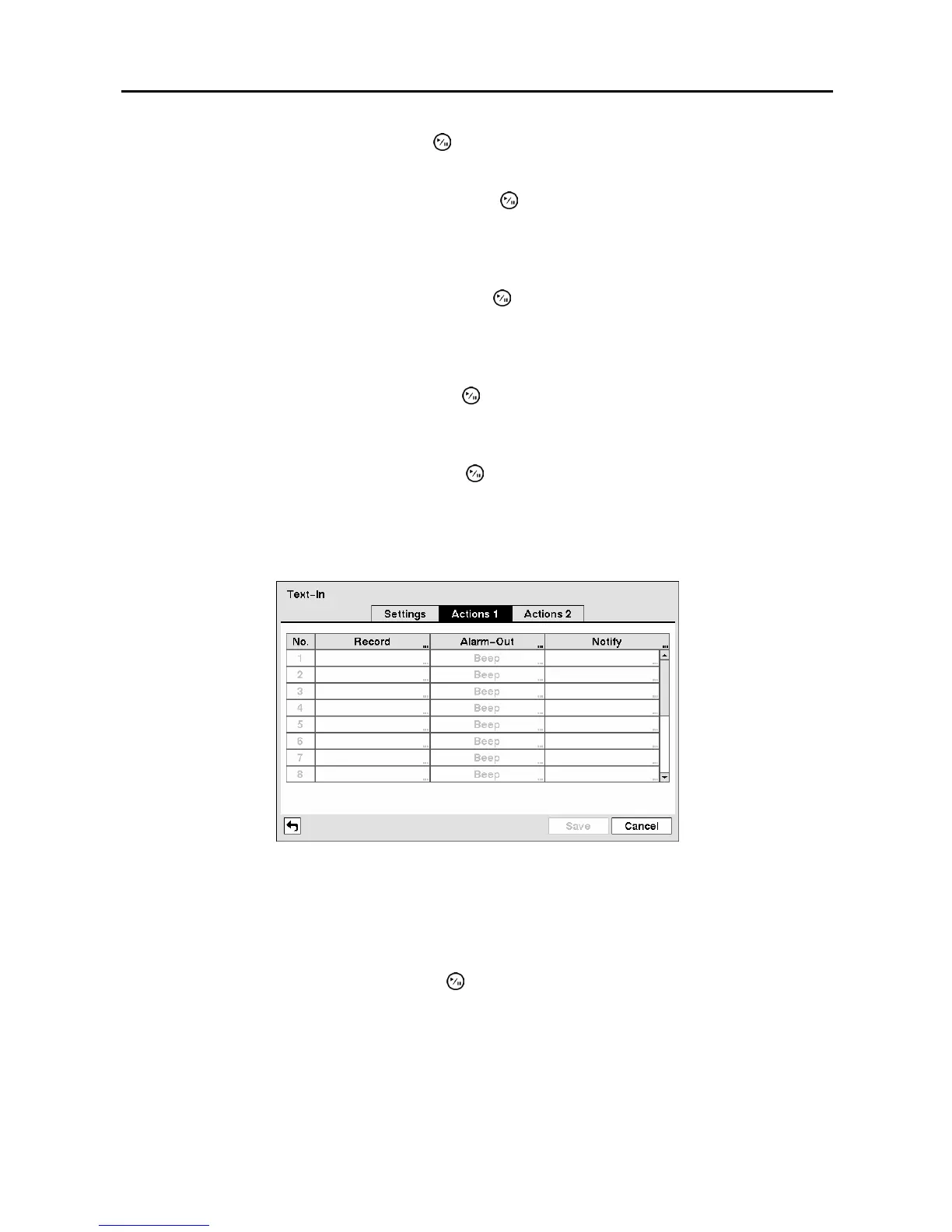
Highlight the Actions 1 and Actions 2 tabs and the Text-In Actions 1 and Actions 2 screens display.
Figure 71 ─ Text-In Actions 1 screen.
The DVR can be set to react to text input. Text input can be associated with cameras, trigger an
Alarm-Out connector, sound the DVR’s internal buzzer, notify a number of different devices, move PTZ
cameras to preset positions, and/or display a camera on a SPOT monitor.
Highlight the box beside Record and press the
button. A list of cameras appears. You can associate
as many cameras with the Text Input as you wish. If the DVR detects text input, it starts recording video
from all the associated cameras.
NOTE: For the Record action, the camera you select should be set to the Event or Time & Event
recording mode in the Record Schedule setup screen.



 To Next Page