Digital Video Recorder
59
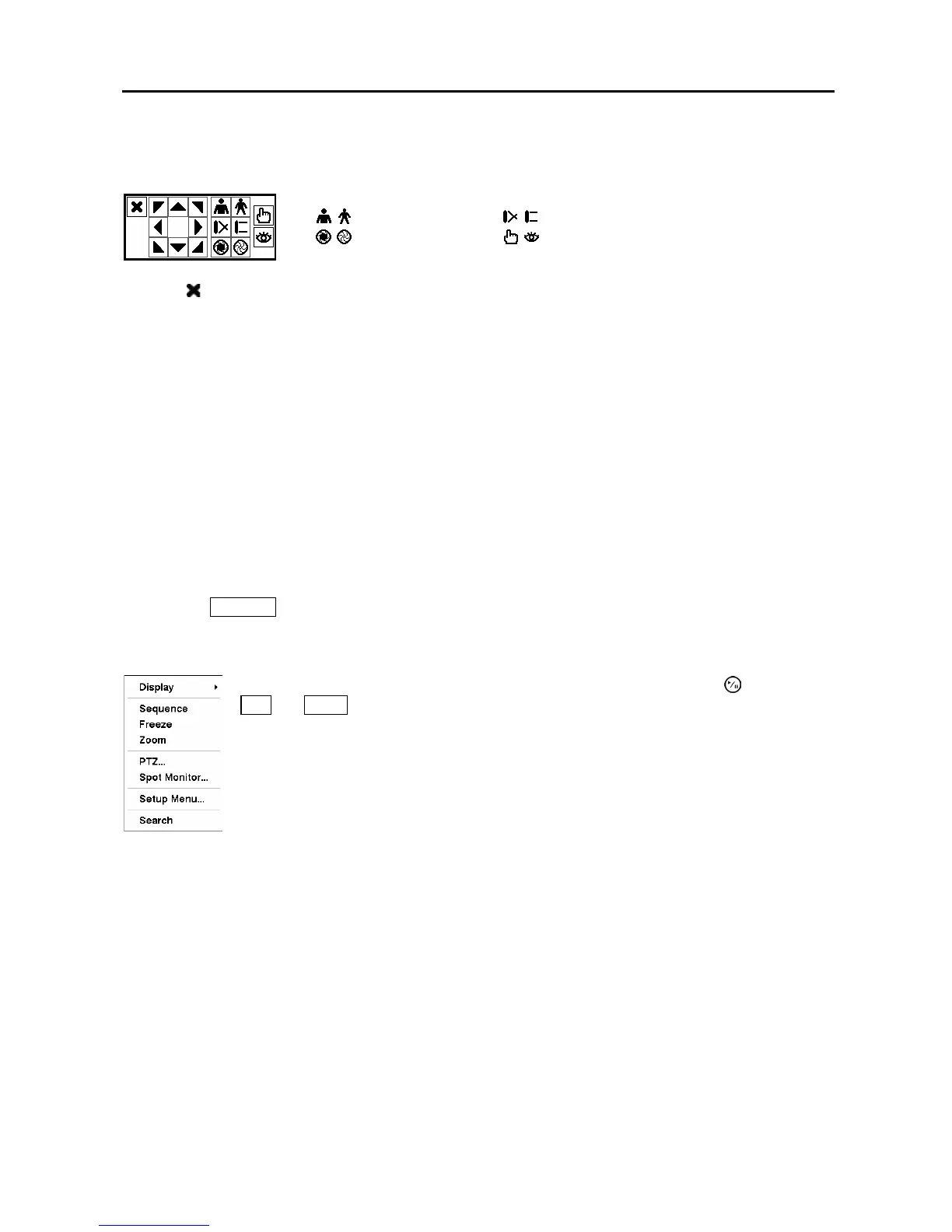
You can use a mouse for convenient PTZ control. Position the mouse pointer at the bottom of the screen,
and the following PTZ toolbar will display.
Clicking
on the left side exits the toolbar. If you want to display the toolbar again, position the mouse
pointer at the bottom of the screen. Change the toolbar location by clicking the empty space on the left
side of the toolbar and drag it to where you want it located on the screen. Use the arrow buttons on the
toolbar to pan or tilt the camera in the direction you want.
Using a Mouse
You can use a mouse instead of the front panel buttons to perform many of the DVR functions. The
following operations are supported when using a mouse during live monitoring.
When in one of the multi-view formats (e.g., PIP, 2x2, 3x3 or 4x4), clicking the mouse button on a
camera image switches that camera to full screen. Clicking the mouse button again returns to the
previous multi-view format.
When in one of the multi-view formats, scrolling the mouse wheel up and down operates the same as
pressing the
DISPLAY button by switching the screen format between PIP, 2x2, 3x3 and 4x4.
Clicking the right mouse button during live monitoring displays the following menu:
Figure 84 ─ Mouse menu.
Zoom In / Out
Focus Near / Far
Iris Open / Close
Set / Load Preset
Selecting
Freeze
,
PTZ…
and
Spot Monitor…
is the same as pressing the (Play/Pause),
PTZ and SPOT buttons for two seconds or longer as described above in the Live
Monitoring section of this chapter.
Selecting Zoom… zooms in on the live image. While in the zoom mode, there are two
ways to move around the enlarged portion of the video. First, there is a rectangle
showing what area of the image will be enlarged. Click inside the rectangle to move to
another area of the image you want enlarged. Second, click and hold the mouse button
on the enlarged video and drag the video.



 To Next Page