User’s Manual
68
Motion Search
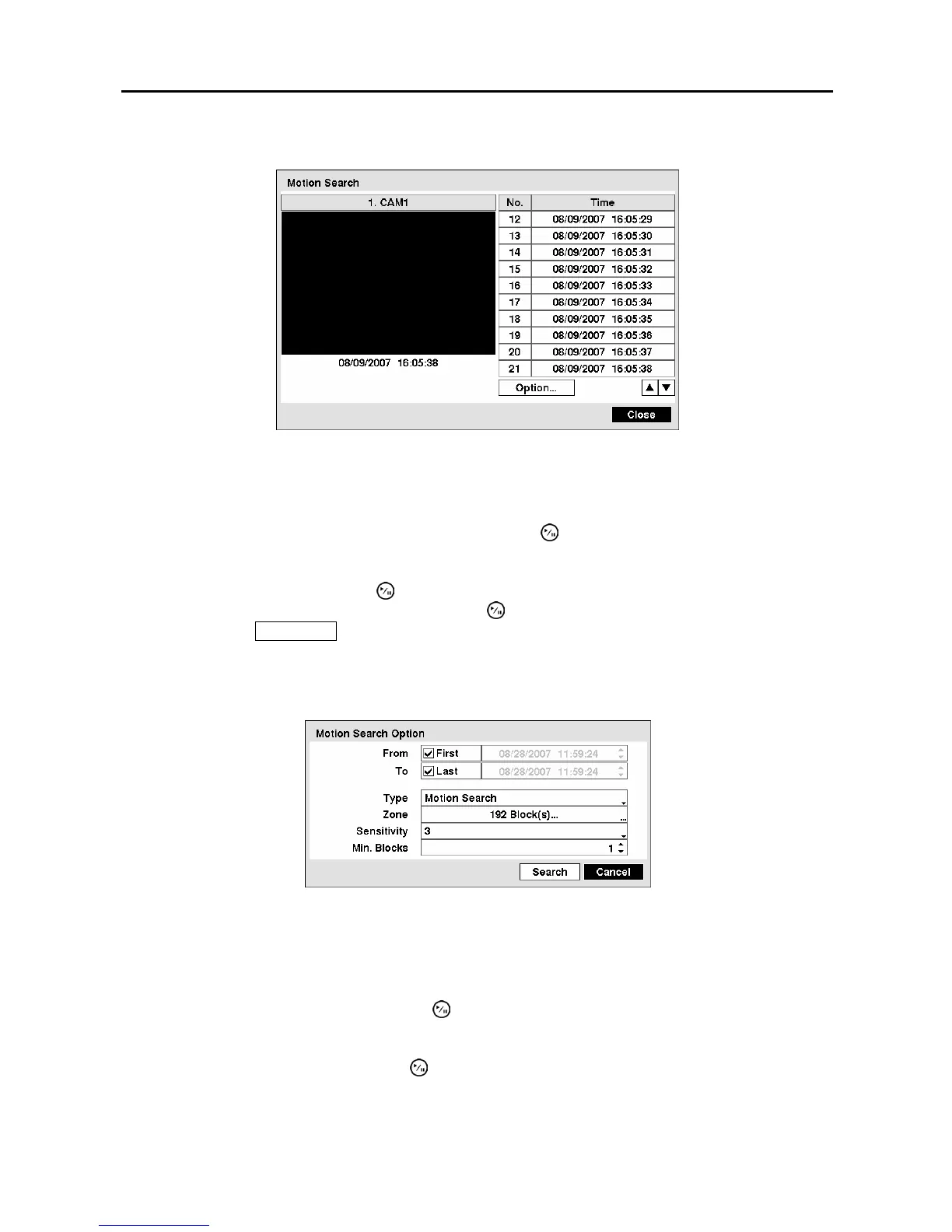
Figure 93 ─ Motion Search screen.
The Motion Search… can be selected from the Search menu while the DVR displays the camera full
screen. The Motion Search screen displays a list of motion events. Use the arrow buttons to highlight
the event for which you would like to see video and press the
(Play/Pause) button to display the video
associated with the selected event on the small search screen.
Highlighting Close and pressing the
button will extract the video associated with the Motion event
and display the first image of the event. Pressing the
button will start playing the “event” video
segment. Pressing PLAYBACK returns to live monitoring.
You can also narrow your event search by selecting the Option… button and setting up the new search
condition
.
Figure 94 ─ Motion Search Option screen.
You can search video from the first to last recorded images, or you can set the start and stop times and
dates.
Highlight the box beside From and press the
button to toggle between On and Off. When set to Off,
you can enter a specific Date and Time. When set to On, the search will be from the first recorded image.
Highlight the box beside To and press the
button to toggle between On and Off. When set to Off, you
can enter a specific Date and Time. When set to On, the search will be from the last recorded image.



 To Next Page