Digital Video Recorder
15
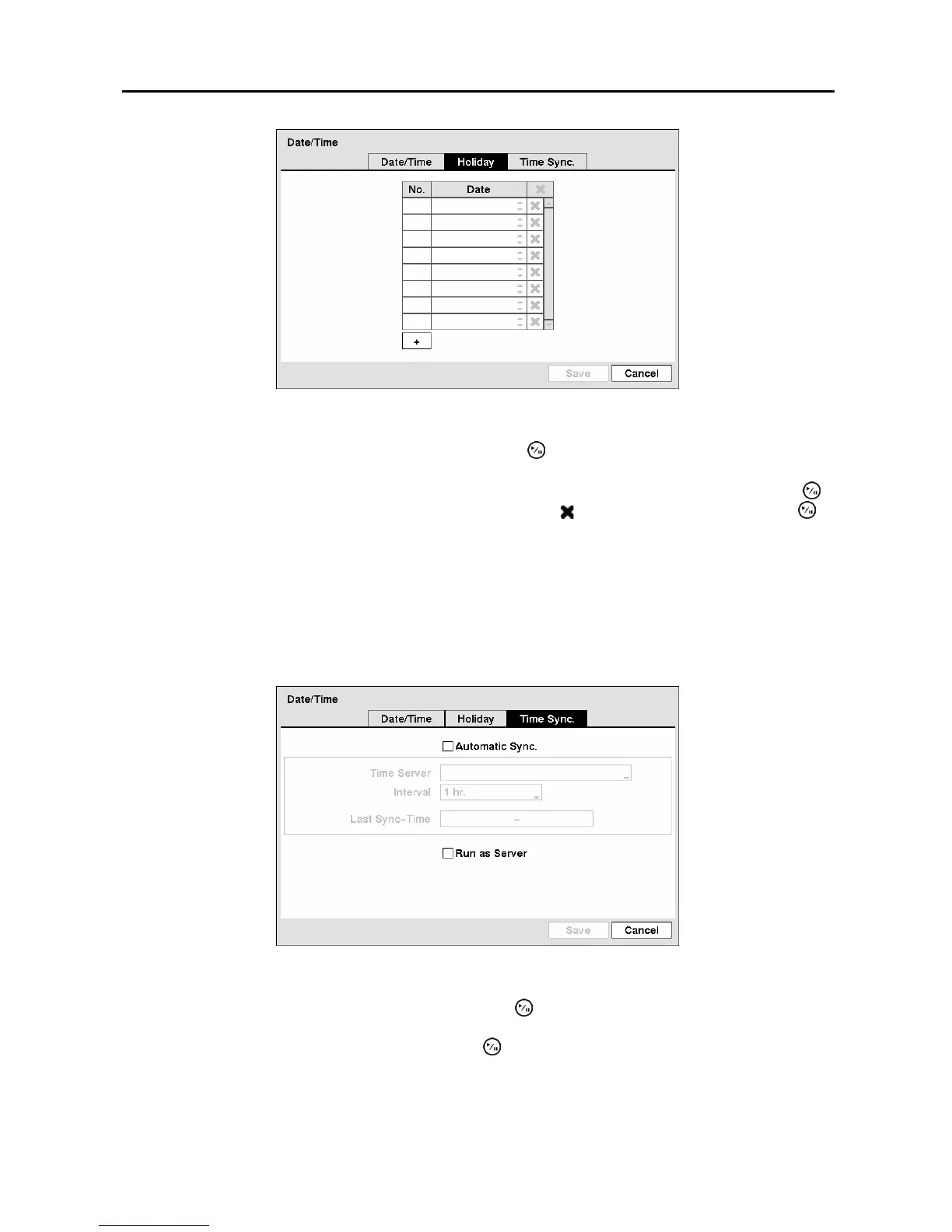
Figure 13 ─ Holiday setup screen.
You can set up holidays by highlighting
+
and pressing the button. The current date appears.
Highlight the month and day and change them by using the Up and Down arrow buttons. Press the
button to add the date. Dates can be deleted by highlighting the beside the date and pressing the
button.
NOTE: Holidays that do not fall on the same date each year should be updated once the current
year’s holiday has passed.
Highlighting the Time Sync. tab causes the Time Sync. screen to display. You can set up time
synchronization between the DVR and standard time servers that are available in most time zones and
countries, or between the DVR and another DVR.
Figure 14 ─ Time Sync. screen.
Highlight the box beside Automatic Sync. and press the button. This toggles between On and Off.
Highlight the box beside Time Server and press the
button. A virtual keyboard appears that you can
use to enter the IP address or domain name of the time server.
NOTE: You can use the domain name instead of IP address if you already set up the DNS Server
when setting up the LAN.



 To Next Page