User’s Manual
32
Display Screen
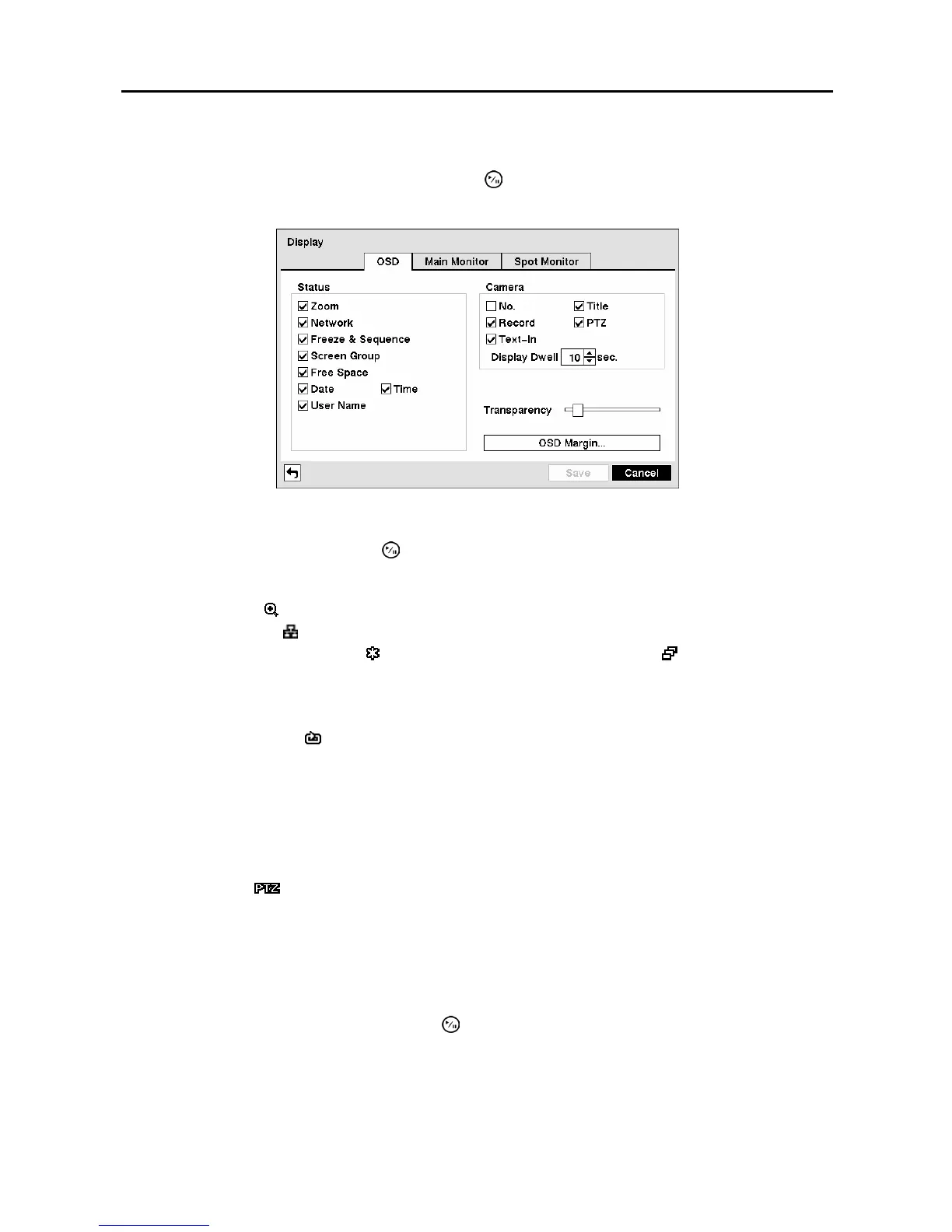
Highlight Display in the Devices menu and press the
button. The Display screen allows you to select
what information will be displayed on the monitor.
Figure 43 ─ Display OSD screen.
Highlighting an item and pressing the button toggles that item On and Off. When an item is On, there
is a checkmark in the box beside it. The following items can be turned On or Off:
y Zoom ─ The icon
displays on the enlarged video.
y Network ─ The icon
displays when the unit is connected to a network via either Ethernet or modem.
y Freeze & Sequence ─ The icon
displays while in the Freeze mode, and the
displays while in the
Sequence mode
.
y Screen Group ─ The number of screen group displays when the DVR is not in the 4x4 display mode of the
16-channel DVR, and 3x3 mode of the 8-channel DVR.
y Free Space ─ The icon
displays when the DVR is in the Recycle mode, and the percentage of available
storage space displays when the DVR is not in the Recycle mode.
y Date/Time ─ The current date and time information displays.
y User Name ─ The name of the current user logged in displays.
y Camera No. ─ The camera number displays at the top-left corner of each camera screen.
y Camera Title ─ The camera title displays at the top-left corner of each camera screen.
y Record ─ The record related icons display on each camera screen.
y PTZ ─ The icon
displays on each PTZ camera screen.
y Text-In ─ The text input strings display on the screen. You can adjust the Display Dwell time (sec.) for the
text input strings displayed on the screen.
You can adjust the transparency of the setup screens by highlighting Transparency and using the Left
and Right arrow buttons.
Highlighting OSD Margin… and pressing the
button displays how OSD text will be displayed on the
monitor.



 To Next Page