User’s Manual
20
Highlighting the box beside Auto Login allows you to select a User to be automatically logged in when
the DVR is powered up. It can also be set to never automatically login a user.
Highlighting the box beside Auto Logout allows you to select from a list of times that the user will be
automatically logged out. The options are: Never, 1 min., 3 min., 5 min., 10 min., 15 min., 20 min., 25
min., 30 min. and 1 hr.
You can save your changes by highlighting Save and pressing the
button. Selecting Cancel exits the
screen without saving the changes.
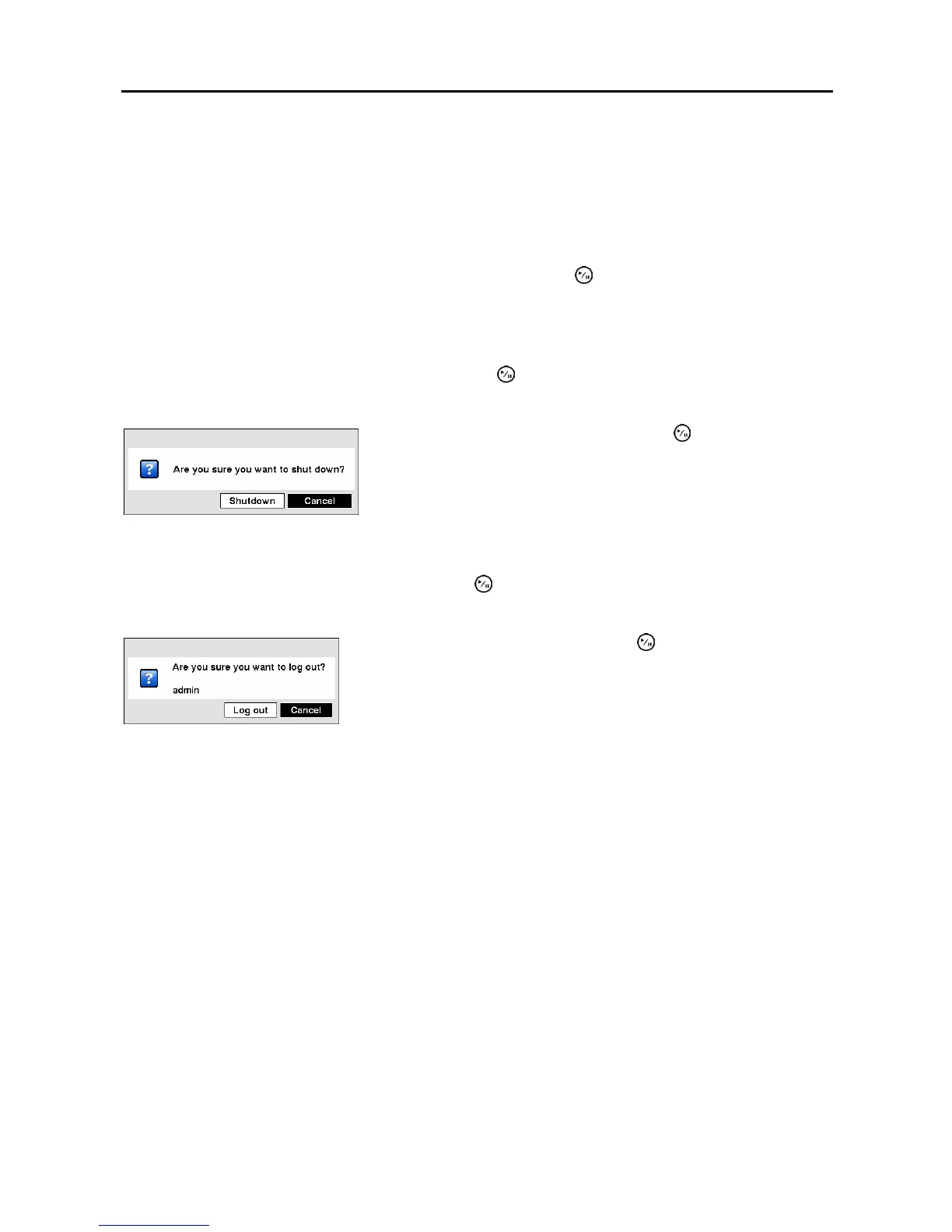
Shutdown Screen
Highlight Shutdown in the System menu and press the
button. The Shutdown screen displays asking
you to confirm whether or not you want to shut the system down.
Logout Screen
Highlight Logout in the System menu and press the button. The Logout screen displays asking you to
confirm whether or not you want to log out the current user.
After selecting Shutdown and pressing the button, a screen will
appear telling you when it is safe to disconnect power.
Figure 22 ─ Shutdown screen.
After selecting Logout and pressing the button, the user will be
logged out.
Figure 23 ─ Logout screen.



 To Next Page