User’s Manual
50
System Event Screen
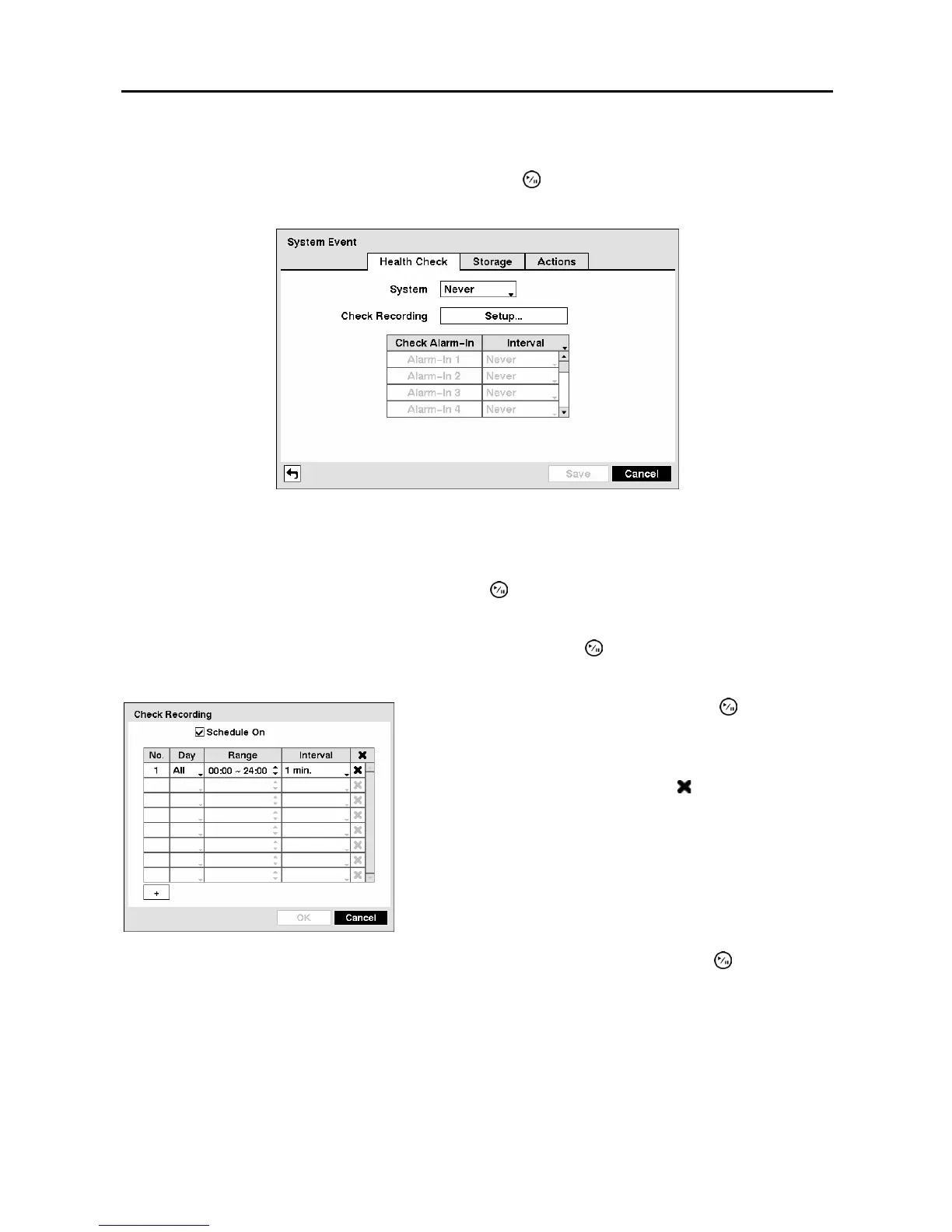
Highlight System Event in the Event menu and press the button. The System Event setup screen
appears.
Figure 73 ─ Health Check screen.
The DVR can be configured to run self-diagnostics and report the results.
Highlighting the box beside System and pressing the
button allows you to select the interval that you
want the DVR to run self-diagnostics on the system. You can select from 1 hr. to 30 days or Never.
Highlight the Setup... box beside Check Recording and press the
button. The Check Recording
screen appears.
Highlighting the box under the Interval heading beside each alarm-in and pressing the
button allows
you to change the interval that you want the DVR to run self-diagnostics on Alarm Inputs. You can select
from 1 hr. to 30 days or Never.
Highlighting Schedule On and pressing the button
toggles On and Off. When set to On, you can select the day,
time range and interval that you want the DVR to run self-
diagnostics on the recorder. The Interval can be selectable
from 1 min. to 7 days or Never. The
box allows you to
delete a check recording schedule.
Figure 74 ─ Check Recording screen.



 To Next Page