User’s Manual
14
Date/Time Setup
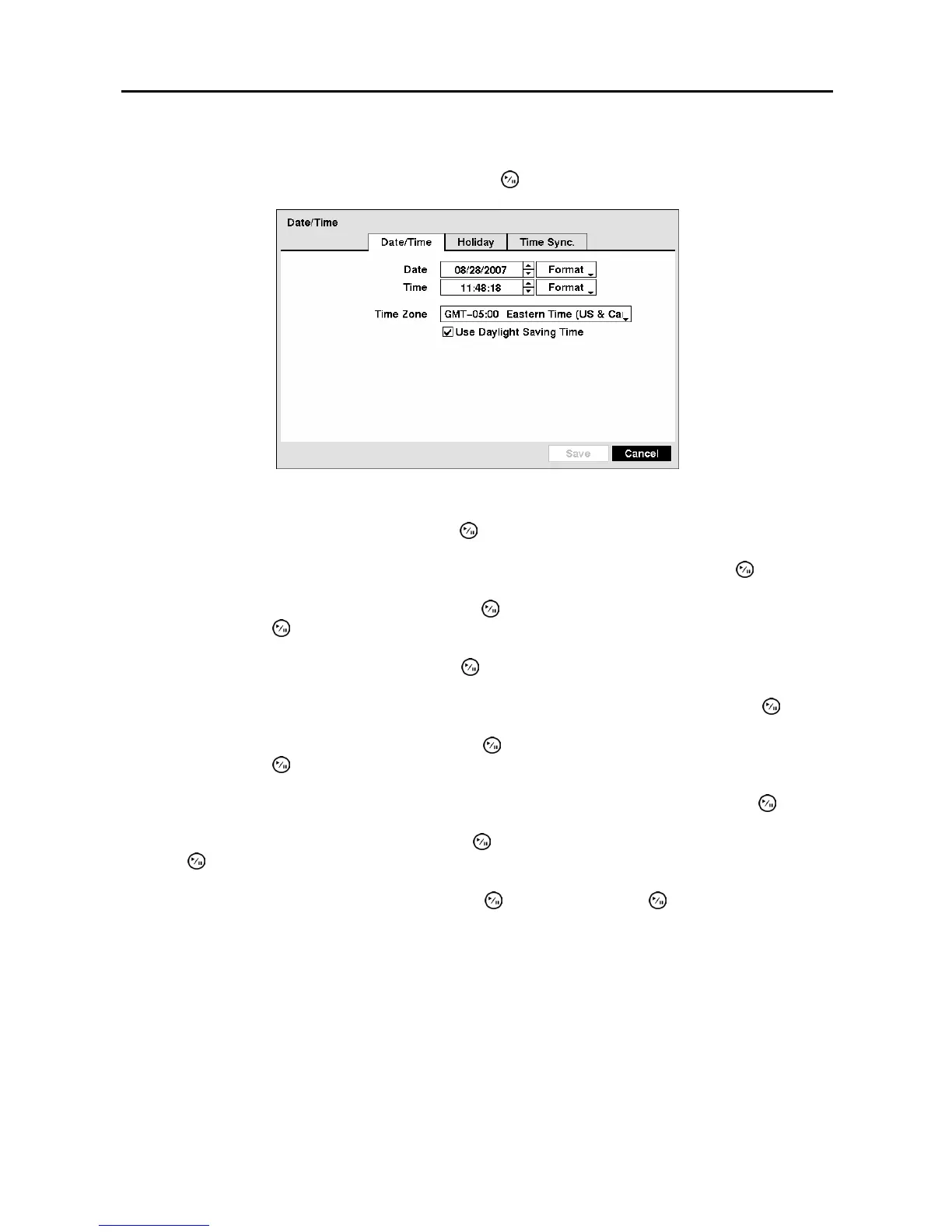
Highlight Date/Time in the System menu and press the
button. The Date/Time setup screen appears.
Figure 12 ─ Date/Time setup screen.
Highlight the first box beside Date and press the button. The individual sections of the date will
highlight. Use the Up and Down arrow buttons to change the number. Use the Left and Right arrow
buttons to move between month, date and year. Once you have the correct date, press the
button.
Highlight the Format box beside Date and press the
button. Select from the three available date
formats and press the button to save your selected format.
Highlight the first box beside Time and press the
button. The individual sections of the time will
highlight. Use the Up and Down arrow buttons to change the number. Use the Left and Right arrow
buttons to move between hour, minutes and seconds. Once you have the correct time, press the
button.
Highlight the Format box beside Time and press the
button. Select from the three available time
formats and press the button to save your selected format.
NOTE: The clock will not start running until you have highlighted Save and pressed the button.
Highlight the box beside Time Zone and press the
button. Select your time zone from the list and
press the
button.
Highlight Use Daylight Saving Time and press the
button. Pressing the button toggles between
On and Off.
Highlight the Holiday tab, and the Holiday setup screen appears



 To Next Page