User’s Manual
42
Turning Zone View On will allow you to observe how the DVR is reacting to motion. When in the
motion viewing mode, any detected motion within the zone will be displayed in red.
You can define the area of the image where you want to detect motion; e.g., a doorway. Highlight the box
under the Zone heading, and press the
button. The Motion Detection Zone screen displays.
NOTE: You can set up motion zones one block at a time in groups of 8 or 16 individual block
groups (8- and 16-channel DVR respectively). A block group is positioned within the image area
using the Up and Down arrow buttons, and individual blocks within the block groups are selected
or cleared using the camera buttons.
Press the
button to display the menu screen. The menu on the setup screen has the following
functions:
Figure 62 ─ Motion Detection Zone menu.
You can control excessive event logging and remote notification of motions detected after the motion
dwell time by adjusting the motion ignoring dwell intervals. Highlight the box beside Motion Ignoring
Interval and press the
button. A list of intervals ranging from 1 to 10 seconds or Never appears. The
DVR will not log and notify motion events occurred during the preset interval range.
NOTE: The record action for motion events will not be affected by the Motion Ignoring function.
Highlighting the box beside Daytime Setup and pressing the
button allow you to set up the Daytime
range.
Figure 63 ─ Daytime Setup screen.
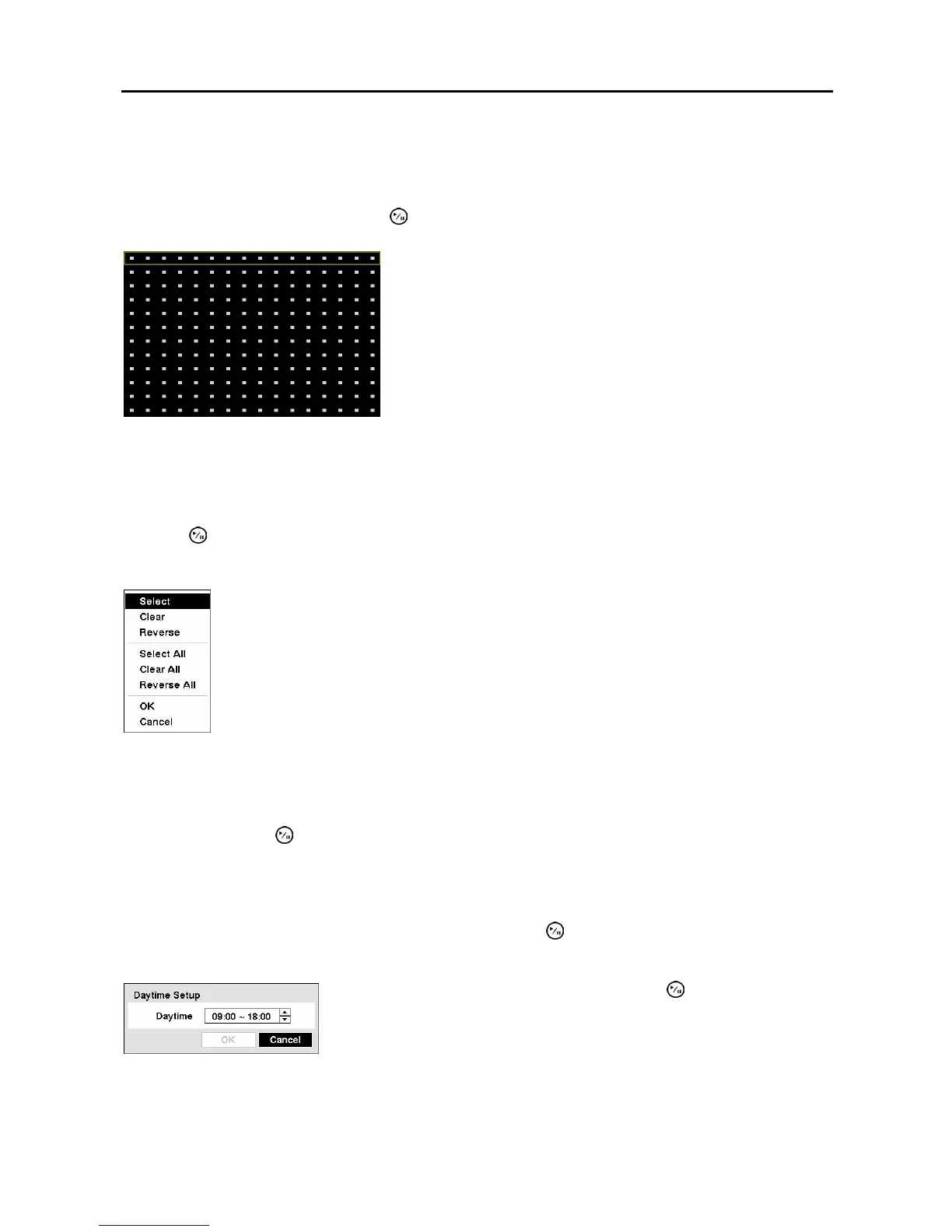
The Motion Detection Zone screen is laid over the video for
the selected camera. You can set up motion detection zones by
selecting or clearing blocks.
Figure 61 ─ Motion Detection Zone screen.
Select ─ Activates highlighted blocks to detect motion.
Clear ─ Deactivates highlighted blocks so that they will not detect motion.
Reverse ─ Activates inactive highlighted blocks and deactivates active highlighted blocks.
Select All ─ Activates all blocks to detect motion.
Clear All ─ Deactivates all blocks so that they will not detect motion.
Reverse All ─ Activates inactive blocks and deactivates active blocks.
OK ─ Accepts changes and closes Zone setup.
Cancel ─ Exits Zone setup without saving changes.
Highlight the box beside Daytime and press the button. Use the Up
and Down arrow buttons to set the Daytime range. The DVR will
consider the remaining time range as the Nighttime.



 To Next Page