Digital Video Recorder
29
NOTE: A user who does not have Covert Camera View authority cannot view video from cameras
set to Covert 1 or Covert 2 in both the live monitoring and playback modes.
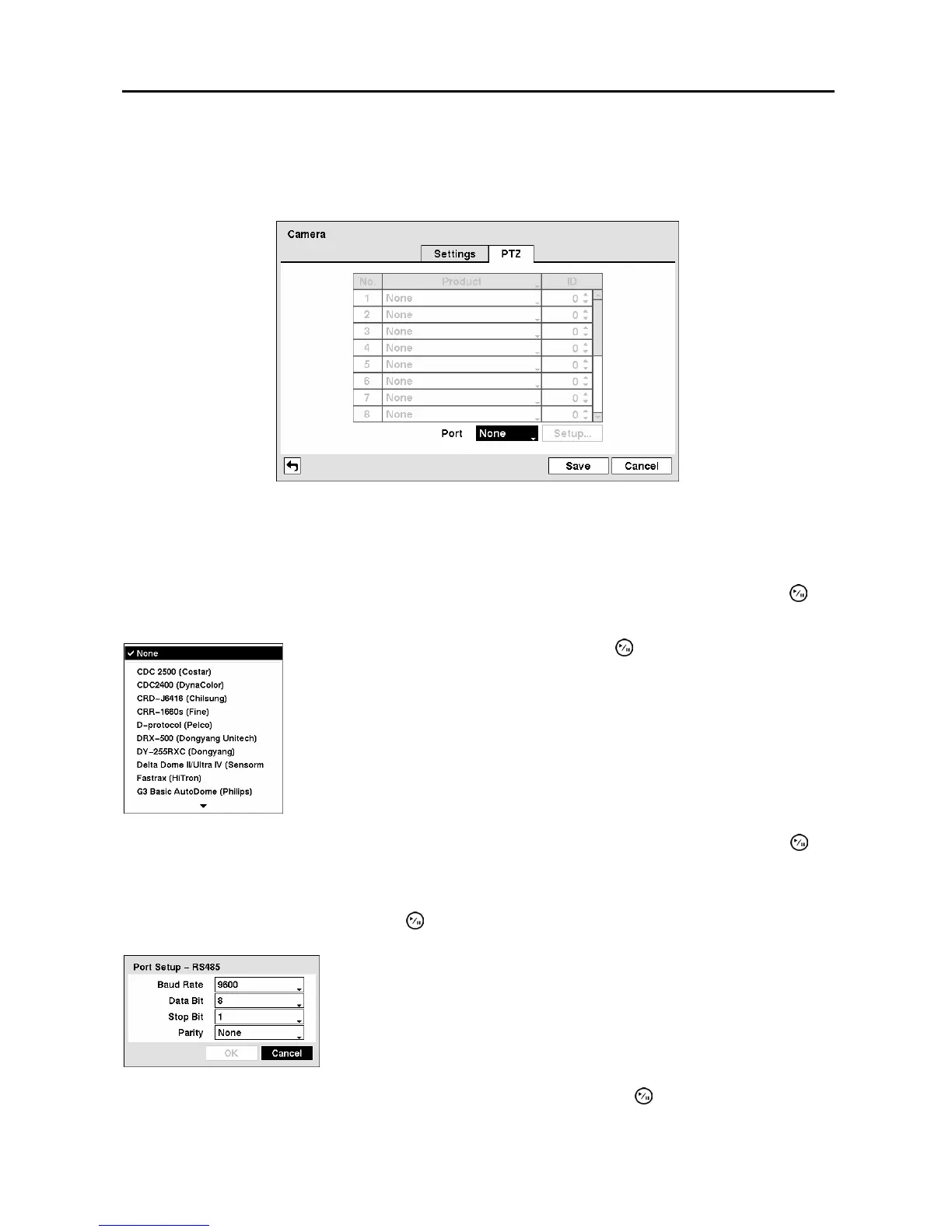
Highlight the PTZ tab, and the PTZ setup screen displays.
Figure 37 ─ Camera PTZ setup screen.
NOTE: You will only be able to set up PTZ devices if the PTZ port is set to RS232 or RS485. You
will not be able to use a modem if you are using the RS232 port for PTZ control.
Highlight the box in the Product column for the PTZ camera you wish to configure and press the
button. A list of PTZ devices appears.
You can assign IDs to each camera by highlighting the box under the ID heading and pressing the
button. Change the number by highlighting it and using the Up and Down arrow buttons to increase and
decrease the number. The PTZ ID number can be set from 0 to 256.
Highlight the Setup… box and press the
button. The Port Setup window appears.
You can save your Camera changes by highlighting Save and pressing the
button. Selecting Cancel
exits the screen without saving the changes.
Select your camera from the list and press the button. You will need to
connect the camera to the RS232 or RS485 connector on the back of the DVR
following the camera manufacturer’s instructions.
Figure 38 ─ PTZ Device list.
Configure the port’s setting based on the PTZ camera manufacturer’s
instructions.
Figure 39 ─ Port Setup window.



 To Next Page