User’s Manual
70
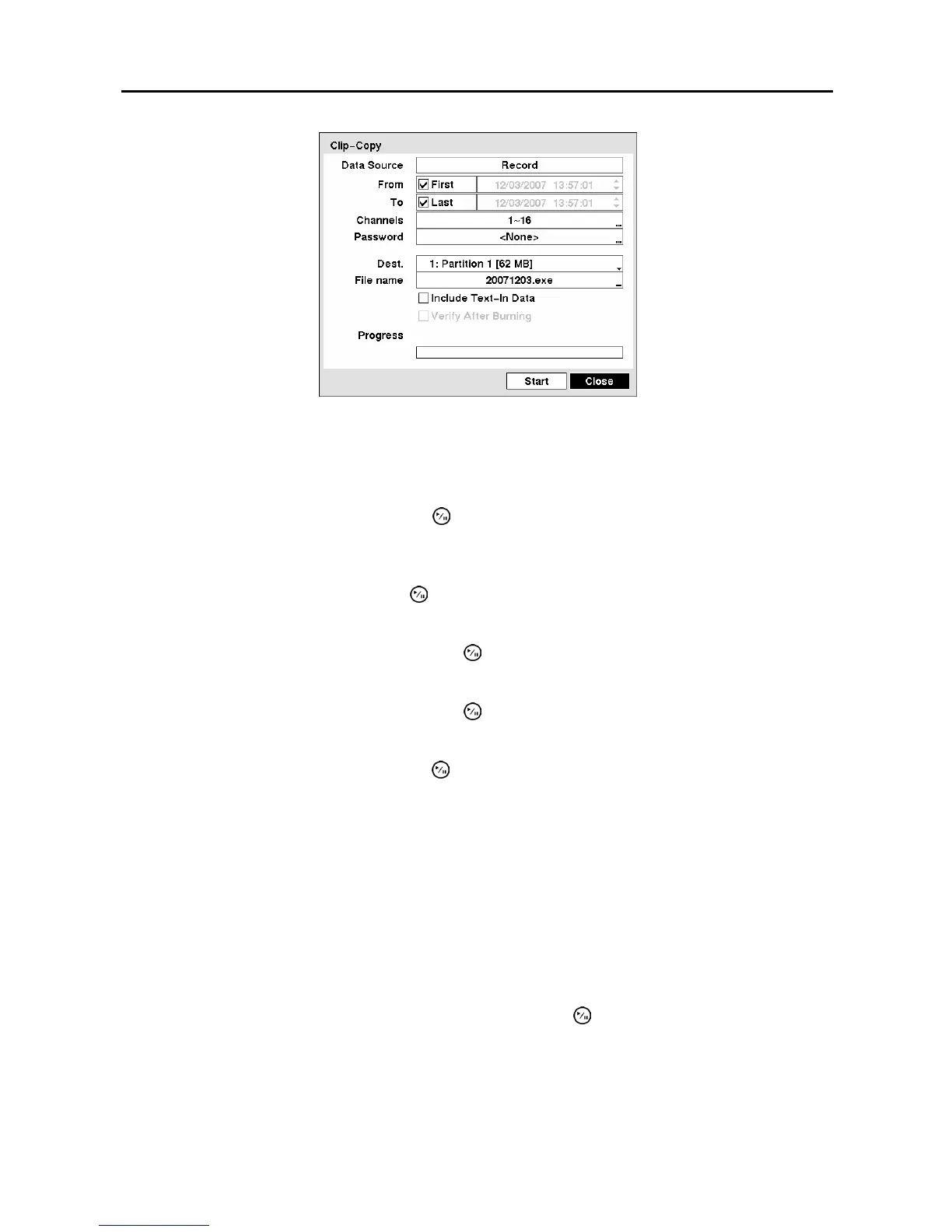
Figure 95 ─ Clip-Copy screen.
You can search video from the first to last recorded images, or you can set the start and stop times and
dates.
Highlight the box beside From and press the
(Play/Pause) button to toggle between On and Off.
When set to Off, you can enter a specific Date and Time. When set to On, the search will be from the first
recorded image.
Highlight the box beside To and press the
button to toggle between On and Off. When set to Off, you
can enter a specific Date and Time. When set to On, the search will be from the last recorded image.
Highlight the box beside Channels and press the
button. You can select the cameras that you would
like to include in your video clip.
Highlight the box beside Password and press the
button. A virtual keyboard appears allowing you to
enter the password for reviewing the video clips.
Highlight the box beside Dest. and press the
button. You can select the storage device on which you
would like to record the video clip. You can choose from Internal CD-RW, Internal DVD RW, USB
Storage and USB CD-RW.
CAUTION: The USB device for clip copy must be FAT 16 or FAT32 format.
NOTE: While copying video clips on the CD-RW or DVD RW, the recording speed might decrease.
NOTE: When the error message “Firmware update of the optical drive is required” displays,
update the firmware of the installed CD-RW drive or DVD RW. Please follow the instructions
described in Chapter 3 – Configuration – System Information section.
The DVR automatically assigns a file name to the video clip. However, you can give the video clip file a
different name. Highlight the box beside File Name and press the
button. A virtual keyboard appears.
Enter a file name for the video you are backing up and select Close. The DVR will automatically add the
camera number (for example “01”) and “.exe” to the file name.
NOTE: When naming a file, you cannot use the following characters: \, /, :, *, ?, “, <, >, |.



 To Next Page