Digital Video Recorder
47
Highlight the box under the Setup heading, and press the button. Selecting the Setup heading
changes all the parameters excluding Port settings of all the text input channels.
NOTE: The system performance might be affected when a large quantity of text inputs are
detected from several channels at the same time.
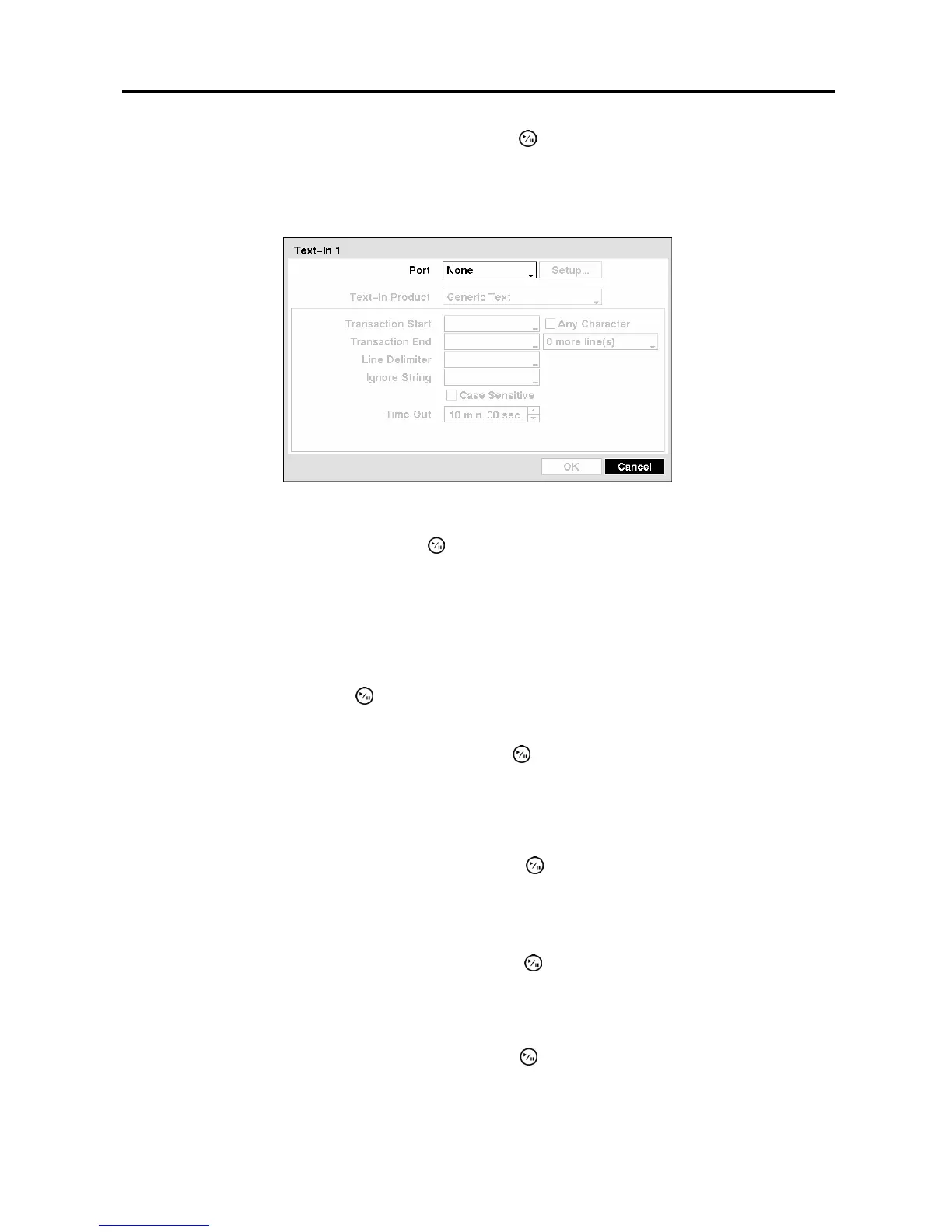
Figure 70 ─ Text-In Device Settings screen.
Highlight the box beside Port, and press the button. Select from None, RS232, RS485 and
USB-Serial (1~8).
NOTE: If you have set the Port as None, you will not be able to make any changes to the screen.
NOTE: When using the USB to serial text-in device, do NOT remove the USB cable from the port
while the system is running.
Highlight Setup…, and press the
button. Use the ATM or POS manufacturer’s recommended
settings when configuring the RS232, RS485 or USB-Serial ports.
Highlight the box beside Text-In Product, and press the
button. Select your device from the list.
NOTE: The following description is for a Generic Text Device. The screen changes for different
types of text input devices, and there will be different parameter boxes for you to enter
information.
Highlight the box beside Transaction Start, and press the
button. Use the virtual keyboard to enter
the Transaction Start string. Refer to the device manufacturer’s documentation for the text string that the
device first sends when a transaction starts.
If you want the DVR to react to any character sent from the text input device, you will want to turn On
Any Character. Highlight Any Character, and press the
button to toggle between On and Off.
NOTE: If Any Character is turned On, you will not be able to enter any text in the Transaction Start
box.
Highlight the box beside Transaction End, and press the
button. Use the virtual keyboard to enter
the Transaction End string. Refer to the device manufacturer’s documentation for the text string that the
device sends when a transaction ends.



 To Next Page