Digital Video Recorder
17
The Information column displays whether the device is being used or not. Other indicates the device has
been used for another DVR.
Highlight the box in the Information column for the desired storage device and press the button.
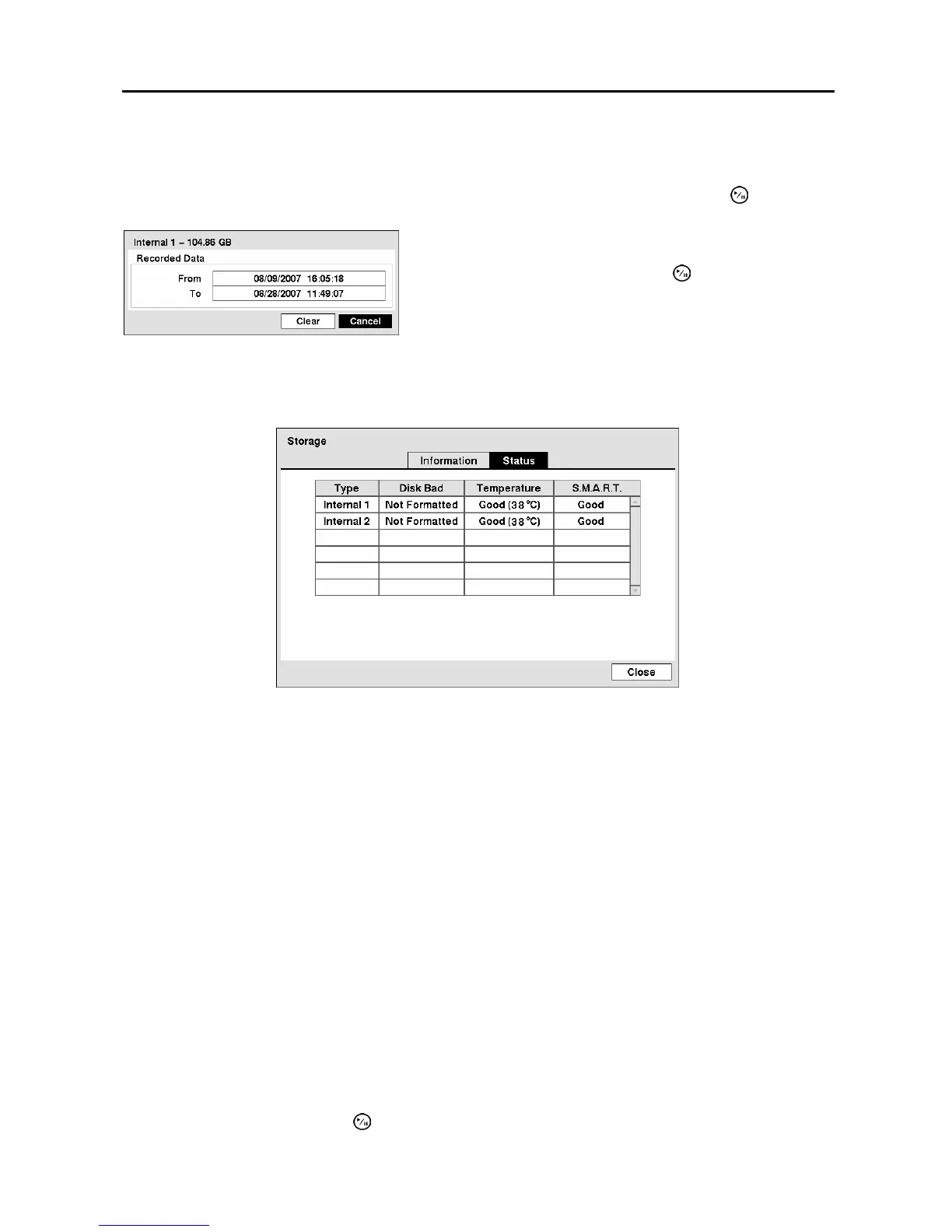
Highlight the Status tab, and the Storage Status screen displays.
Figure 18 ─ Storage Status screen.
The Type column displays the type of storage device.
The Disk Bad column displays the percentage of bad sectors. Not Formatted indicates the device is not
formatted.
The Temperature column displays the temperature of the storage device.
The S.M.A.R.T. column displays “Good”, “Bad” or “N/A”, depending on storage conditions.
y Good ─ The storage condition is normal.
y Bad ─ Data cannot be written on or read from the storage device.
y N/A ─ Storage conditions are normal, however, the S.M.A.R.T. monitoring is not working or supported
NOTE: When the storage condition is “Bad”, the Event Status – Storage screen displays and you
can check the storage condition for details. Once the “Bad” message displays, replacing the hard
disk drive is recommended, usually within 24 hours.
NOTE: Temperature and S.M.A.R.T. information will be available only for internal hard disk drives
supporting the SMART (Self-Monitoring Analysis and Reporting Technology) monitoring program.
Selecting Close and pressing the button exits the screen.
Figure 17 ─ Device Information screen.
You will be able to check the time information about recorded
data. If you want to erase recorded data on the selected
device, highlight Clear and press the
button. You will be
asked whether or not you want to delete the data.



 To Next Page