User’s Manual
44
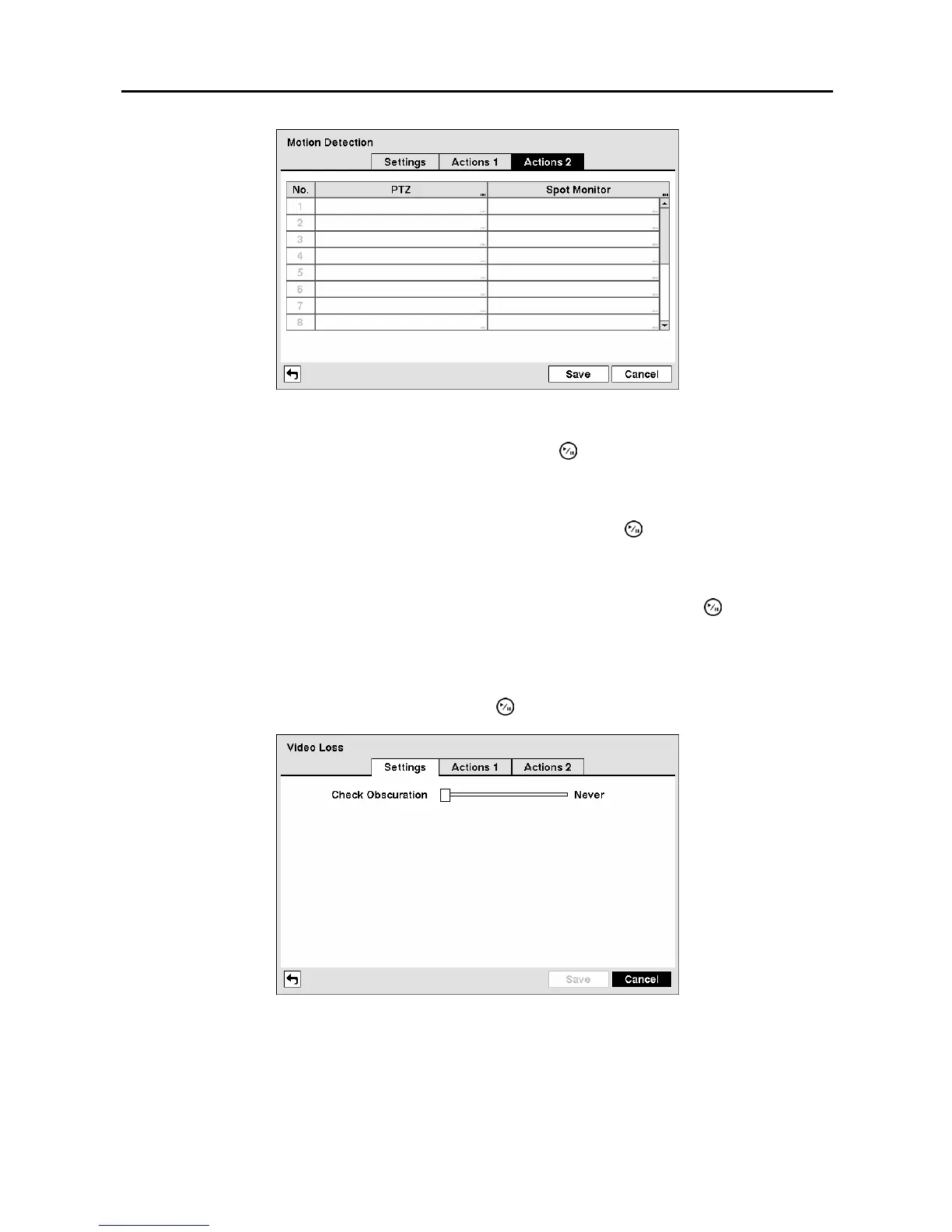
Figure 65 ─ Motion Detection Actions 2 screen.
Highlight the desired box under the PTZ heading, and press the button. A list of PTZ presets appear.
Select the preset position for each PTZ camera, where you want PTZ cameras to move to whenever the
DVR detects motion on the selected camera’s input.
Highlight the desired box under the Spot Monitor heading, and press the
button. A list of a SPOT
monitor and cameras appears. A SPOT monitor can be associated with a camera. The DVR will display
the associated camera on the SPOT monitor whenever it detects motions on the selected camera.
You can save your Motion Detection changes by highlighting Save and pressing the
button.
Selecting Cancel exits the screen without saving the changes.
Video Loss Screen
Highlight Video Loss in the Event menu and press the button. The Video Loss setup screen appears.
Figure 66 ─ Video Loss Settings screen.
The DVR checks to see if anything is obscuring the camera. Highlight the slider bar beside Check
Obscuration, and use the Left and Right arrow buttons to adjust the setting. The sensitivity can be set
from Never to 15 (extremely sensitive).



 To Next Page