Digital Video Recorder
53
Event Status Screen
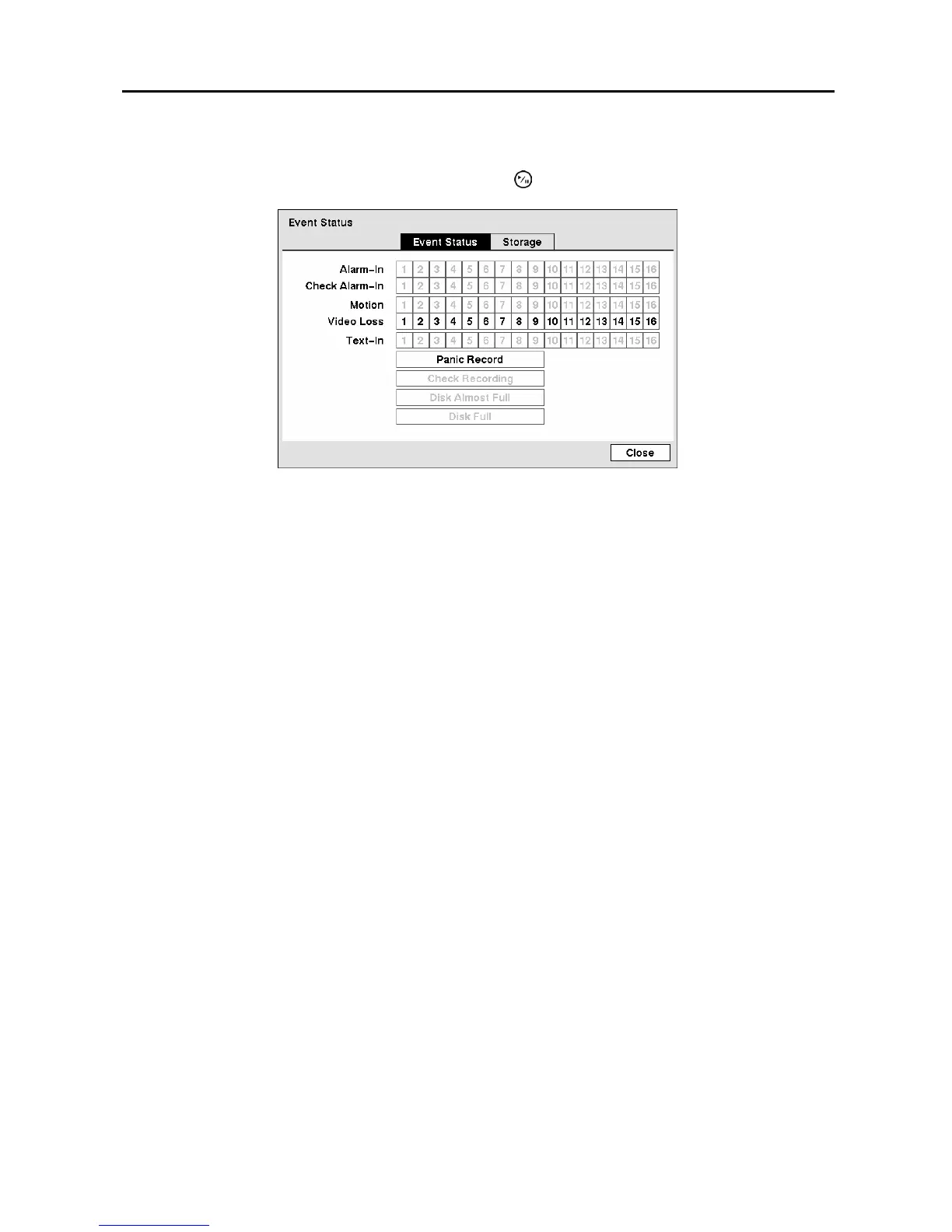
Highlight Event Status in the Event menu and press the
button. The Event Status screen appears.
Figure 78 ─ Event Status screen.
The Event Status screen displays the status of the DVR’s systems and inputs. Events will be highlighted,
and related channels or events will flicker for five seconds when detected.
Alarm-In, Motion, Video Loss and Text-In will be highlighted when each event is detected based on the
settings you made in the Alarm-In, Motion Detection and Text-In setup screen on the Event menu.
Check Alarm-In and Check Recording will be highlighted when each event is detected based on the
settings you made in the System Event setup screen on the Event menu.
Panic Record will be highlighted while the DVR is in the panic recording mode.
Disk Almost Full will be highlighted when the DVR is not in the Recycle mode and the level of disk
usage reaches the Disk Almost Full percentage you made in the System Event setup screen on the Event
menu. Disk Full will be highlighted when the DVR is not in the Recycle mode and all available storage
space has been used.
Highlighting the Storage tab will display the hard disk drive status. Refer to the Storage Screen
section for details.



 To Next Page