User’s Manual
10
PLAY/PAUSE Button
In the live monitoring mode, pressing the
button freezes the current screen and the screen displays
icon. When in the playback mode, pressing the button plays back images at regular speed or pauses
playing video.
Pressing the
button selects a highlighted item or completes an entry that you have made during system
setup.
Turning on the Power
Connecting the power cord to the DVR turns on the unit. The unit takes approximately 60 seconds to
initialize.
Initial Unit Setup
Before using your DVR for the first time, you will want to establish the initial settings. This includes
items such as time and date, display language, camera, audio, remote control, record mode, network and
password. Your DVR can be set up using various screens and dialog boxes.
Throughout the screens you will see
. Highlighting the and pressing the (Play/Pause) button
gives you the opportunity to reset that screen to its default settings.
Press the
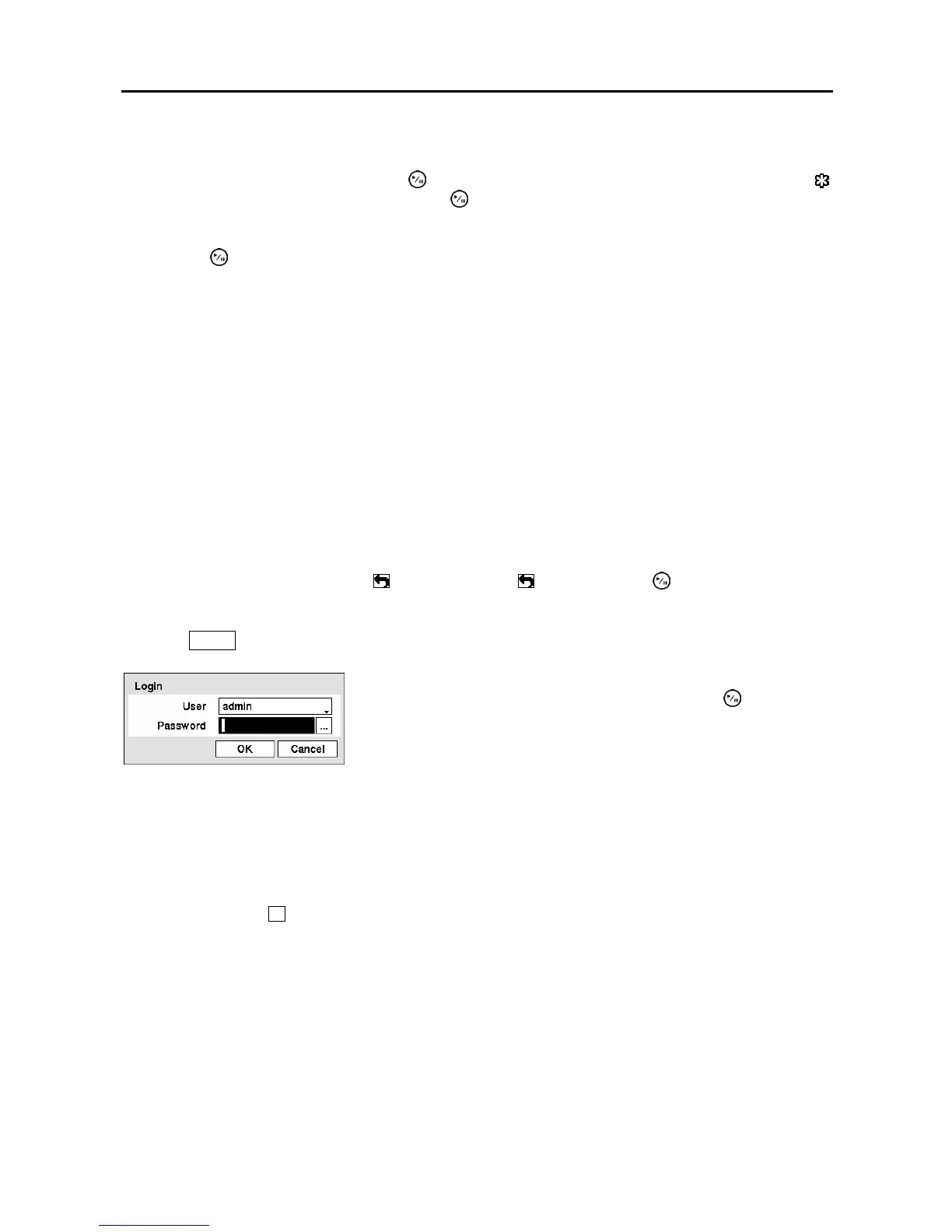
MENU button to enter the setup screens. The Login screen appears.
NOTE: To assure the secure management of the system, setting up a password is strongly
recommended.
NOTE: You can use a mouse (not supplied) to access the Login screen in addition to using the
front panel buttons. Click the right mouse button to display the Login screen. To enter a
password, click the
…
button, and the virtual keyboard displays. See instructions below for using
the virtual keyboard.
Figure 4 ─ Login screen.
Select a User and enter the password by pressing the appropriate
combination of Camera number buttons and then the
button.
There is no default password when logging in the admin user for the
first time.



 To Next Page