User’s Manual
22
LAN Setup Screen
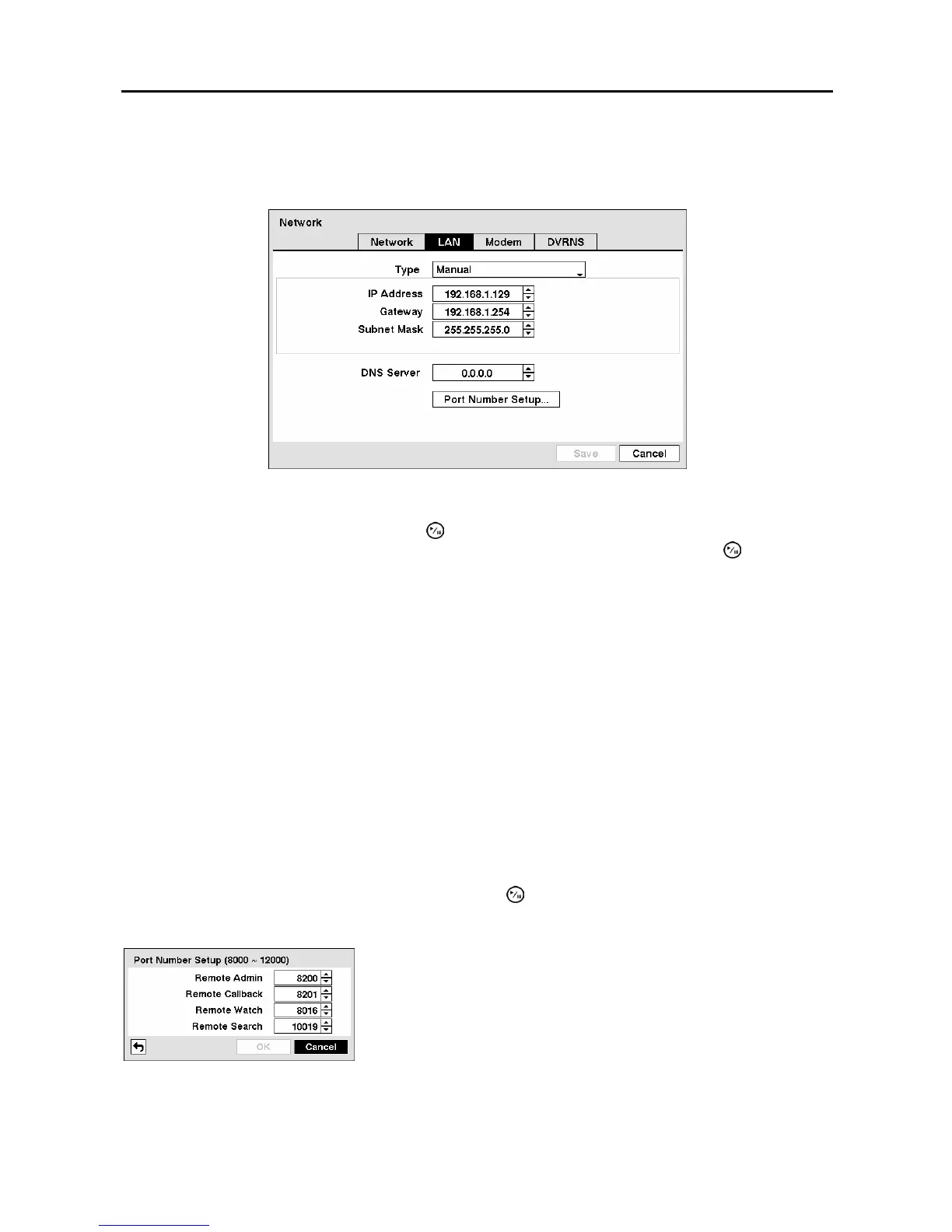
Highlight the LAN tab, and the LAN screen displays.
Figure 26 ─ LAN (Manual) setup screen.
Highlight the box beside Type and press the button. You can select the type of network configuration
from: Manual, DHCP and ADSL (with PPPoE). Select the desired type and press the button.
Selecting Manual from the Type allows you to set up LAN parameters manually.
NOTE: You will need to get the appropriate IP Address, Gateway and Subnet Mask from your
network administrator.
Change the numbers by highlighting them and using the Up and Down arrow buttons to increase or
decrease the number.
The factory default LAN settings are:
IP Address: 192.168.1.129
Gateway: 192.168.1.254
Subnet Mask: 255.255.255.0
Highlight the box beside DNS Server. Press the Up and Down arrow buttons to set the IP address of the
DNS server.
Highlight the Port Number Setup… box and press the
button. The Port Number Setup screen
appears.
Figure 27 ─ Port Numbers setup screen.
Change the numbers by highlighting them and using the Up and
Down arrow buttons to increase or decrease the number. The
factory default Port settings are:
Remote Admin: 8200
Remote Callback: 8201
Remote Watch: 8016
Remote Search: 10019



 To Next Page