User’s Manual
28
Highlight the box beside Remote Server Phone Number and enter the telephone number of the
computer running RAS.
Highlight the box beside Outside Line Call and enter any numbers that must be dialed for an outside line
for your telephone system; for example, “9”.
Highlight the box beside Callback Phone Number and enter the telephone number of the DVR.
You can save your Notification changes by highlighting Save and pressing the button. Selecting
Cancel exits the screen without saving the changes.
Configuring Devices
You can configure the video, audio, alarm, display and remote control devices connected to the DVR.
Figure 35 ─ Devices Menu.
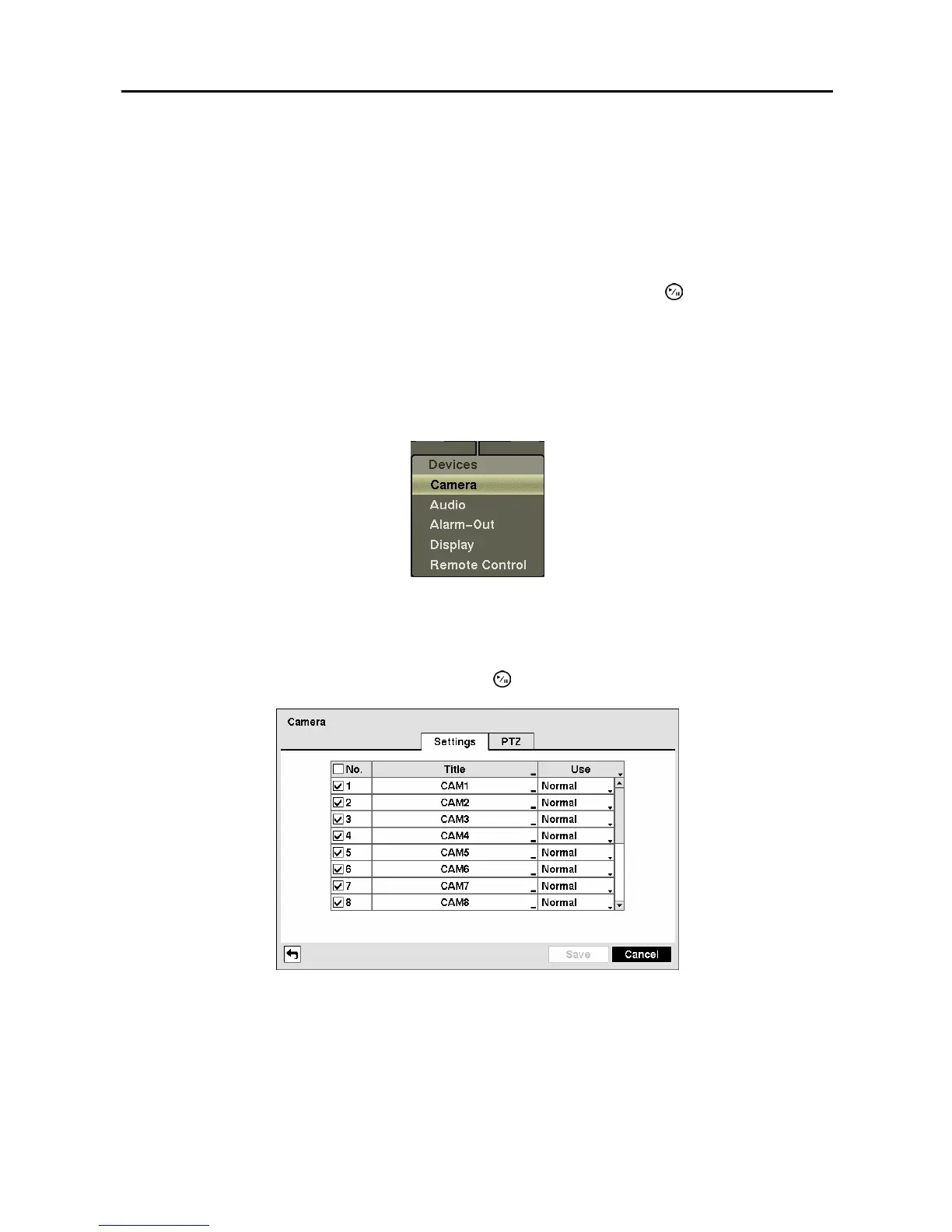
Camera Setup Screen
Highlight Camera in the Devices menu and press the
button. The Camera setup screen appears.
Figure 36 ─ Camera setup screen.
You can turn the camera number On or Off, and you can change the Title of each camera using the virtual
keyboard. You can also determine which cameras will display on the monitors by selecting Normal,
Covert 1 or Covert 2 from a drop-down list in the Use column.
NOTE: When selecting the Covert 1, the DVR displays the camera title and status icons on the
covert video. When selecting the Covert 2, the DVR displays only camera title on the covert video.



 To Next Page