User’s Manual
60
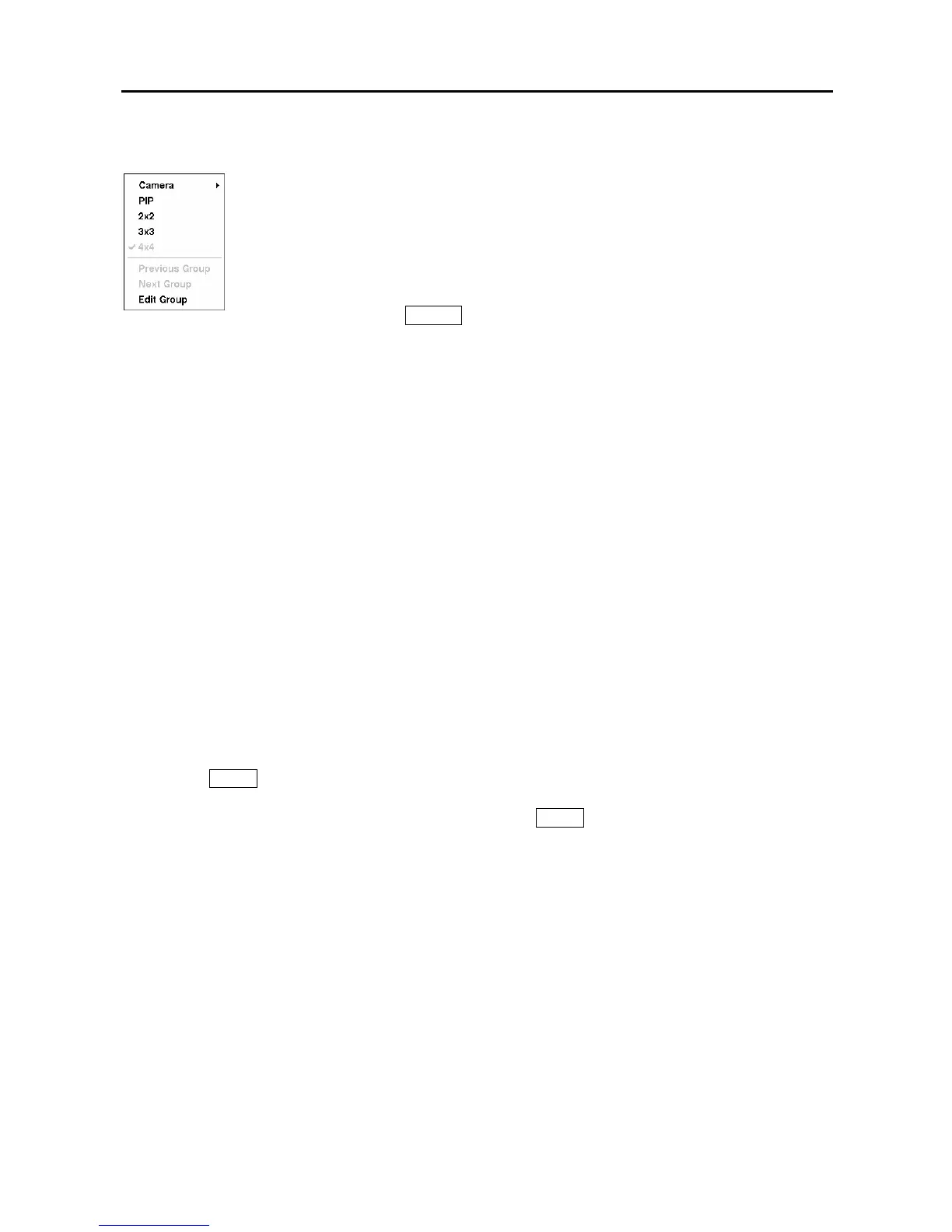
Selecting Display shows the following menu:
Selecting Edit Group supports the active cameo function. Select Edit Group and choose a camera that
you want to change display position (e.g., Camera A). Then, click the right mouse button to display the
menu. If you select another camera in the menu (e.g., Camera B), the screen displays Camera B instead
of Camera A. When in the 4x4 format, Camera A and Camera B will switch positions.
Figure 85 ─ Mouse Display menu.
Recording Video
Once you have installed the DVR following the instructions in Chapter 2 ─ Installation, it is ready to
record. The DVR will start recording based on the settings you made in the Record setup screen. See
Chapter3 ─ Configuration.
Recycle On or Recycle Off. The factory default is Recycle On. It does this by recording over the
oldest video once the hard disk is full. Setting the DVR to Recycle Off causes it to stop recording once
the hard disk is full.
Standard or High. The factory default resolution is Standard. When set to Standard, the DVR has a
maximum recording speed of 120 ips. When set to High, the DVR has a maximum recording speed of
60 ips.
Pressing the
PANIC button starts panic recording of all cameras, and pressing the button again stops panic
recording. If you set the Panic Recording Duration in the Record Screen, panic recording will stop
automatically according to the preset duration as long as the PANIC button is not pressed.
NOTE: When the DVR is not in the Recycle mode and all available storage space has been used,
panic recording will not operate.
Although you will be able to record without changing the unit from its original factory settings, you will
want to take advantages of the DVR’s many tools. See Chapter 3 ─ Configuration for detailed
descriptions of the recording mode options.
Recording Audio
If the DVR was set up to record audio, it will record audio from up to two inputs when video is recording.
The DVR will not record audio when the recording speed is set to less than 1 ips.
NOTE: Make certain you comply with all local and federal laws and regulations when recording
audio.
Clicking Camera and selecting the camera number is the same as pressing the
individual camera buttons on the front panel which displays the selected camera full
screen. When in the PIP display mode, clicking the right mouse button and selecting
PIP changes the location and the size of the PIP.
Selecting PIP, 2x2, 3x3 and 4x4 display the cameras in the selected multi-view screen
mode. Clicking
Previous Group
moves to the previous page. Clicking
Next Group
is
the same as pressing the
GROUP
button on the front panel which moves to the next page.



 To Next Page