User’s Manual
40
You can set the actions the DVR will take whenever it senses an input on one of its alarm input
connectors.
Highlight the desired box under the Record heading, and press the button. A list of cameras appears.
Select the cameras that you want the DVR to record whenever it detects an input on the associated alarm
input.
NOTE: For the Record action, the camera you select should be set to the Event or Time & Event
recording mode in the Record Schedule setup screen.
Highlight the desired box under the Alarm-Out heading, and press the button. A list of Alarm Outputs
and Beep appear. Select the Alarm Output connectors that you would like to activate whenever the DVR
detects an input on the associated alarm input. You can also set the DVR’s internal buzzer to sound.
NOTE: For the Alarm-Out action, the alarm output and beep you select should be set to the Event
mode in the Alarm-Out setup screen (Schedule tab).
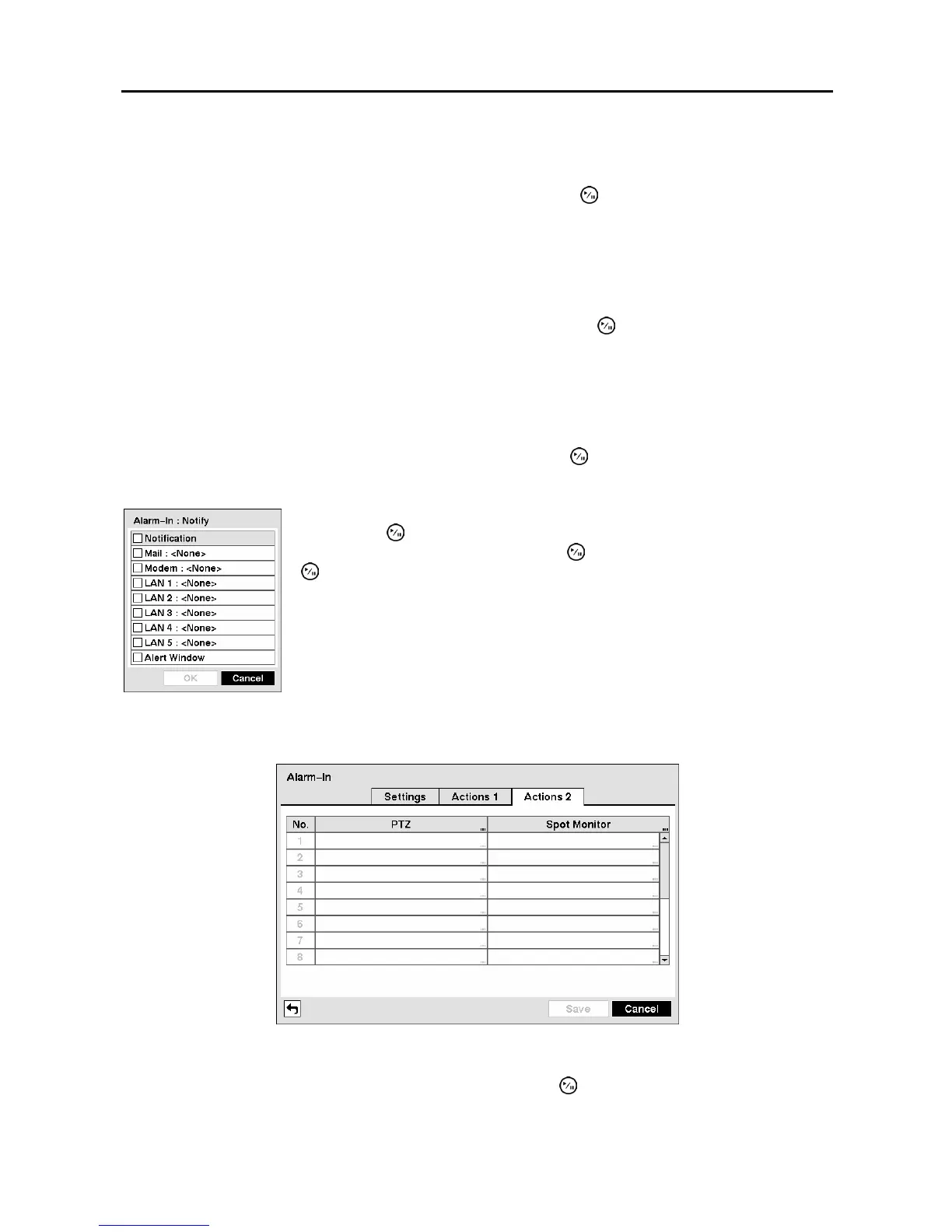
Highlight the desired box under the Notify heading, and press the button. The Alarm-In Notify menu
appears.
NOTE: For the Notify action, the notify item you select should be enabled in the Notification setup
screen and the DVR should be registered in the RAS (Remote Administration System).
Figure 57 ─ Alarm-In Actions 2 screen.
Highlight the desired box under the PTZ heading, and press the button. A list of PTZ presets appear.
Select the preset position for each PTZ camera, where you want PTZ cameras to move to whenever the
DVR detects an input on the associated alarm input.
You can toggle the entire list On and Off by highlighting Notification and
pressing the
button. You can toggle the individual items On and Off by
highlighting that item and pressing the
button. Highlight OK and press the
button to accept your changes.
Figure 56 ─ Alarm-In Notify menu.



 To Next Page