PAGE 30
Windows PC Software
Manual Dialling
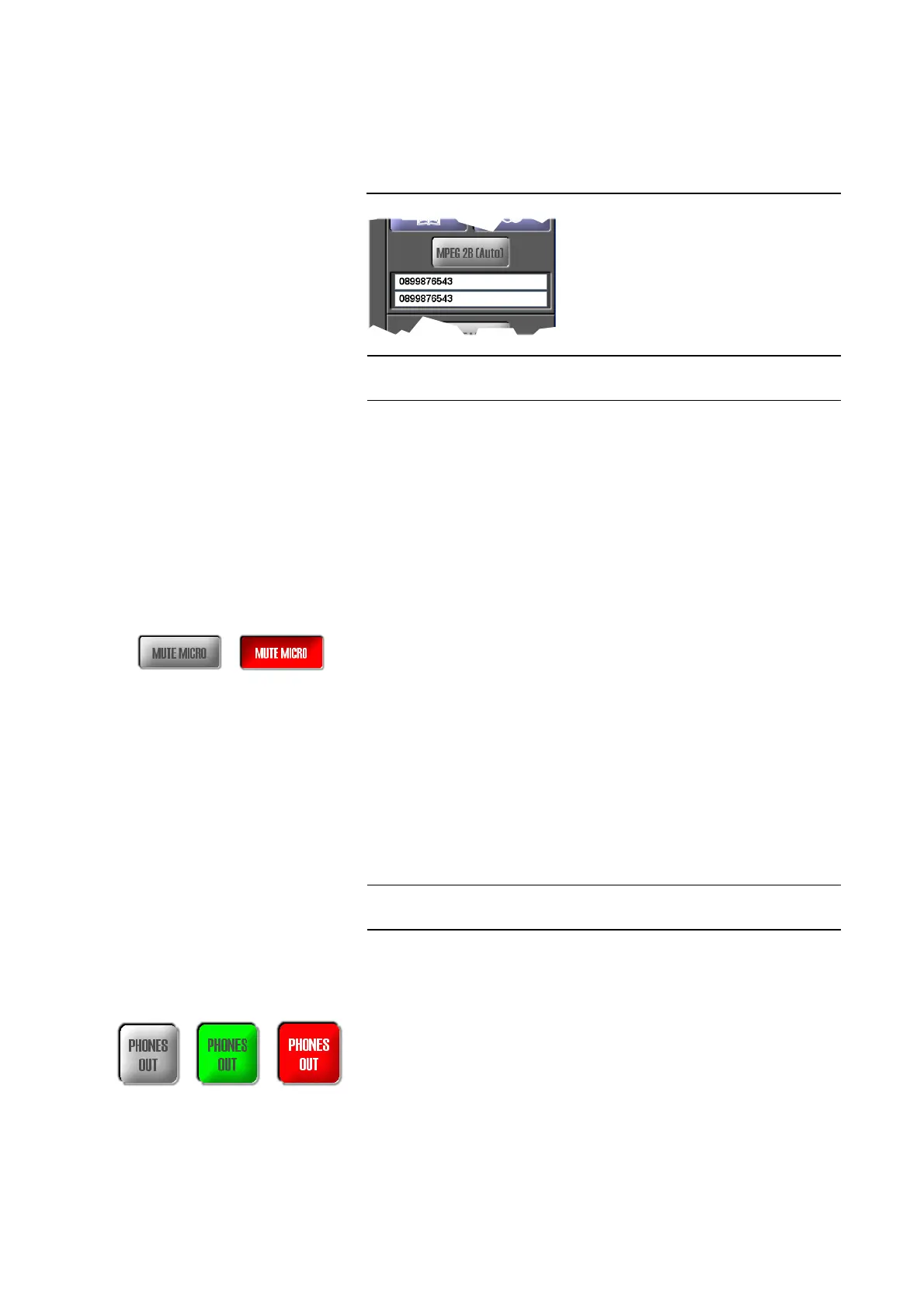
Via the entry fields for the calling number, you can dial manually instead of
using the telephone book. Depending on the operating mode, one or two
fields are available.
FIG. 11 MANUAL DIALLING
For the entry field, all numeric characters ’0’...’9’ as well as the characters ’
*
’
and ’#’ are allowed. The length of the calling number must not be more than
20 characters.
With a ’-’ (e.g. „-123“) placed in front of the calling number you can tempora-
rily suppress the prefix number for getting an outside line (see also Page 49,
Prefix Number)
Mute microphone
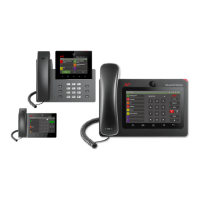
By clicking on the MUTE MICRO button, the microphone connected to the
headset interface is muted.
grey: Mute function is not active
blinking red: Mute function is active. Additionally in the Audio mixer MU-
TED is displayed at the microphone level.
Headphones Output (Phones Out)
Via the button PHONES OUT you select the Audio signals which you want to
hear at the headphones if connected.
Depending on the configuration of the Audio mixer, the PHONES OUT but-
ton can be displayed in the following colours:
grey: No Audio source is activated. In that case nothing could be heard at the
headphones output.
green: At least one Ausio source is activated.
blinking in red: The Mute function is enabled. In that case nothing could be
heard at the headphones output.
Please consider also the configuration possibilities of the headphones inter-
face Page 73, which allow an allocation of the left and right channel.
TIP
You can copy a phone number with <CTRL>+<c> and paste it with
<CTRL>+<v>.
NOTE
If the fee-based option Mixer Tool Plug-In (order number 430201) is not ena-
bled to your system, you can select only one signal from the sources.


 To Next Page