100 - Documenting Calibrator
Getting Default Mappings
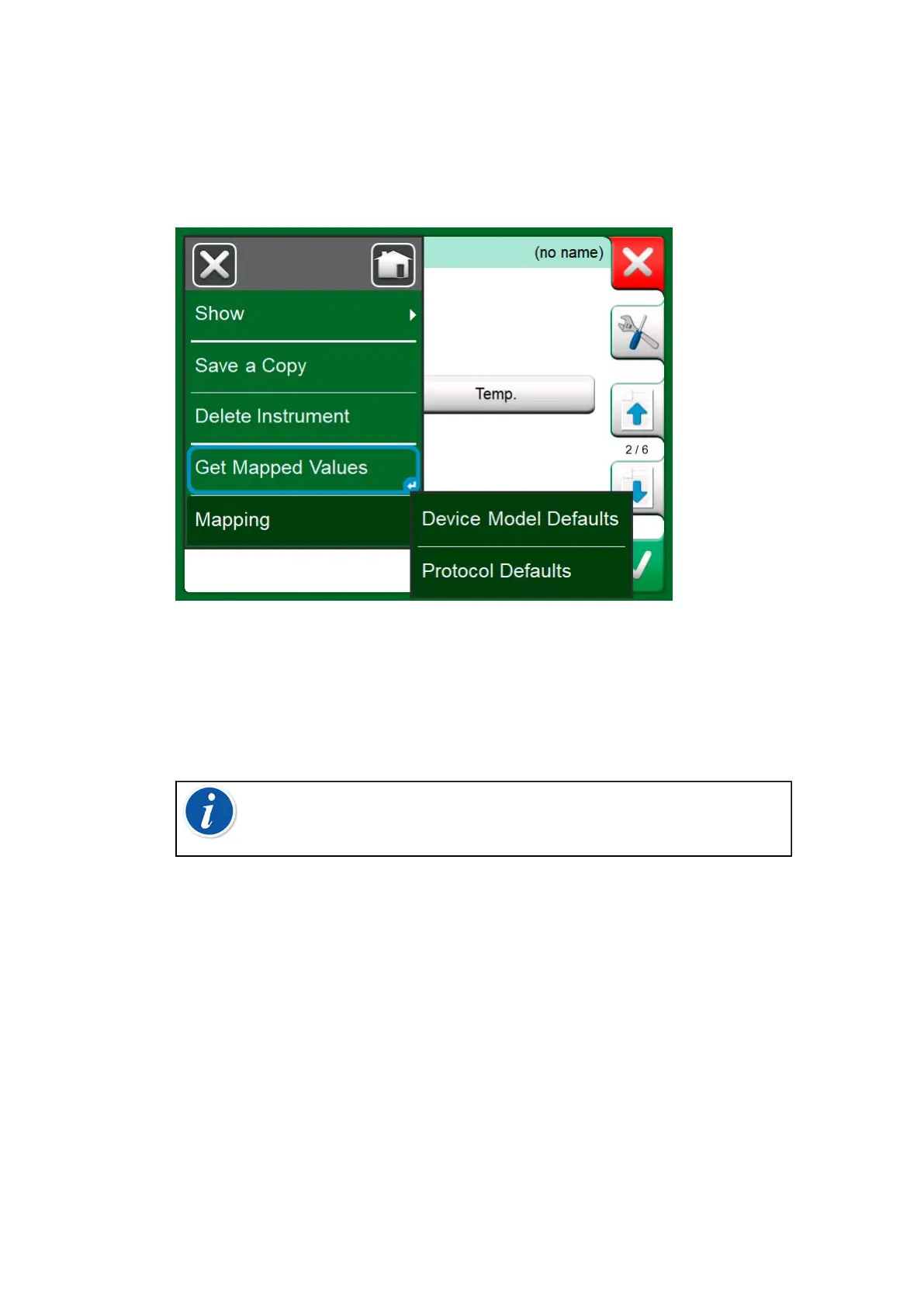
On any of the instrument data pages, open the menu and tap Get Mapped
Values. Then MC6-T starts reading data from the connected instrument to
MC6-T's Identification and Device fields, according to Mapping settings.
Figure 92: Mapping menus on instrument pages
That's all you need to do, provided the mappings suit your needs. If not,
see chapter Customizing the Mappings.
However, you should anyhow always check all the instrument settings
after the data is read, before continuing with your work.
Note: For HART
®
Instrument's, the input setting is also
read from the transmitter. For other instruments, you need to
manually add the Instrument's input data.
Customizing the Mappings
The menu option, Mapping, has in its submenus options on how to define
general mappings on protocol level (HART, FOUNDATION Fieldbus H1
or Profibus PA) and also default mappings on device model level.
MC6-T uses the Protocol Defaults if no default mappings are defined
for the connected device model. If Device Model Defaults exist for the
connected device model, they are used instead of Protocol Defaults.
In the Figure 93: Sample of default mappings for HART protocol you
can see a sample of the mappings. The left side lists the fields in MC6-T
(target fields) and the Mapping Mode of the field (Generic in all cases of
the sample picture). The right side lists the value and name of the field in
the device.


 To Next Page