BradyPrinter S3100 Sign & Label Printer User’s Manual
110
Pipe Markers
Create Pipe Marker Labels
Creating a Standard Pipe Marker
To create a standard pipe marker:
1. In the Dimensions dialog, choose a Tape Width that corresponds to the
diameter of your pipe, then touch the Next button.
2. In the Pipe contents dialog, choose the type of material that will flow through
the pipe, then touch the Next button.
The material selected determines the pipe marker colors based on the
selected color norm in the Pipe Marker setup menu.
Note: The Ribbon/Tape information in the dialog indicates the ribbon and tape
colors that should be installed for this type of label.
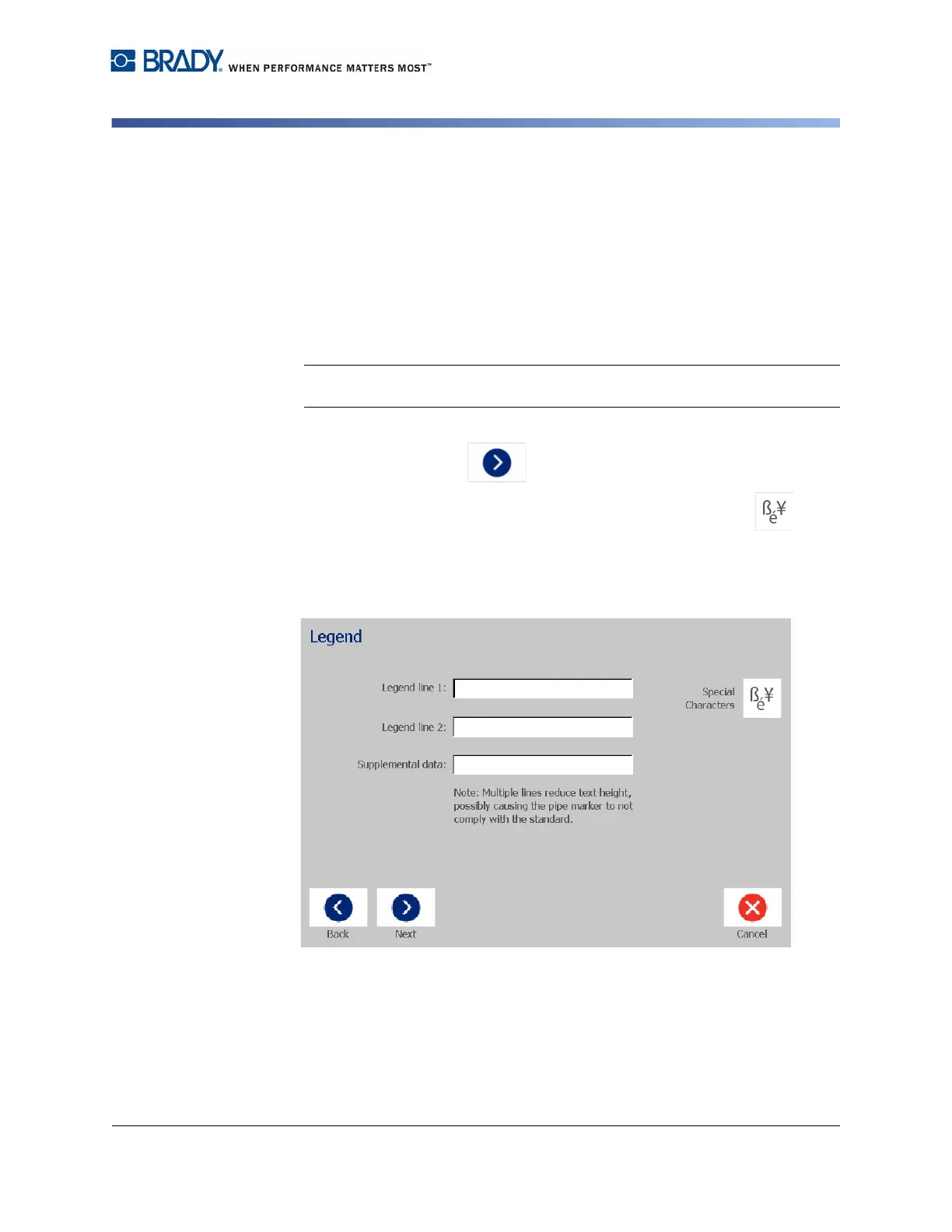
3. In the Legend dialog, enter the text you want to appear on the label, then
touch the Next button.
4. To enter special characters, click the Special Characters button , then
enter the character(s). See “Entering Special Characters” on page 53 for
more detail.
If too many characters per line are used, a message will display prompting
you to edit the text or lengthen the pipe marker.














 To Next Page