CS 7600_User Guide (8J4071)_Ed04 81
Update Scanner
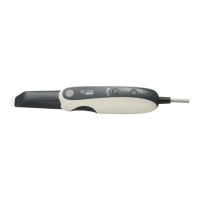
There are two options for updating the scanner embedded software:
• Using USB storing device plugged into the USB socket located at the back of the system. Not all
USB devices are recognized by the scanner
• By using the scanner manager tool
Updating the Scanner using the USB Storage Device
To upgrade the scanner by using a USB storage device proceed with the following steps:
1 Copy the file Reader_Embedded_xxx.upgrade from the Installation disc located in the UPGScanner
folder or from CS 7600 folder at http://infotec.carestreamdental.com to USB storage device. Make sure
to use only the relevant file from the installation disc.
2 Press simultaneously on the On/Off button, and on the extreme left and right navigation buttons of the
scanner.
3 Wait until Starting appears on the LCD display and then release the buttons.
4 The process starts automatically and continues until you are requested to reset the scanner.
5 In order to check that the scanner is updated to the desired software version, click on the right button
sign with “?”
6 Disconnect the USB storage device, and continue to work with normal operation mode.
Important: Updating the Scanner is to be performed under direct
supervision of a dental service engineer.
Note: Not all USB devices are recognized by the scanner. Therefore we
suggest that you update the scanner using the scanner manager tool.
Note: Before starting this procedure make sure that the system is turned off.
Not all USB devices are recognized by the scanner.






 To Next Page