INS_CNGE3FE8MS[POE][HO] Rev. 11.7.17 PAGE 115
INSTRUCTION MANUAL CNGE3FE8MS[POE][HO]
TECH SUPPORT: 1.888.678.9427
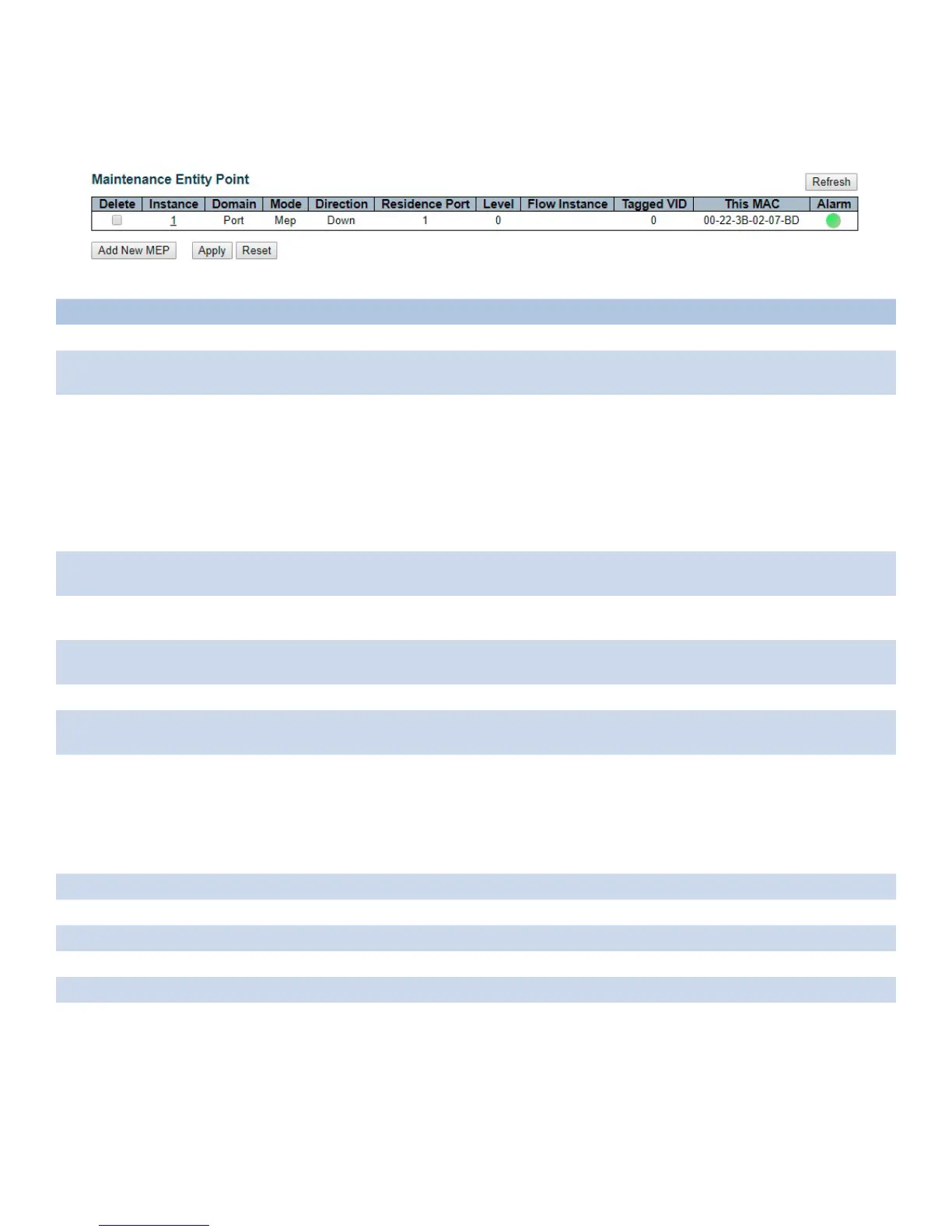
MEP
The Maintenance Entity Point instances are configured here.
Object Description
Delete This box is used to mark a MEP for deletion in next Save operation.
Instance The ID of the MEP. Click on the ID of a MEP to enter the configuration page. The range is from 1
through 100.
Domain Port: This is a MEP in the Port Domain.
EVC: This is a MEP in the EVC Domain. 'Flow Instance' is an EVC. The EVC must be created
VLAN: This is a MEP in the VLAN Domain. 'Flow Instance' is a VLAN. In case of Up-MEP the VLAN
must be created
MPLS Link: This is a MEP in the MPLS Link Domain.
MPLS Tunnel: This is a MEP in the MPLS Tunnel Domain.
MPLS PW: This is a MEP in the MPLS Pseudo Wires Domain.
MPLS LSP: This is a MEP in the MPLS LSP Domain.
Mode MEP: This is a Maintenance Entity End Point.
MIP: This is a Maintenance Entity Intermediate Point.
Direction Down: This is a Down MEP - monitoring ingress OAM and traffic on 'Residence Port'.
Up: This is a Up MEP - monitoring egress OAM and traffic on 'Residence Port'.
Residence Port The port where MEP is monitoring - see 'Direction'. For a EVC MEP the port must be a port in the
EVC. For a VLAN MEP the port must be a VLAN member.
Level The MEG level of this MEP.
Flow Instance The MEP is related to this flow - See 'Domain'. This is not relevant and not shown in case of Port
M EP.
Tagged VID Port MEP: An outer C/S-tag (depending on VLAN Port Type) is added with this VID. Entering '0'
means no TAG added.
EVC MEP: This is not used.
VLAN MEP: This is not used.
EVC MIP: On Serval, this is the Subscriber VID that identify the subscriber flow in this EVC where
the MIP is active.
This MAC The MAC of this MEP - can be used by other MEP when unicast is selected (Info only).
Alarm There is an active alarm on the MEP.
Add New MEP Click to add a new MEP entry.
Refresh Click to refresh the page immediately.
Apply Click to apply changes.
Reset Click to undo any changes made locally and revert to previously saved values.


 To Next Page