EasyManua.ls Logo

Compaq Armada 7700 - Page 168

Compaq Armada 7700
225 pages
Print Icon
To Next Page IconTo Next Page
To Previous Page IconTo Previous Page
Loading...
Troubleshooting 16-11
Writer: Karen Williams Saved by: Cheryl Love Saved date: 09/05/97 2:45 PM
Part Number: 220709-003 File name: Ch16.doc
Solving Display Problems
Continued
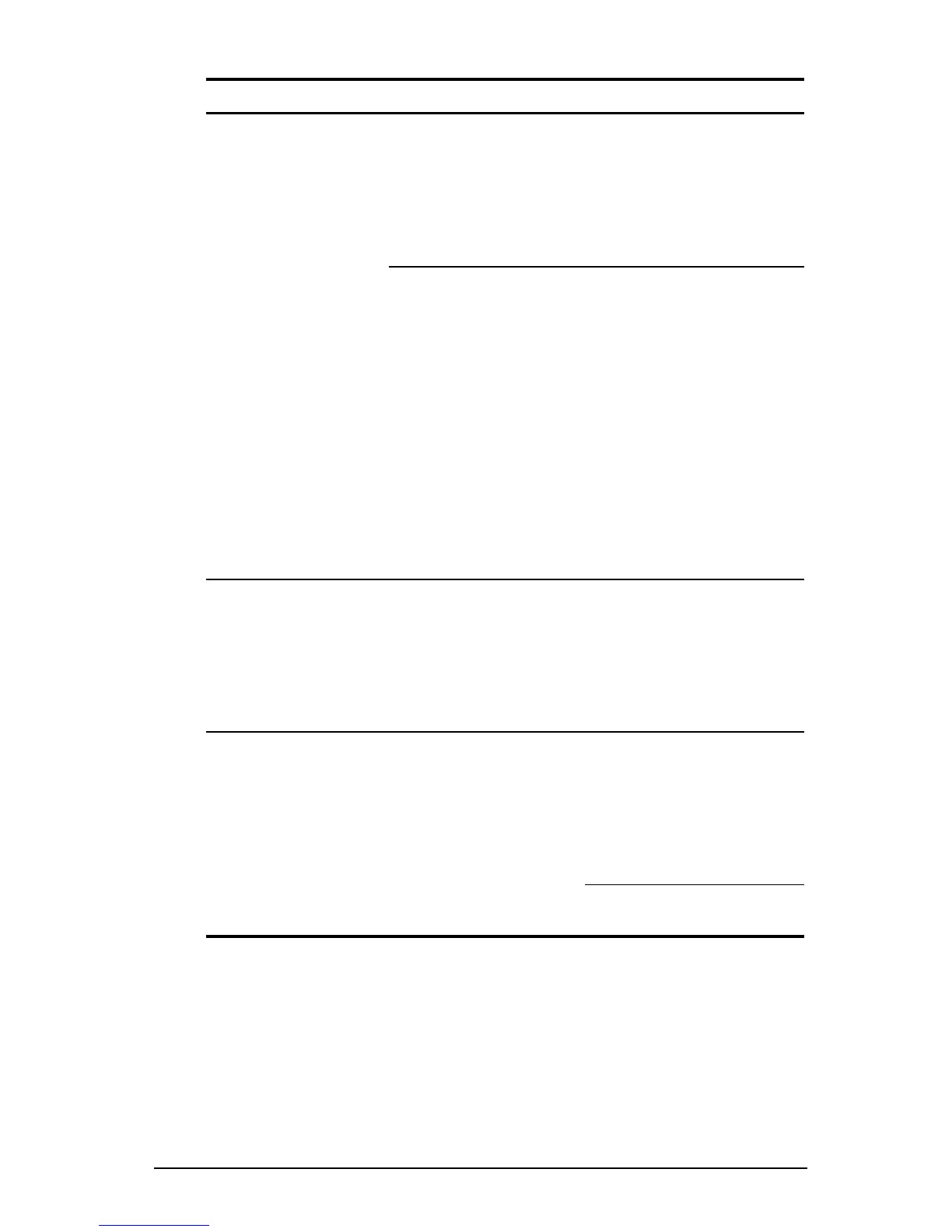
Problem Possible Cause Solution
Display on an
external monitor is
distorted.
Incorrect display
device drivers are
installed or incorrect
resolution is set.
Click Start
Æ
Settings
Æ
Control Panel
Æ
double-click the Display
icon. Then set the
correct display type and
resolution for the
external monitor.
The external monitor
is not Energy Star-
compliant, but monitor
energy-saving feature
is enabled.
1. Press any key or
move the pointing
device to restore the
display.
2. If display remains
distorted, turn
monitor off, then on.
3. Disable the monitor
energy-saving
feature. For
instructions, refer to
“Enabling Energy-
Saving Features” in
Chapter 7.
Small red, green, or
blue spots appear
on the computer
TFT display.
Small spots, called
on-pixels, often
appear on TFT
screens. Compaq
limits the number of
these on-pixels to
0.003 percent.
This is typical; no action
is required.
The image has a
black border
and does not fill
the screen.
The Desktop Area
setting is smaller than
the Resolution setting.
Click Start
Æ
Settings
Æ
Control Panel
Æ
double-click the
Display icon
Æ
Settings
tab
Æ
Compaq tab. Then
adjust the Desktop Area
and Resolution settings.
Press
Fn+T
to expand
the image.

Table of Contents

Related product manuals