Using Battery Packs 5-3
Writer: Karen S. Williams Saved by: Cheryl Love Saved date: 09/05/97 2:33 PM
Part Number: 220709-003 File name: Ch05.doc
Using Battery Gauge
The battery gauge hotkey,
Fn+F8
, displays a popup window that
shows the charging status and the percent of a full charge
remaining on each battery pack in the system. It also shows the
percent of a full charge remaining in the system.
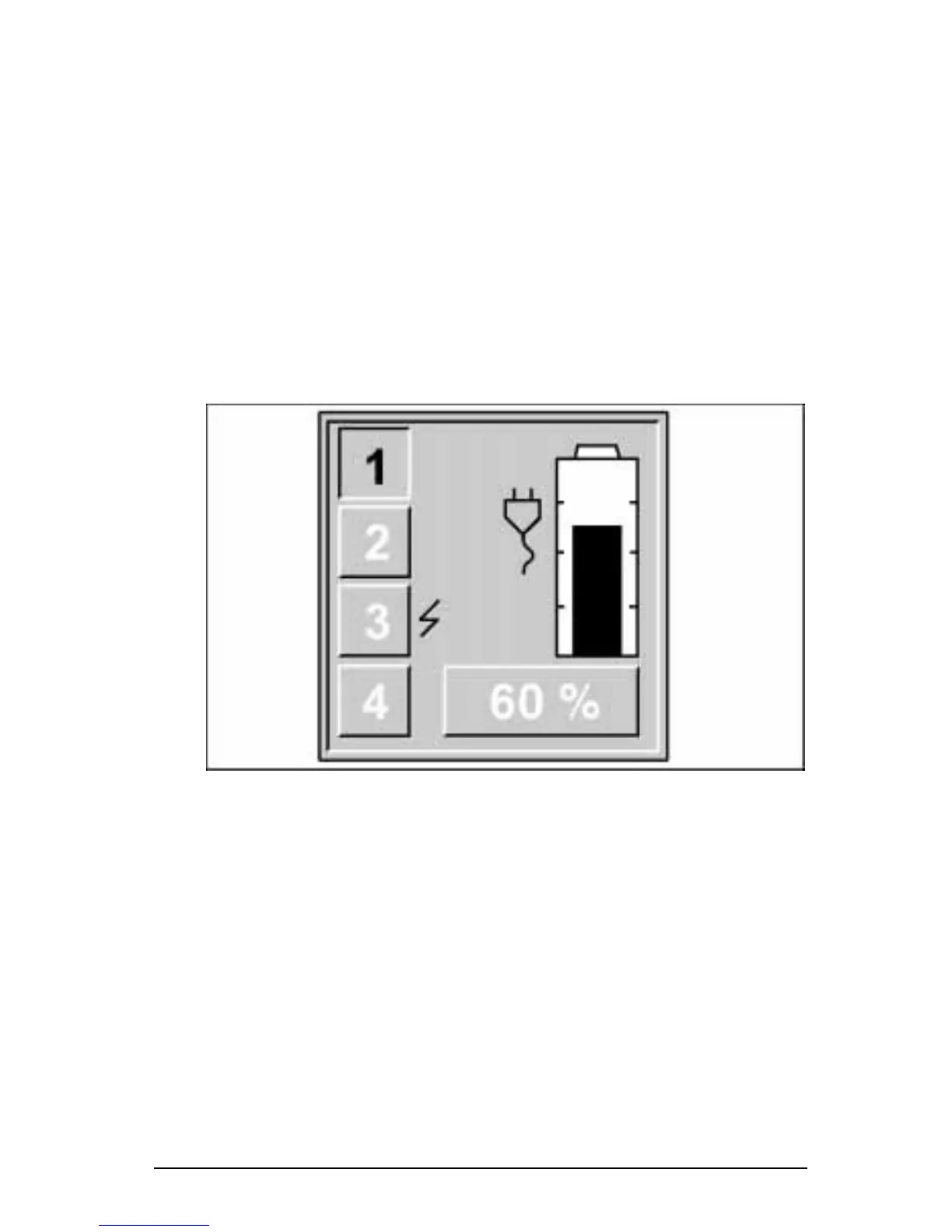
While a battery pack is charging, the battery gauge popup window
shows a lightening bolt icon beside its location number. For
location number information, refer to “Monitoring Battery Pack
Activity” earlier in this chapter.
The battery gauge popup window shows the percent of a full
charge remaining in the battery pack at the selected location both
graphically and as a percentage. A power cord plug icon displays
when the computer is connected to external power.
Battery Gauge Popup Window
In the illustration above, the battery pack in location 3 (the battery
charging bay in the Armada MiniStation EX or the right MultiBay
in the ArmadaStation) is charging, the battery in location 1 (the
computer battery bay) has 60 percent of its charge remaining, and
the computer is running on external power.
Use the up and down cursor keys to select the location number of
the battery pack you want to monitor. The location numbers of
bays that do not contain battery packs are not selectable.
If you do not press a cursor key within 5 to 7 seconds after
displaying the battery gauge popup window, the graphic and the
percentage displays show the charge remaining in the system.




 To Next Page