User's Manual
169
8.1.3.4 Configuring OSD
Set OSD information on the video.
Procedure
Step 1 Log in to the PC client.
Step 2 Click on the upper-right corner of the page and then click
Access Management
.
You can also click
Access Management
from the configuration list on the home page.
Step 3 Select a remote device from the device tree and then click the
OSD
tab.
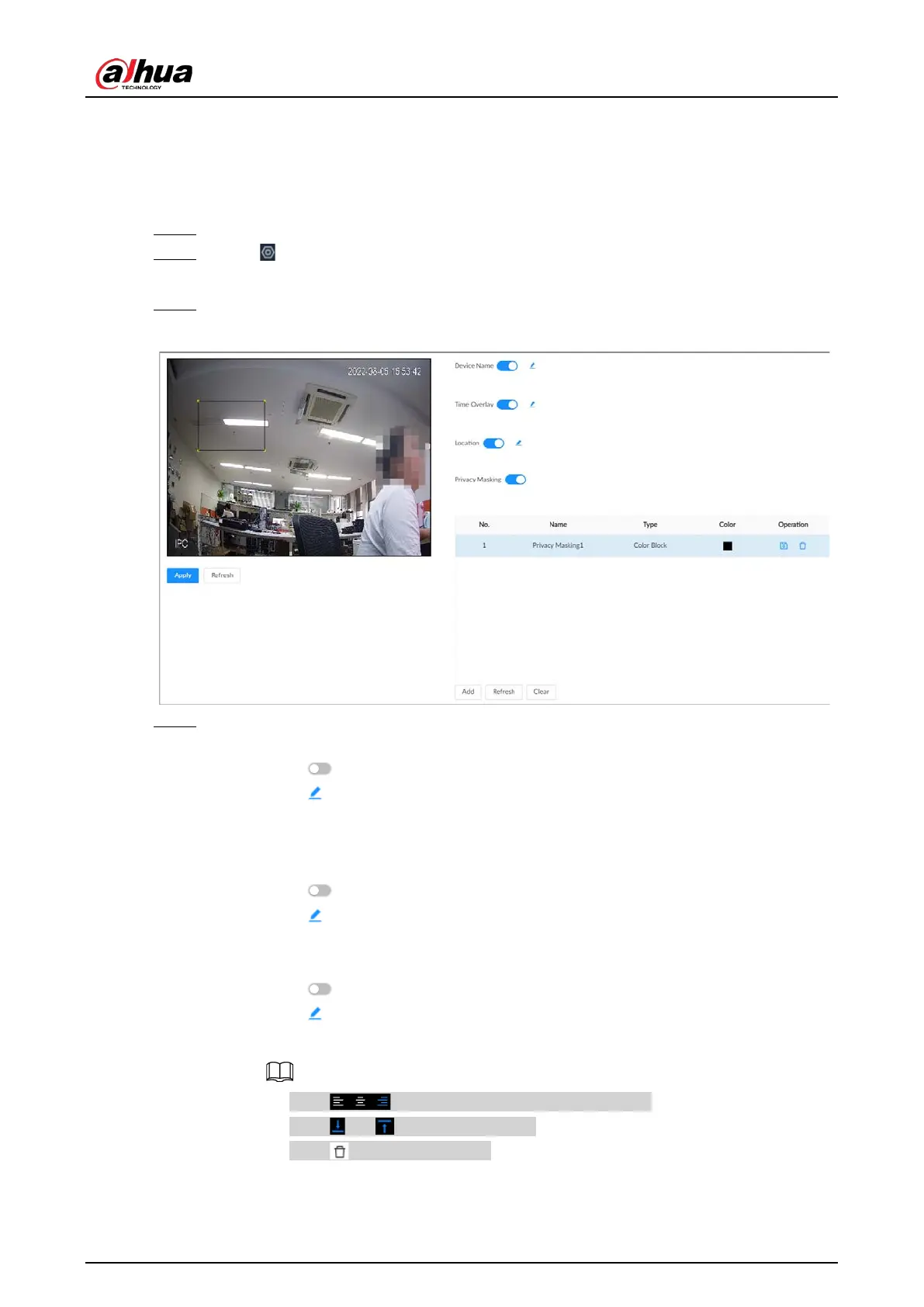
Figure 8-8 OSD
Step 4 Configure OSD information.
●
Device name.
1. Click to enable OSD of device name.
2. Click .
3. Enter the device name.
4. Drag the text box to the proper position.
●
Time.
1. Click to enable OSD of time.
2. Click .
3. Drag the text box to the proper position.
●
Geographical position
1. Click to enable OSD of geographical position.
2. Click .
3. Enter the geographical position information.
◇
Click to adjust the alignment of text boxes.
◇
Click or to create a text box.
◇
Click to delete a text box.
4. Drag the text box to the proper position.
●
Set privacy masking


 To Next Page
 Loading...