ineo+ 650/550/451 2-123
Copy Operations
2
6 Check the scanning size under "Scan Range", touch [OK], and then touch [Close] in the next screen
that appears.
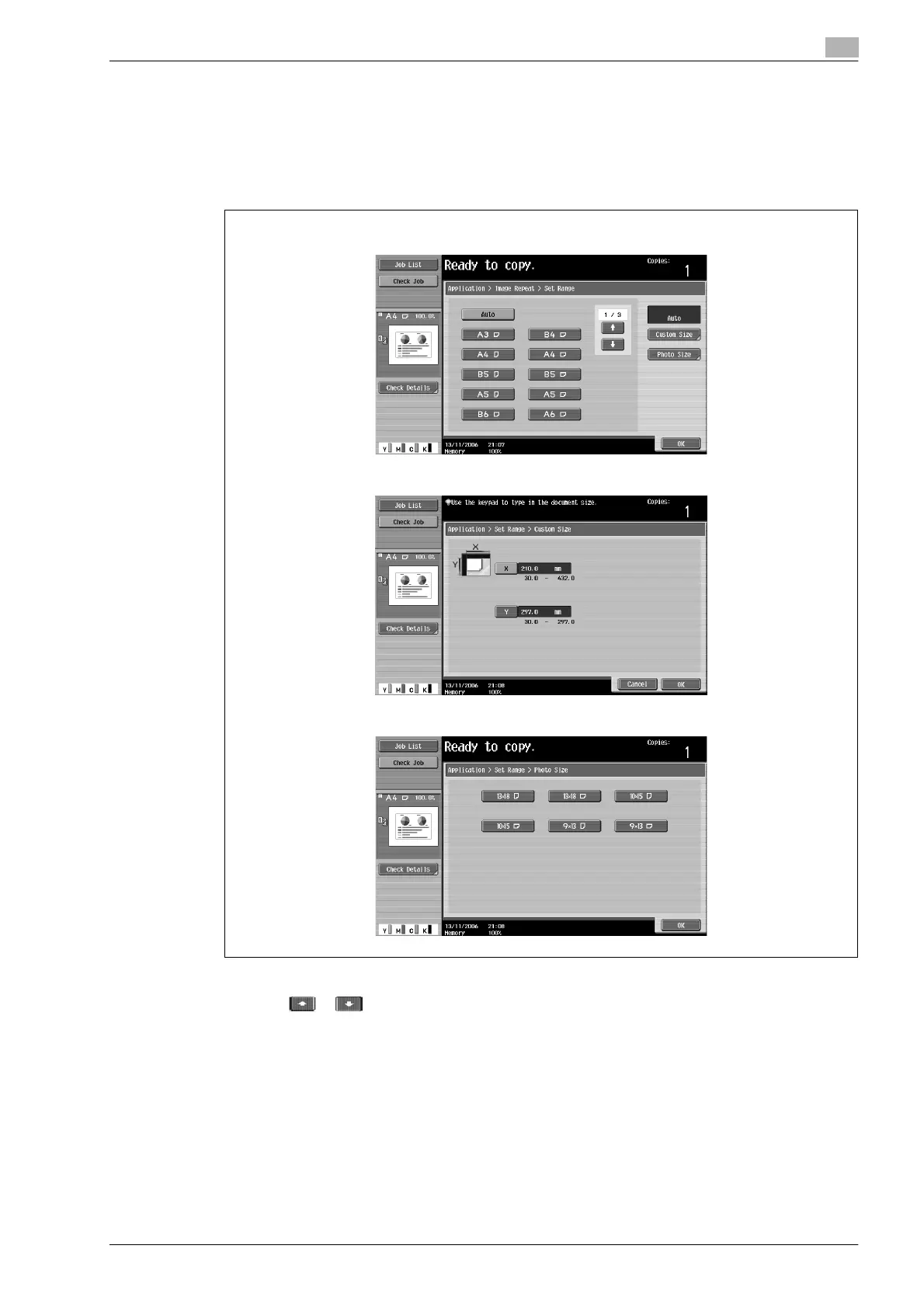
– If the document size does not appear under "Scan Range" or to specify the scanning area, touch
[Set Range], and then specify the scanning area from any of the screens.
– Touch [Photo Size] to display the Photo Size screen.
To cancel changes to the settings, touch [Cancel].
?
Can sizes in inches be displayed?
% Touch or to display a different list of sizes.
?
Can any size be specified?
% Any size can be specified from the Custom Size screen. Touch [X] or [Y] to select the dimension,
and then use the keypad to specify the correct value. (To enter a value, press the [C] (clear) key, and
then use the keypad to type in the new value.)
?
What happens when a value outside of the allowable range is specified?
% The message "Input error" appears. If "Input error" appears or if the value was incorrectly entered,
press the [C] (clear) key in the keypad, and then specify the correct value.
Set Range screen
Custom Size screen
Photo Size screen









 To Next Page