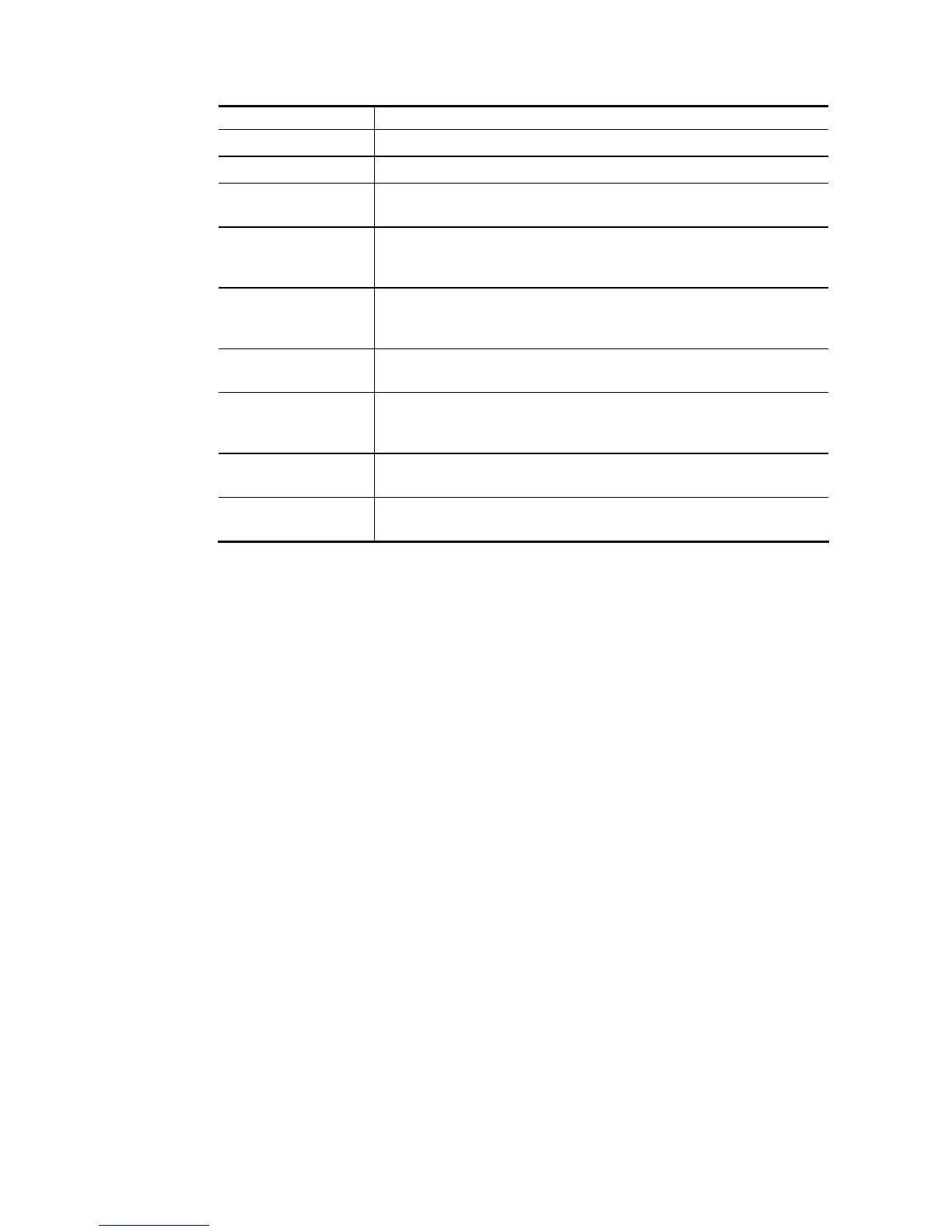
Background page background scheme.
Login Page URL Enter the URL for the login page.
Browser Tab Title Enter the text to be shown as the webpage title in the browser.
Logo Image The DrayTek Logo will be displayed by default. However, you can
enter HTML text or upload an image to replace the default logo.
Logo Background
Color
Select the background color of the logo from the predefined color
list, or select Customize Color and enter the RGB values. Click
Preview to preview the selected color.
Login Method
Background Color
Select the background color of the login panel from the predefined
color list, or select Customize Color and enter the RGB value.
Click Preview to preview the selected color.
Opacity (10 ~ 100) Available when Image Background is selected. Set the opacity of
the background image.
Background Image Available when Image Background is selected. Click Browse… to
select an image file (.JPG or .PNG format), then click Upload to
upload it to the router.
Save and Next Click to save the configuration on this page and proceed to the
next page.
Cancel Click to abort the configuration process and return to the profile
summary page.
If you have selected Skip Login as the Login Mode, proceed to Step 4 Whitelist Setting;
otherwise, continue to Step 3 Login Page Setup.
3
3
.
.
L
L
o
o
g
g
i
i
n
n
P
P
a
a
g
g
e
e
S
S
e
e
t
t
u
u
p
p
In this step you can configure settings for the login page.
C
C
l
l
i
i
c
c
k
k
T
T
h
h
r
r
o
o
u
u
g
g
h
h
This section describes the Login Page setup if you have selected Click Through as the Login
Mode.







 To Next Page