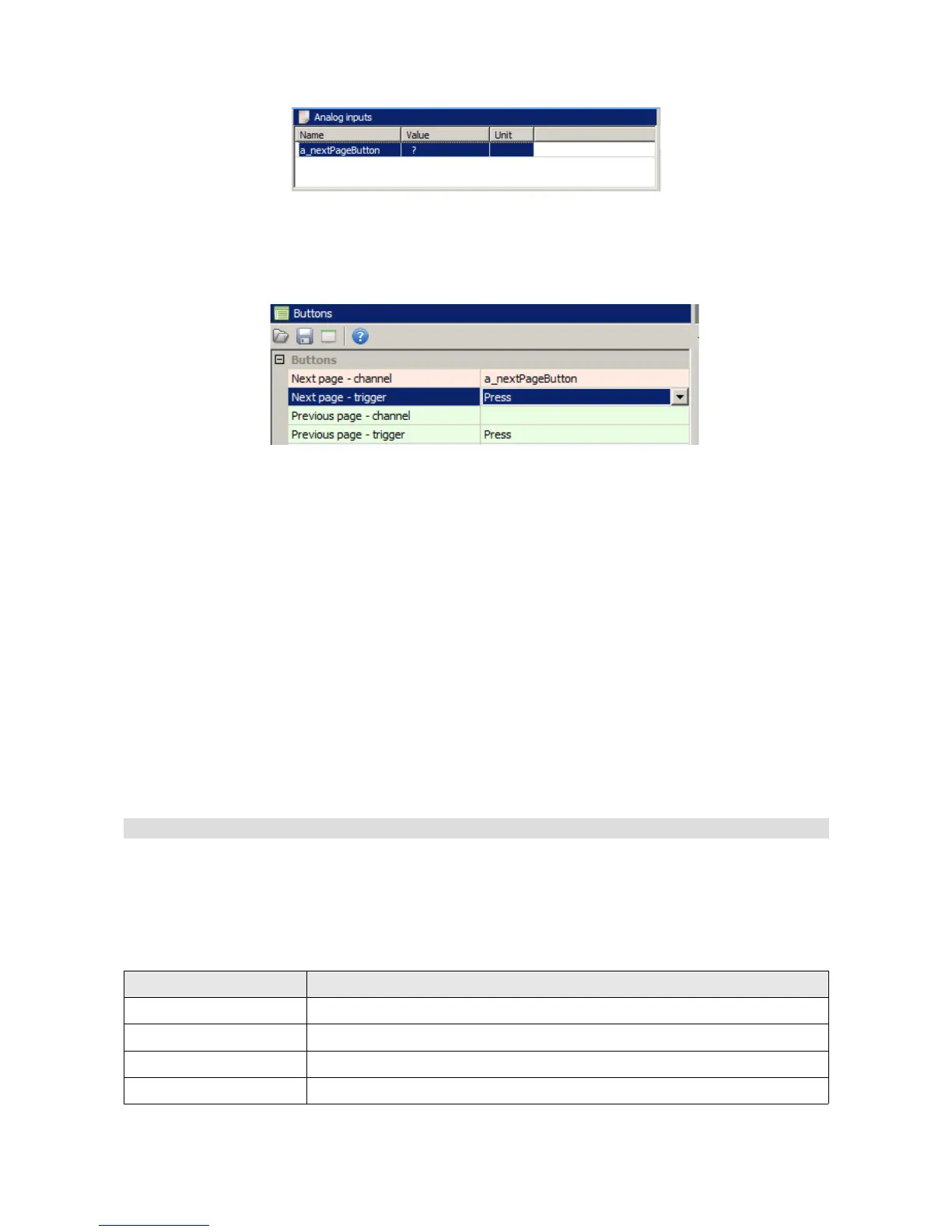
Analogue inputs). The value of the button should equal 0 when not pressed and 1 when pressed.
Before a defined button can be used, it must be assigned in the Buttons panel for switching from
one page to the next (Next page - channel). It should be noted that after pressing the button the
last page switches to the first one. You can use the buttons only to switch between the Page-type
pages. Overlay pages are ignored.
Similarly, you can connect another button and assign it to the function of switching to the previous
page (Previous page)
Another method of switching between pages is to use the Activation channel page attribute. It is
available after selecting a page in the Page editor together with the attributes such as the name,
background colour or type.
The main use for this type of switching is Overlays. They allow the application of an overlay (of
another page) on the currently displayed page whenever an event occurs. To do this, a function
that will activate the overlay needs to be created. It will be visible as long as the function result
differs from 0.
Another method of switching between pages is to use a Rotary switch. You can define a function
and assign it to the Activation channel attribute for each of its positions.
Startup screen
You can create a startup screen that will appear immediately after switching the device on and will
be displayed for a defined time. To do this, configure the Startup Screen parameters in the
Configuration pane.
Parameter Description
Enable Activates the startup screen
Texture The texture that will be displayed on the startup screen (centred)
Scale The scale of the displayed texture
Duration The duration which the startup screen will be displayed
Page 50/137


 To Next Page