Analyzer User Guide
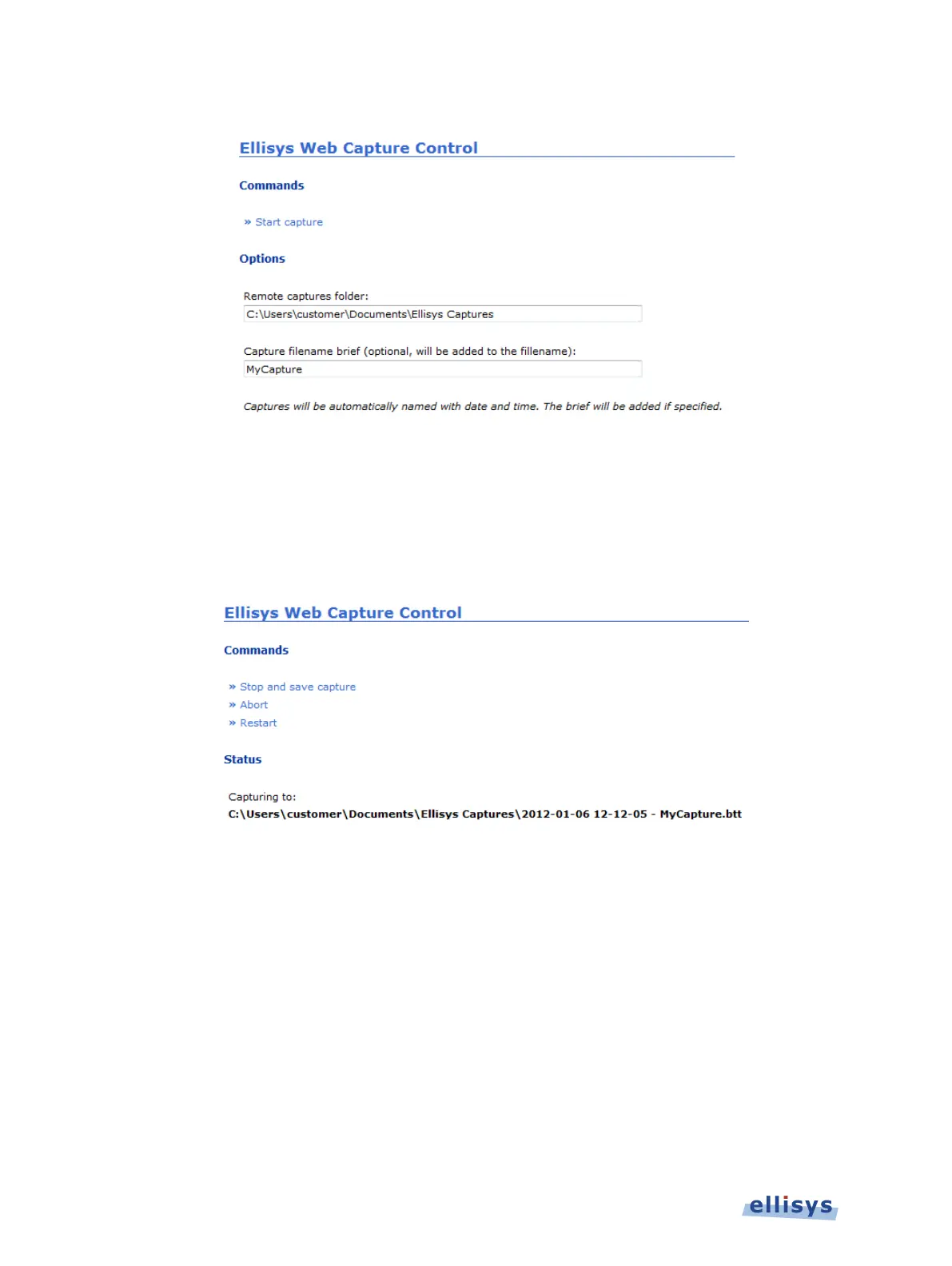
The page updates as shown below.
3. Select a folder destination for the remote captures.
4. If desired, add a filename brief.
5. Select Start Capture.
The capture is now started and the page updates as below:
6. Select Stop and Save Capture, Abort, or Restart as needed.
If the capture is saved, the capture file will be saved to the destination previously specified. If
aborted, the capture is stopped and not saved. If restarted, the capture restarts without saving
the prior capture.
To change the default port:
1. Select Tools | Options from the menu.
74 of 201 | Capturing Traffic



 To Next Page