EnGenius EOC1650 Wireless Access Point / Client Bridge Version 2.0
13
4 AccessPointOperatingMode
4.1 LoggingIn
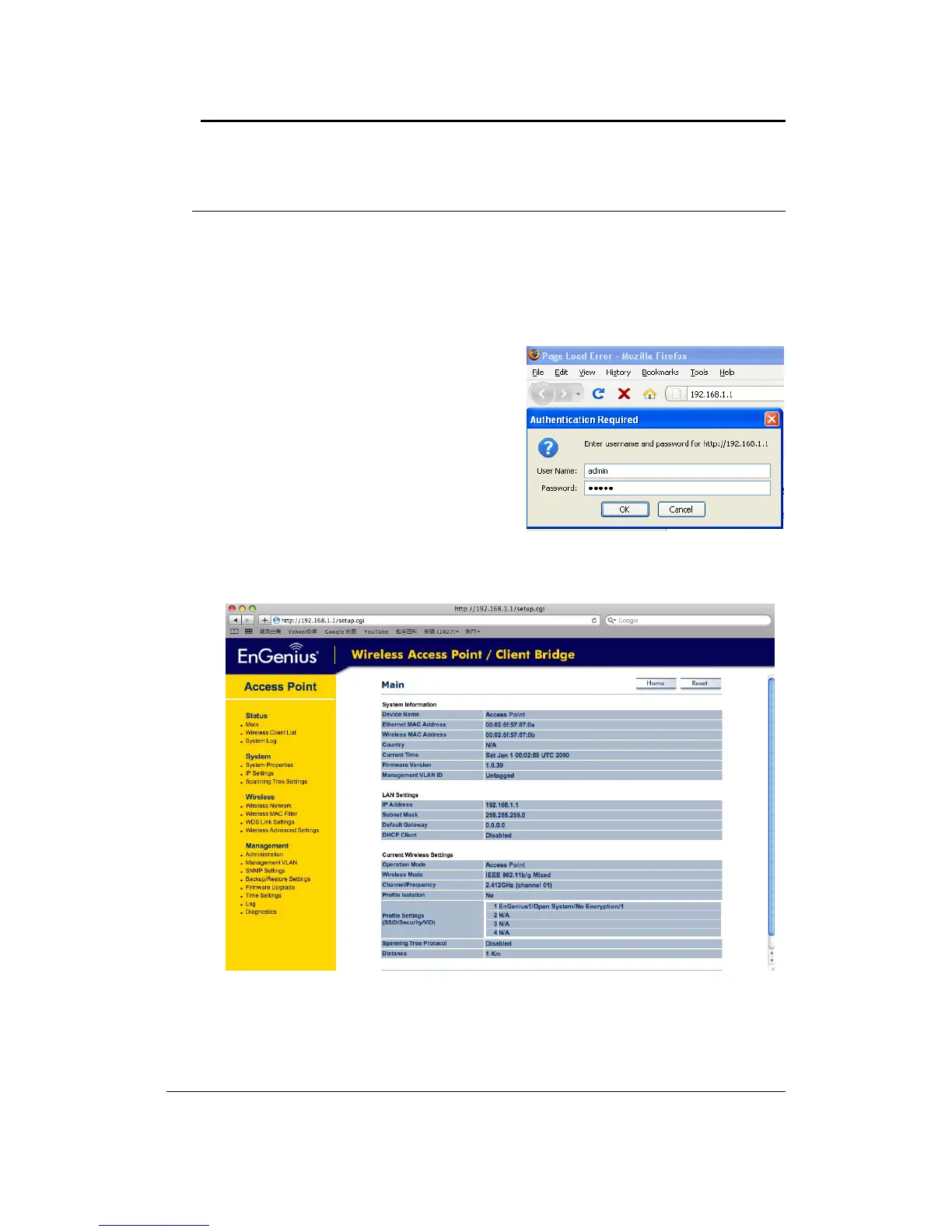
To configure the device through the web‐browser, enter the IP address of the device (default:
192.168.1.1)intotheaddressbaroftheweb‐browserandpressEnter.
Make sure that the device and your computers are configured on the same subnet. Refer to
Chapter2inorder
toconfiguretheIPaddressofyourcomputer.
After connecting to the IP address, the web‐
browserwilldisplaytheloginpage.
Specify admin for both the user name and
password.
After logging in you will graphical user interface
(GUI) of the device. The navigation drop‐down
menuonleftisdividedintofoursections:
1. Status: Displays the overall status, connection
status,andeventlog.
2. System: This menu includes the system
properties,IPandSpanningTreesettings.
3. Wireless:Thismenuincludesnetworksetting,MACfilter,WDSlink,advanced,andsecurity.
4. Management:This
menuincludestheadminsetup,SNMP,firmwareupgrade,diagnostics,time
settingandsave/restorebackup.


 To Next Page