EnGenius EOC1650 Wireless Access Point / Client Bridge Version 2.0
26
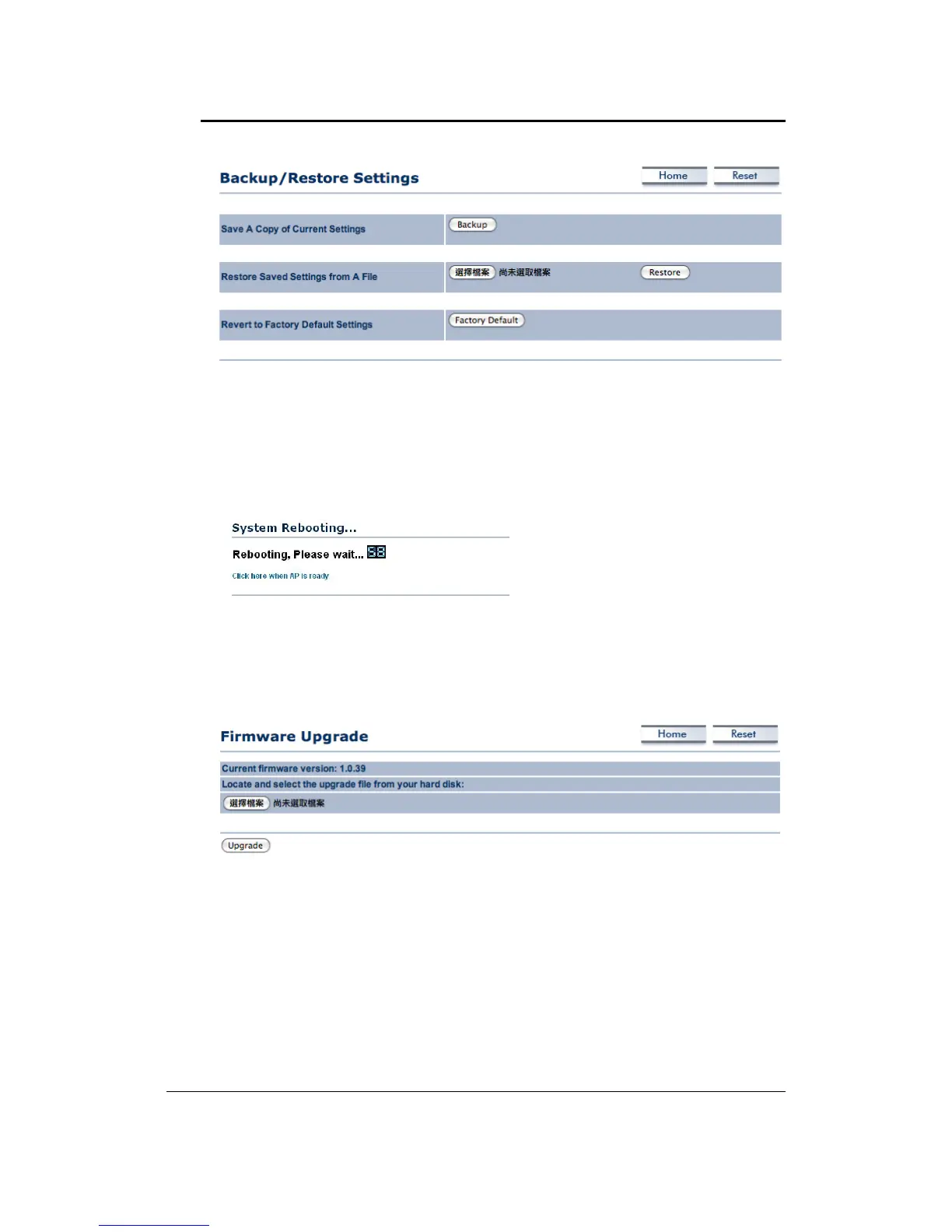
Saveacopyofthecurrentsettings:ClickontheBackupbuttontosavethecurrentconfiguration.
Restoresavedsettingsfromafile:Onceafilehasbeenbackedup,youmayrestoreitbyclicking
ontheBrowsebuttontoselectthefile,andthentheRestore
button.
Revert to factory default settings: Click on the Factory Default Settings button to reset the
device to the default settings. Please wait while the device restart and then access the device
usingthedefaultIPaddress:192.168.1.1
4.5.5 FirmwareUpgrade
ClickontheUpgradeFirmwarelinkundertheManagementmenu.Thispageisusedtoupgrade
the firmware on the device. Make sure that downloaded the appropriate firmware from your
vendor.
Click on the Browse button and then select the appropriate firmware and then click on the
Upgradebutton.
Note:Theupgradeprocess maytakeabout1 minutetocomplete.Do not poweroffthedevice
during this process as it may crash the device and make it unusable. The
device will restart
automaticallyoncetheupgradeiscomplete.
4.5.6 TimeSettings
ClickontheTime SettingslinkundertheManagementmenu.Thispageallowsyoutoconfigure
thetimeonthedevice.YoumaydothismanuallyorbyconnectingtoaNTPserver.


 To Next Page