EnGenius EOC1650 Wireless Access Point / Client Bridge Version 2.0
42
6 WDSBridgeOperatingMode
6.1 LoggingIn
To configure the device through the web‐browser, enter the IP address of the device
(default:192.168.1.1)intotheaddressbaroftheweb‐browserandpressEnter.
Makesurethatthedeviceandyourcomputersareconfiguredonthesamesubnet.Referto
Chapter2inordertoconfiguretheIPaddressofyourcomputer.
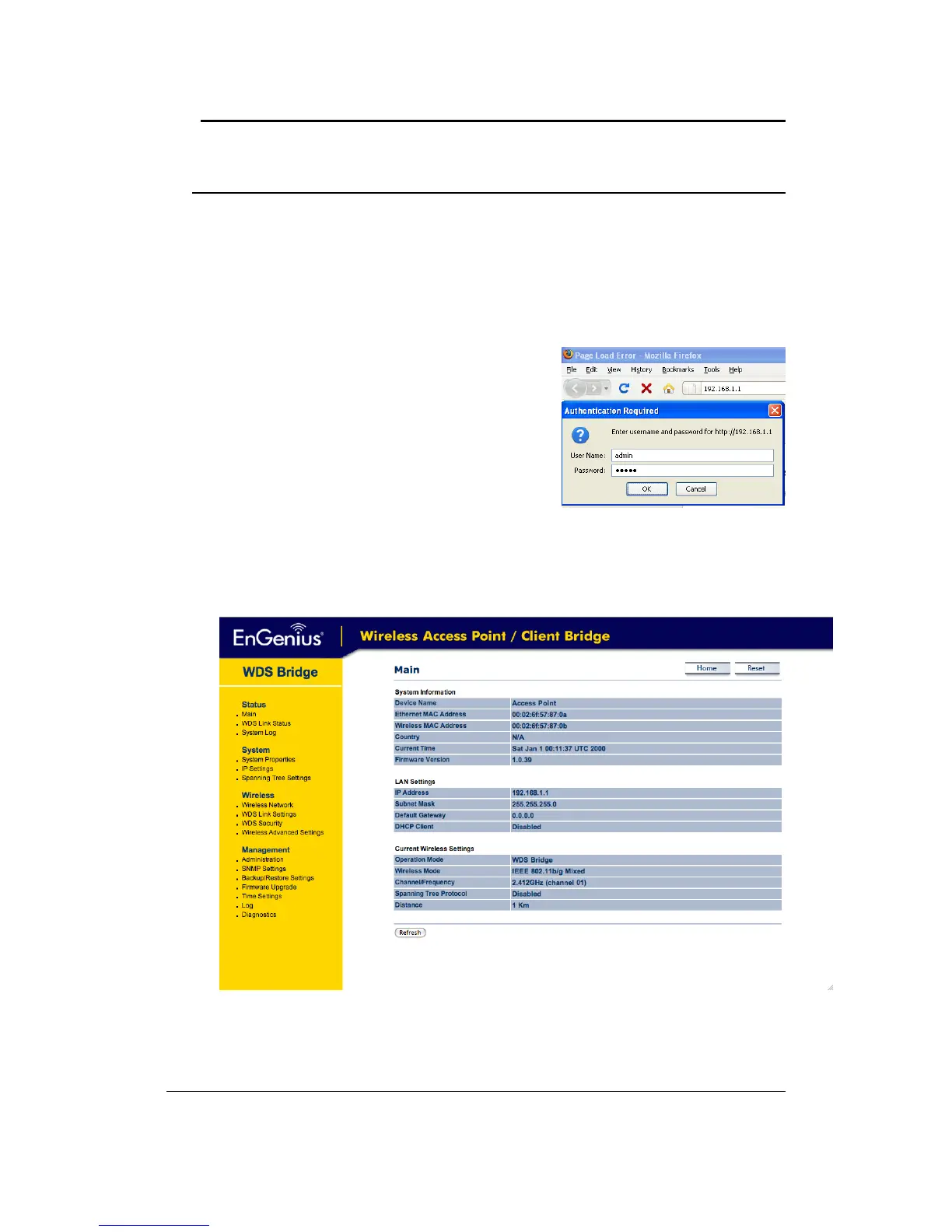
After connecting to the IP address, the web‐browser
willdisplaytheloginpage.
Specifyadminforboththeusernameandpassword.
Afterlogginginyouwillgraphicaluserinterface(GUI)
ofthedevice.Thenavigationdrop‐downmenuonleft
isdividedintofoursections:
1. Status: Displays the overall status, WDS link status
andsystemlog.
2. System: This menu includes the system properties,
IPandSpanningTreesettings.
3. Wireless: This menu includes network setting, WDS link setting, WDS security and
advancedsetting.
4.
Management:Thismenuincludestheadminsetup,SNMP,firmwareupgrade,timesetting,
diagnosticsandsave/restorebackup.


 To Next Page