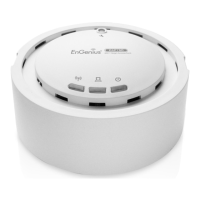
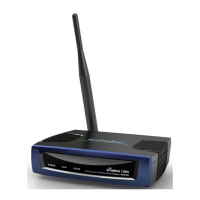
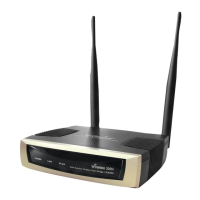
EnGenius EOC1650 Wireless Access Point / Client Bridge Version 2.0
33
device to use a static IP address. In this case, you would be required to specify an IP address,
subnetmask,anddefaultgatewayIPaddress.
IPAddress:SpecifyanIPaddress
IPSubnetMask:SpecifythesubnetmaskfortheIPaddress
DefaultGateway:Specify
theIPaddressofthedefaultgateway.
ClickontheApplybuttontosavethechanges.
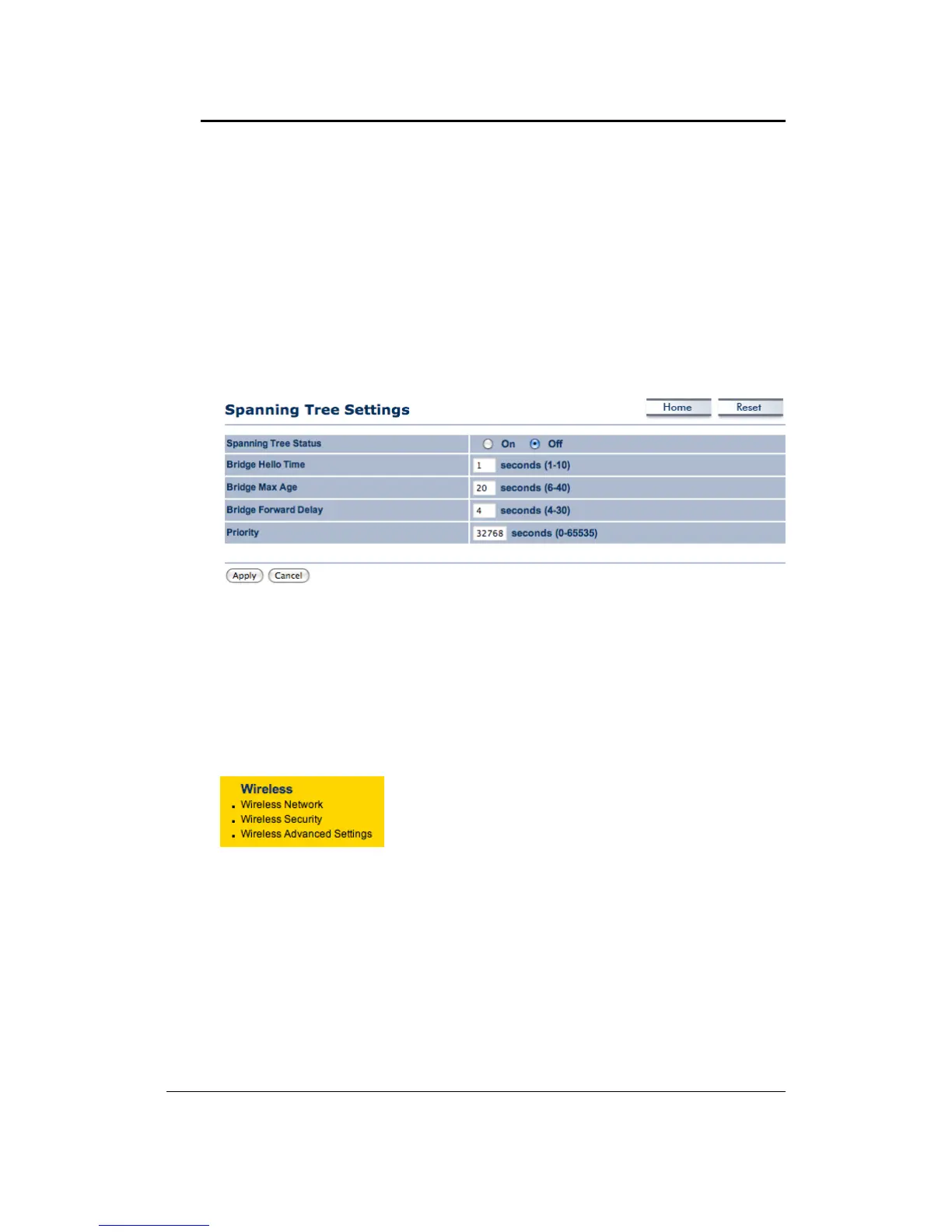
5.3.3 Spanning TreeSettings
ClickontheSpanning Tree link undertheSystemdrop‐down menuSpanning‐TreeProtocol is a
linkmanagementprotocolthatprovidespathredundancywhilepreventingundesirableloopsin
thenetwork.
SpanningTreeStatus:Choosetoenableordisablethespanningtreefeature.
BridgeHelloTime:Specifythenumberofsecondsforthehellotime.
BridgeMaxAge:Specifythenumberofsecondsforthemaxage.
BridgeForwardDelay:Specifythenumberofsecondsfor
thebridgeforwarddelay.
Priority:Specifythenumberofsecondsforthepriority.
ClickontheApplybuttontosavethechanges.
5.4 Wireless
Click on the Wireless link on the navigation drop‐down
menu.Youwillthen seethreeoptions:wirelessnetwork,
wireless security, and wireless advanced settings. Each
optionisdescribedbelow.
5.4.1 WirelessNetwork
The Wireless Network page allows you to configure the wireless mode, channel, SSID, and
securitysettings.


 To Next Page