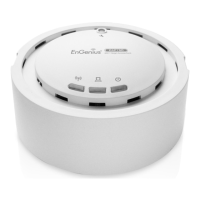
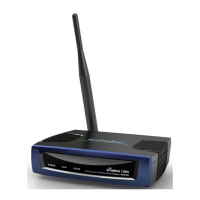
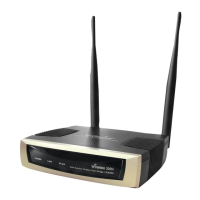
EnGenius EOC1650 Wireless Access Point / Client Bridge Version 2.0
30
5.2 Status
Click on the Status link on the navigation drop‐down
menu.Youwillthenseethreeoptions:Main,Connection
Status,andSystemLog.Eachoptionisdescribedindetail
below.
5.2.1 Main
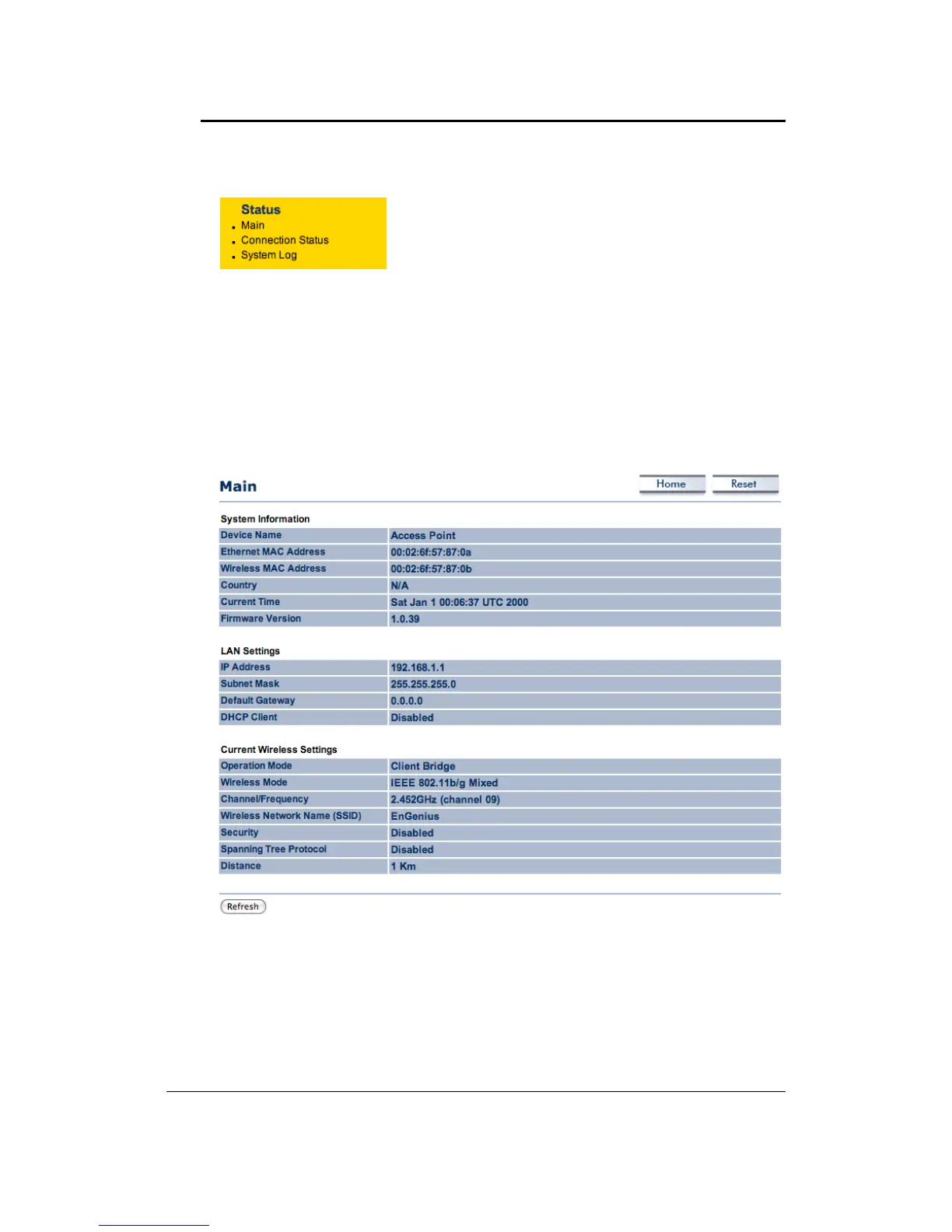
Click on the Main link under the Status drop‐down menu. The status that is displayed
corresponds with the operating mode that is selected. Information such as device name,
firmware version, MAC address, country and current time are displayed in the ‘System
Information’section.IPaddress,subnetmask,defaultgateway
andDHCPclientaredisplayedin
the ‘LAN Settings’ section. In the ‘Current Wireless Settings’ section, the operation mode,
wirelessmode,channel/frequency,SSID,securityanddistancearedisplayed.
5.2.2 ConnectionStatus
Click on the Connection Status link under the Status drop‐down menu. This page displays the
currentstatus ofthe network,including network type, SSID,BSSID,connectionstatus,wireless
mode,currentchannel,security,datarate,noiselevelandsignalstrength.


 To Next Page